Comparisons
The Best IPTV Player Apps Compared: Which One Suits Your Device in 2026
The best IPTV player app depends on your device. We compare TiviMate, IPTV Smarters, IBO Player and others on guide, catch-up, multi-view and cost.
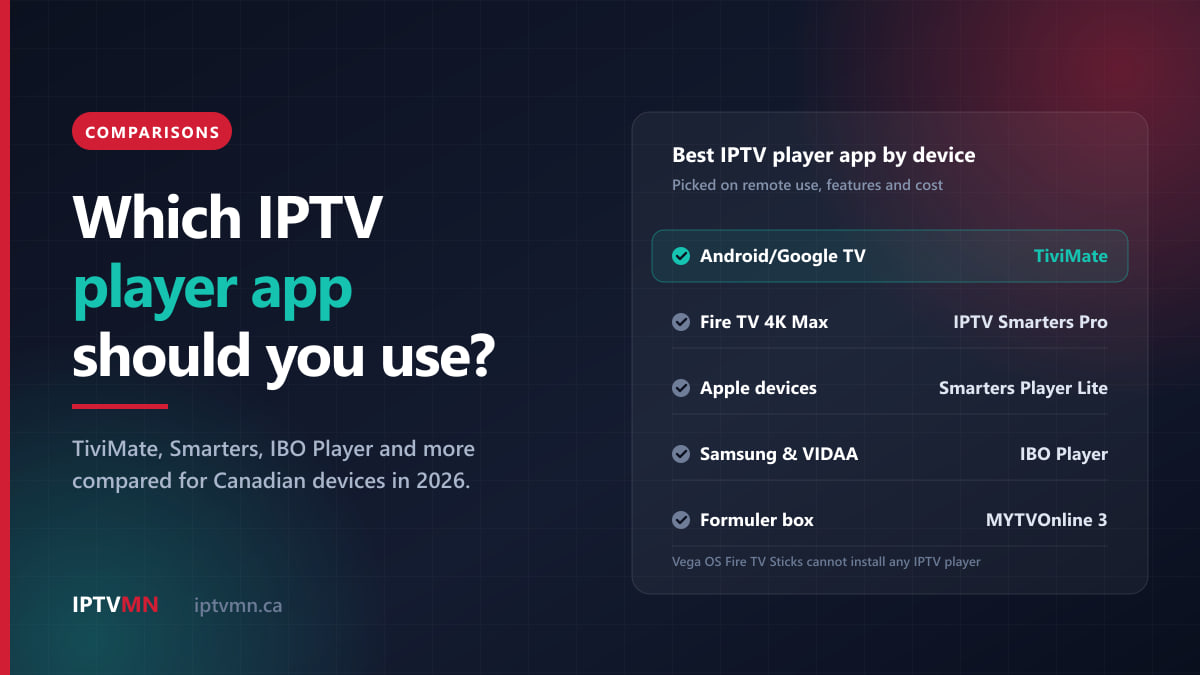
The best IPTV player app is the one built for the device you already own. On Android TV, Google TV and an Nvidia Shield, TiviMate is the most comfortable app to drive with a remote. On a Fire TV Stick 4K Max, IPTV Smarters Pro is the free all-rounder. Apple TV, iPhone and iPad owners should start with Smarters Player Lite from the App Store, and Samsung, LG and VIDAA televisions run apps from their own stores, such as IBO Player, with no extra box.
A player app holds no channels of its own. It is the screen you use to open the login IPTV MN sends you, and it decides how the programme guide looks, whether catch-up and multi-view are available, and how quickly menus respond. This comparison sets out what each app does well, what it costs, and who it does not suit.
The short answer
- Android TV, Google TV and Nvidia Shield: TiviMate. The free version covers live TV and the full guide; the paid Premium tier adds catch-up, recording and multi-view.
- Fire TV Stick 4K Max or 4K Plus: IPTV Smarters Pro. Free, with catch-up and multi-screen included.
- Apple TV, iPhone, iPad and Mac: Smarters Player Lite, free from the App Store, with no sideloading.
- Samsung, LG and VIDAA smart TVs: the player in the TV’s own store: IBO Player or Smarters Player Lite on Samsung, IPTV Smarters Pro on LG and IBO Player Pro on VIDAA.
- Formuler and BuzzTV boxes: the player that came on the box, MYTVOnline 3 or BuzzTV Player.
- Windows: VLC for a quick test, then IPTV Smarters for Windows for a proper guide.
- Roku: an M3U player channel. It works, but it is the most limited option.
Every one of these opens the same IPTV MN subscription, so you can try two of them during the free 24-hour trial and keep the one you like.
What does an IPTV player app actually do?
Think of it like email. Your provider runs the mailbox, and the app on your phone is simply how you read it. IPTV MN runs the servers in Toronto and Montreal and supplies the channels; the player app is how you browse and watch them.
Your subscription arrives in two forms: an Xtream Codes login (a server address, a username and a password) and an M3U playlist link. The player reads one of them, downloads the channel list and the seven-day programme guide, and plays whichever stream you pick. Xtream Codes is the richer of the two, because the guide, the on-demand library and catch-up all come with it. Our explainer on Xtream Codes vs M3U covers the difference.
The player decides how the guide looks, which features you get (catch-up, multi-view, recording, favourites), how channel groups are sorted and hidden, and how video is decoded on your device. It does not decide which channels you get: the channel lineup is identical in every app. Nor does it change the quality of the source, or your internet connection. If a stream stutters in every app, the network is the usual cause, and the buffering fixes guide works through it in order.
So changing apps can fix a cluttered guide, missing catch-up or sluggish menus. It cannot add channels or rescue a weak Wi-Fi signal.
Which features matter in an IPTV player?
Most households care about four or five of these, not all of them.
Xtream Codes support. Nearly every good player accepts it, and it is what brings the guide and the library of 195,000+ movies and 45,000+ shows. Roku players are the exception: M3U only.
A guide you can read from the sofa. A good player shows the seven-day guide as a grid, lets you jump a day ahead, and keeps listings in your own Canadian time zone.
Catch-up. On channels that keep an archive, catch-up plays a programme that has already aired, straight from the guide. Every IPTV MN plan includes it, but the app has to support it too, and some only offer it in a paid tier.
Favourites and hidden groups. With more than 54,000 live channels, the most useful thing a player can do is hide what you never watch. Most households keep Sports, Local, News and Kids visible and hide the rest.
Multi-view. Two or more channels on screen at once. Each tile is a separate stream, which affects your plan, as explained further down.
Recording. Some players record to the device’s storage or a USB drive. Streaming sticks have little free space, so boxes do this better.
Decoder settings. Hardware decoding is usually smoother on a modern device; switching to software decoding can rescue a channel that shows a black screen on an older one.
How do the main IPTV player apps compare?
Here is every player used in our setup guides, plus two general-purpose options.
| App | Runs on | Where you get it | Login it uses | Cost to you |
|---|---|---|---|---|
| TiviMate | Android TV, Google TV, Nvidia Shield, BuzzTV, Fire OS sticks | Google Play Store; Downloader on Fire TV | Xtream Codes or M3U | Free; Premium is a paid upgrade |
| IPTV Smarters Pro | Fire OS sticks, Android TV, LG webOS, Windows | Downloader on Fire TV; LG Content Store; desktop download | Xtream Codes or M3U; device key on LG | Free |
| Smarters Player Lite | Apple TV, iPhone, iPad, Mac, Samsung | App Store; Samsung store | Xtream Codes or M3U | Free |
| IBO Player and IBO Player Pro | Samsung (Tizen), VIDAA | The TV’s own app store | Device key, loaded by live support | Trial, then a small activation fee to the developer |
| MYTVOnline 3 | Formuler Z11, Z10 and Z8 | Pre-installed | Xtream Codes, added as a portal | Comes with the box |
| BuzzTV Player | BuzzTV X5, XRS and Stick | Pre-installed | Xtream Codes | Comes with the box |
| VLC | Windows, Mac | videolan.org | M3U | Free |
| Kodi with IPTV Simple Client | Windows, Mac, Android TV | Kodi’s official add-on repository | M3U plus a separate guide file | Free |
| M3U player channels | Roku | Roku Channel Store | M3U only | Depends on the channel |
And here is how the four apps with the broadest feature sets compare:
| Feature | TiviMate | IPTV Smarters Pro | MYTVOnline 3 | VLC |
|---|---|---|---|---|
| Programme guide grid | Yes, in the free version | Yes | Yes, grid or single-channel view | No, a channel list only |
| Catch-up | Premium | Yes, where the channel has an archive | Yes, where the channel has an archive | No |
| Multi-view | Premium | Yes, up to four channels | Picture-in-picture, two channels | No |
| Recording | Premium | Yes, to device storage | Yes, to a USB drive | Manual only |
| Made for a TV remote | Yes, throughout | Yes, with busier menus | Yes, with a MyMenu button | No |
Feature lists change as apps are updated, so read the app’s own store description before paying for any upgrade.
TiviMate: the best IPTV player for Android TV and Google TV
TiviMate is the app our Android TV and Google TV setup guide installs, and for a television driven by a remote it is the most polished player available. It was designed for big screens, so the guide grid, channel groups and menus all work naturally with the arrow keys. Installing it from the Google Play Store and signing in takes about four minutes.
Free or Premium? The free version handles one playlist, every live channel and the full guide, which is enough for plenty of homes. Catch-up, recording, multi-view and extra playlists need TiviMate Premium, sold by the app’s developer, not by IPTV MN. You buy it through the developer’s TiviMate Companion app on an Android phone, yearly or as a one-off purchase. The price has changed over time, so check the current figure in that app first.
Two settings make a real difference. Set Playback, then Decoder, to Hardware: on an Nvidia Shield this is what makes channel changes feel close to instant, as the Shield setup guide explains. Then use Playlists, then Channel groups to hide every group you do not watch, so the guide loads and scrolls faster.
Best on: the Shield TV Pro, the Google TV Streamer, Google TV televisions from Sony, TCL and Hisense, and a Chromecast with Google TV, where the Chromecast guide uses the same app. It also installs on BuzzTV boxes from the Play Store, and on Fire OS sticks with Downloader.
Not the right fit if you watch on Apple devices or a Samsung or LG television, because there is no TiviMate for those, or if you want catch-up without paying anything extra.
Steer clear of “cracked” or “Premium unlocked” copies of TiviMate passed around online. They are unofficial builds from unknown sources, and installing one is the easiest way to put malicious software on a device that sits on your home network.
IPTV Smarters Pro: the free all-rounder for Fire TV and LG
IPTV Smarters Pro is the player in our Fire TV Stick setup guide. You install it with Amazon’s Downloader app, using the download address in your welcome email, and sign in with your Xtream Codes details in about five minutes.
It does more for free than any other app here: the programme guide, catch-up on channels with an archive, a multi-screen view of up to four channels, recording to the device’s storage, parental controls that lock whole categories, and the option to hand playback to an external player such as VLC if one channel misbehaves.
The trade-off is layout. Smarters was built for phones and tablets as well as televisions, so its menus are busier and you pass through more screens to reach the guide than in TiviMate. Many people never notice; some find it cluttered after a week.
It also covers two other platforms. On LG televisions from 2018 onwards, the LG smart TV guide installs it from the LG Content Store: the app shows a device key, and live support loads your playlist onto it, so nobody types a password with the remote. On Windows, IPTV Smarters for Windows gives a laptop the same guide and catch-up.
One Fire TV caveat. Only Fire TV models running Fire OS can install it. Amazon’s newest sticks run Vega OS, which cannot sideload, so no IPTV player will install on them. Our comparison of the best device for IPTV in Canada lists which models still work.
Smarters Player Lite: the pick for Apple TV, iPhone and iPad
Smarters Player Lite is the choice for Apple households. It is a free download from the official App Store on Apple TV, iPhone, iPad and Mac, so there is no sideloading of any kind. It accepts an Xtream Codes login or an M3U link and opens live TV, movies and series in one place. Its App Store listing states that the app supplies no content of its own, which is exactly how a legitimate player should work. The Apple TV setup guide takes about four minutes, and the Remote app on your iPhone saves typing a long password with the Siri Remote.
The same app is listed in the Samsung store, which is why our Samsung smart TV guide offers it alongside IBO Player.
An iPhone or iPad also makes a handy screen at the cottage or on a trip, because your login works on any internet connection. On a one-connection plan, though, the phone and the living-room TV cannot play at the same time.
Not the right fit if you specifically want TiviMate’s guide. There is no Apple version, so a Google TV device is the way to get it.
IBO Player and other smart TV apps: no box and no typing
On Samsung televisions from 2018 onwards and VIDAA sets from Hisense and Toshiba, our guides use IBO Player and IBO Player Pro. They work differently from the apps above, and for many people they are the easiest of all:
- Install the player from the TV’s app store.
- The app shows a MAC address and a device key. Take a photo of the screen.
- Send the photo to live support.
- The team loads your playlist onto that key, usually within a few minutes.
- Close the app, open it again, and your channels and guide are there.
Nobody types a server address with a TV remote, which makes this the best route when you are setting up a television for parents or grandparents. The VIDAA TV guide follows the same steps with IBO Player Pro.
Three honest drawbacks:
- Activation fees. After a trial period, these apps charge a small activation fee, paid to the app’s developer and separate from your IPTV MN subscription. Check the app’s own screen for the current amount.
- The playlist is tied to that television. A new TV needs its own key, and possibly its own activation.
- Television software ages faster than the screen. When a set stops receiving app updates, a streaming stick in the HDMI port is usually the cheaper fix.
MYTVOnline 3 and BuzzTV Player: the players that come with the box
If you would rather your IPTV device worked like an appliance, dedicated boxes ship with a player already installed.
MYTVOnline 3 on Formuler boxes. Choose Add Portal, pick Xtream Codes and enter the details from your welcome email: about three minutes with the Formuler setup guide. The blue MyMenu button brings up favourites, catch-up and recording while a channel plays. Channels with a catch-up archive are marked in the list, recordings go to a USB drive in the back of the box, and picture-in-picture shows two channels at once. Of all the players here, it is the one most clearly built around live television.
BuzzTV Player on BuzzTV boxes. It accepts an Xtream Codes login directly and refreshes the guide on its own every day. The Play Store is on the box too, so TiviMate is an option with the same login. The BuzzTV setup guide covers both.
Not the right fit if you do not want to buy a box at all. A stick or a smart TV app does the same job for much less.
VLC, Kodi and Roku: when the simple options are enough
VLC on Windows or Mac. Free, and already on many computers. Choose Media, then Open Network Stream, paste your M3U link and press Play, and the channel list loads. There is no guide grid and no catch-up, so it is not a daily player, but it is the fastest way to confirm a trial works minutes after it arrives. The Windows PC guide covers VLC and IPTV Smarters for Windows.
Kodi with IPTV Simple Client. Kodi is a free, open-source media centre, and its official PVR IPTV Simple Client add-on turns an M3U link into live TV with a guide. Install it from Settings, then Add-ons, then Install from repository, then PVR clients. It reads the guide from a separate XMLTV file and supports catch-up where the provider offers it. It suits people who enjoy configuring things. Install add-ons from Kodi’s official repository only; third-party add-ons are where the risk lies.
Roku M3U players. Roku keeps its store closed, so you add an M3U player channel, such as Worldwide IPTV, and pair it with your M3U link using a code shown on the TV, as the Roku setup guide explains. Roku does not support the Xtream Codes login, so the guide and other features depend on that channel. If it frustrates you, a Fire TV Stick 4K Max or a Google TV device in the same HDMI port is the upgrade.
How do multi-view and recording affect which plan you need?
Most app comparisons skip this, and it is why people see “too many connections” the first time they try multi-view. Every tile on a multi-view screen, and every recording running in the background, is a separate stream from the server. Each stream counts as one connection, whichever app or device it runs on, and your plan sets how many can run at once.
| What you want to do | Streams at once | Plan that covers it |
|---|---|---|
| Watch one channel at a time, or catch-up | 1 | 1 connection: $17 for a month or $77 for a year |
| Two games side by side, or record one channel while watching another | 2 | 2 connections: $27 for a month or $127 for a year |
| Three-tile multi-view, or two TVs plus a recording | 3 | 3 connections: $39 for a month or $178 for a year |
| Four-tile multi-view | 4 | More than any single plan allows |
The 3- and 6-month options are on the pricing page. Every plan includes the same channels, catch-up and guide, so the only question is how many streams you run at once.
Take a household in Winnipeg on a two-connection plan. When a hockey game and a football game overlap on a Saturday, the basement TV can show both in multi-view. That uses both connections, so if someone switches on the bedroom TV at the same moment, one of the three streams is refused.
Each stream also needs its own share of your internet: roughly 8 to 12 Mbps for HD, 15 to 20 Mbps for Full HD and 25 to 40 Mbps for 4K. Three HD tiles need around 24 to 36 Mbps on their own. Our guide to how much internet speed IPTV needs does the maths for busier homes.
Are IPTV player apps safe and legal?
Player apps from official stores are ordinary media software, like a web browser or a music player. A legitimate player is empty until you sign in with your own login.
Safety comes down to where the app comes from. Install players from the Google Play Store, the App Store, your television’s own store or the Roku Channel Store, use the player that came on your box, or, on a Fire OS stick, use the download address in your welcome email. Avoid “modded” versions of paid apps, and avoid any app that arrives already loaded with channels: that is not a player, and you have no idea who built it.
On the legal side, the technology itself is legal. It is what Bell and Rogers use for their own television services. What matters is the licensing of the content a service carries, not the app. IPTV MN supplies network access and reseller services and does not host, record or broadcast any media. Subscribers are responsible for making sure their own use complies with the Copyright Act and the Broadcasting Act. The full position is in our disclaimer, and the page on what IPTV is explains how the technology works.
Which app fits your home? Four Canadian examples
A hockey basement in Edmonton. A Shield TV Pro wired to the router, running TiviMate Premium so the Oilers and an overlapping game can share the screen on a two-connection plan. See IPTV in Edmonton.
A francophone couple in Quebec City with an Apple TV and two iPhones. Smarters Player Lite on all three, with RDS and TVA Sports a couple of clicks from the Live TV menu, and no developer settings anywhere. See IPTV in Quebec City.
Grandparents in Hamilton with a 2021 LG television. Their son installs IPTV Smarters Pro from the LG Content Store, photographs the device key and sends it to live support. Nobody types a password with the Magic Remote. See IPTV in Hamilton.
A student in Winnipeg with a laptop and a Fire TV Stick 4K Max. VLC on the laptop to check the trial, then IPTV Smarters Pro on the stick for the guide and catch-up. A single $17 month during the playoffs, nothing when they are over. See IPTV in Winnipeg.
How do you switch player apps without losing anything?
Your login is not tied to an app, so you can move between players whenever you like:
- Install the new app alongside the old one.
- Sign in with the same Xtream Codes details from your welcome email. Copy and paste where you can.
- Give the guide a minute to download the first time.
- Rebuild your favourites and hidden groups. They are saved inside each app, not on your account, so they do not carry over.
- Keep or delete the old app. On a one-connection plan only one of them can play at any moment, which is fine when one person is watching.
Your welcome email also includes a backup server address, which works in any of these apps. If a new app refuses to connect, send a screenshot of the login screen to live support. It is nearly always one wrong character, such as a missing port number at the end of the server address.
Frequently asked questions
What is the best IPTV player app?
It depends on your device. TiviMate is the best choice on Android TV, Google TV and the Nvidia Shield, IPTV Smarters Pro suits Fire OS sticks and LG televisions, and Smarters Player Lite is the pick on Apple devices. On Samsung and VIDAA televisions, IBO Player works without a box.
Is TiviMate free?
Partly. The free version plays every live channel and shows the full guide for one playlist. Catch-up, recording, multi-view and extra playlists need TiviMate Premium, which the developer sells through the TiviMate Companion app, separately from your IPTV subscription.
Do IPTV player apps come with channels?
No. A legitimate player is empty until you sign in with the login from your provider, and the channels you see depend entirely on that subscription. An app advertised as coming loaded with channels is not a player, and it is best avoided.
Can I use my IPTV login in more than one app?
Yes. You can install as many player apps on as many devices as you like and sign in to each with the same details. Your plan sets how many streams play at the same time: one, two or three connections.
Why can’t I install an IPTV player on my new Fire TV Stick?
It is probably running Vega OS. The third-generation Fire TV Stick 4K launched in 2026, the 4K Select and the second-generation Fire TV Stick HD cannot sideload apps. The Fire TV Stick 4K Max, the 4K Plus and the Fire TV Cube still run Fire OS and install players as usual.
Does the player app affect picture quality?
It does not change the resolution of the source: an HD channel is HD in every app. It does affect smoothness, how quickly channels change, and whether 4K and HEVC streams decode cleanly. If a channel stutters in one app but not another, try switching between hardware and software decoding.
The verdict: choose by device, then test it on your own TV
There is no single best IPTV player app, only the best one for the screen in front of you. TiviMate leads on Android TV and Google TV, IPTV Smarters Pro is the free all-rounder for Fire OS sticks and LG sets, Smarters Player Lite covers Apple devices, and IBO Player makes Samsung and VIDAA televisions easy to set up. If you want multi-view, choose a plan with a connection for every tile.
The low-risk way to decide is to request the 24-hour free trial, install two apps using the installation guides, and watch a game at 8 pm. Keep the app you enjoy using. When you are ready, pick a plan on the pricing page and pay by Interac e-Transfer; your login arrives by email, usually within ten minutes. The refund policy gives you seven days if something cannot be fixed on your setup, and our page on the best IPTV in Canada sets out what to expect from any provider, including us.
Written by the IPTV MN team
We run the servers in Toronto and Montreal and answer the support messages. Everything here comes from what we see on the network and what Canadian members actually ask us. Something unclear or out of date? Tell us and we will fix it.
Keep reading
Comparisons 17 min read
Fire TV Stick vs Android Box vs Smart TV: The Best Device for IPTV in Canada (2026)
The best device for IPTV in Canada depends on your TV. We compare Fire TV Stick, Google TV, Apple TV, boxes and smart TV apps, and the 2026 models to avoid.
Read the guide
Comparisons 17 min read
How Much Internet Speed Does IPTV Need in Canada? A Practical 2026 Guide
How much internet speed IPTV needs in Canada: Mbps per screen for HD, Full HD and 4K, Wi-Fi vs Ethernet, and the data-cap maths to do before you pay.
Read the guide
Comparisons 14 min read
Is IPTV the Best Choice in Canada? An Honest Verdict for 2026
Is IPTV the best way to watch TV in Canada? We weigh it against cable, satellite and streaming apps on cost, sports, quality and reliability.
Read the guide