Troubleshooting
IPTV Buffering? Nine Fixes That Work in Under Five Minutes
Why IPTV streams stutter and how to stop it. Router placement, Ethernet, decoder settings, DNS and the backup server — in order of what fixes it most often.
A stream that stutters during a hockey game is infuriating. The good news is that the cause is almost never mysterious, and in our experience the first three fixes on this list solve about eight out of ten cases.
They are ordered by how often they work, so start at the top.
1. Plug in an Ethernet cable
This fixes more buffering than everything else on this list combined.
Wi-Fi is shared and unpredictable. Your neighbour’s router, your microwave, a wall, and every other device in the house all compete for the same airspace. Live television is the least forgiving thing you can stream, because there is no buffer to fall back on — it is happening now.
A cable from your router to your streaming box removes all of that at once. If your TV is far from the router, a powerline adapter through the house wiring is still far better than Wi-Fi.
Time: two minutes. Success rate: very high.
2. Switch to the 5 GHz band
If a cable is genuinely impossible, at least get on the right Wi-Fi band.
Most routers broadcast two networks — one on 2.4 GHz and one on 5 GHz. The 2.4 GHz band travels further but is slow and crowded. The 5 GHz band is much faster over shorter distances.
Look at your Wi-Fi list. If you see two names like HomeNetwork and HomeNetwork-5G, connect your streaming device to the 5G one.
Time: one minute.
3. Switch to your backup server
Every plan we sell comes with a second server address in the welcome email. Most people never notice it until they need it.
If one route has a problem — a busy evening, a network issue between us and your provider — switching to the backup takes about thirty seconds and usually clears the problem instantly.
In your app, edit the playlist or portal and replace the server URL with the backup one. Save, and reload.
Time: thirty seconds.
4. Turn on hardware decoding
Every serious IPTV app has a decoder setting, usually under Playback or Player.
Hardware decoding uses the dedicated video chip in your device. Software decoding makes the main processor do the work, which is far slower and is a common cause of stuttering on cheaper boxes.
In TiviMate: Settings → Playback → Decoder → Hardware. In IPTV Smarters: Settings → Player Settings → choose the hardware option.
If hardware decoding causes a green screen or no picture on one specific channel, switch that channel back to software. Some rarely used codecs need it.
Time: one minute.
5. Clear the app cache
Player apps build up a cache of guide data and thumbnails. Over a few months this gets large enough to slow the app down, especially on a Fire TV Stick with limited storage.
On Fire TV: Settings → Applications → Manage Installed Applications → your player → Clear Cache. Do not press Clear Data, which deletes your login.
On Android TV: Settings → Apps → your player → Clear Cache.
Time: one minute.
6. Restart the router properly
Not a quick power cycle. Unplug it, wait a full sixty seconds, plug it back in.
The wait matters. It lets the router’s memory clear completely and forces a fresh connection to your provider. A router that has been running for eight months without a restart is a genuinely common cause of evening slowdowns.
Time: three minutes, mostly waiting.
7. Change your DNS
Some Canadian internet providers run slow or overloaded DNS servers. DNS does not carry your video, but it is the first step in every connection, and a slow lookup shows up as a delay when you change channel.
Set your device or router to use 1.1.1.1 and 1.0.0.1 (Cloudflare), or 8.8.8.8 and 8.8.4.4 (Google).
On Android TV this is under Settings → Network → your network → IP settings → Static.
Time: three minutes.
8. Turn off the VPN
This surprises people, because a VPN is often recommended as a fix.
Our servers are inside Canada, in Toronto and Montreal. If you are in Canada, your connection to them is already short and already fast. A VPN takes your traffic somewhere else first, then back — adding distance, adding a hop, and often adding a congested server in the middle.
If you are using a VPN and getting buffering, turn it off and test again. We cover this in detail in do you need a VPN for IPTV in Canada.
Time: ten seconds.
9. Check what else is using your connection
Live TV needs steady bandwidth, not just fast bandwidth.
A large game download on a console, a cloud backup running, or someone else in the house on a video call will all eat into what is available. A 4K stream needs roughly 25 Mbps held steadily, not 25 Mbps on average.
Pause the big downloads during the game and see whether the problem disappears.
How much speed do you actually need?
| Quality | Steady speed needed |
|---|---|
| HD 720p | 8–12 Mbps |
| Full HD 1080p | 15–20 Mbps |
| 4K UHD | 25–40 Mbps |
Add these together for each screen watching at once. Two 1080p streams need about 40 Mbps, not 20.
Run a speed test on the device you are watching on, not on your phone next to the router. That number is the one that matters.
If none of it works
Message live support. Tell us three things:
- Which device you are watching on
- Whether you are on Wi-Fi or a cable
- Whether the problem is on all channels or only some
That last one is the most useful piece of information you can give us. A problem on every channel is almost always local — your network, your device. A problem on only some channels is on our side, and we will move you to a different server straight away.
We answer at any hour, and we stay with it until the picture is working.
Next reads: Do you need a VPN for IPTV in Canada? · Xtream Codes or M3U — which should you use? · Installation guides for every device
Written by the IPTV MN team
We run the servers in Toronto and Montreal and answer the support messages. Everything here comes from what we see on the network and what Canadian members actually ask us. Something unclear or out of date? Tell us and we will fix it.
Keep reading

Guides 28 min read
How to watch IPTV on a Smart TV in Canada without a box
Learn which Smart TVs in Canada support IPTV apps directly and how to set up IPTV MN without an external box or extra hardware.
Read the guide
Sports 7 min read
How to Watch NHL Hockey in Canada Without Cable
Which channel carries your team, how regional blackouts work in Canada, and how to get every Canadian NHL game without a cable contract.
Read the guide
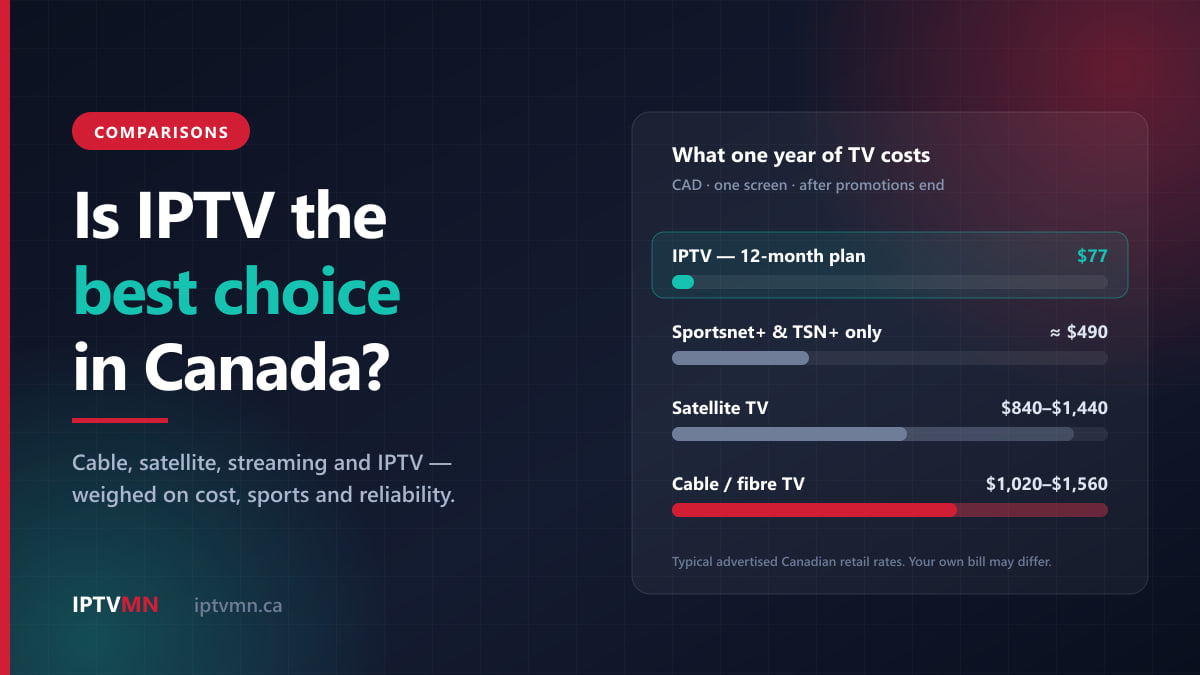
Comparisons 14 min read
Is IPTV the Best Choice in Canada? An Honest Verdict for 2026
Is IPTV the best way to watch TV in Canada? We weigh it against cable, satellite and streaming apps on cost, sports, quality and reliability.
Read the guide