Comparisons
How to Get the Best Picture From IPTV on Your TV: The Settings That Matter (2026)
Better IPTV picture quality in minutes: the right picture mode, motion smoothing, 4K and HDR settings on Samsung, LG, Fire TV and Apple TV, explained plainly.
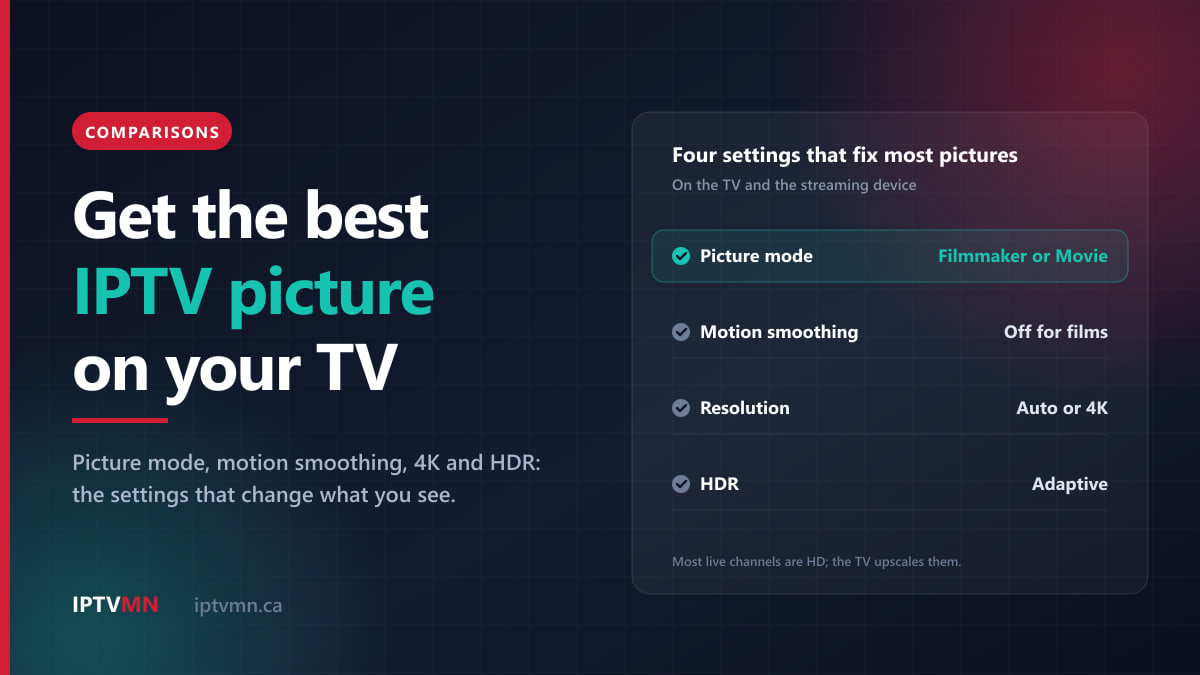
The best IPTV picture quality on most televisions comes from a few changes on the TV and the streaming device, not from the stream itself. Switch to an accurate picture mode such as Filmmaker Mode or Movie, turn motion smoothing off for films and down for sport, and let your device send HDR only when the content really is HDR. That takes about ten minutes and fixes most of what people describe as a bad picture.
What settings cannot do is turn an HD broadcast into true 4K, or repair a stream that arrives with too little data. This guide explains which part of the chain causes what you see, gives the setting names by brand and device, and is honest about where 4K and HDR help and where they do not.
The short answer
- Picture mode: Filmmaker Mode, Movie or Cinema in the evening; Standard in a bright room. Avoid Dynamic and Vivid.
- Motion smoothing: off for films and series. For live sport, try the lowest setting and keep it only if you like it.
- Streaming device: resolution on Auto for a 4K TV, frame-rate matching on, HDR on Adaptive or Match Dynamic Range, never “always HDR”.
- TV inputs: turn on the full HDMI signal for the port your stick uses (Input Signal Plus on Samsung, HDMI Deep Colour on LG).
- Sharpness: down, not up. Extra sharpening adds halos and makes compression blocks easier to see.
- 4K and HDR: worth it for content made that way. Most live channels are HD, and your TV upscales them.
- Blocky or freezing picture: that is the connection or the stream, not a picture setting.
What actually decides IPTV picture quality?
Five links in a chain decide what reaches your screen, and the weakest one sets the result.
- The source. Most North American channels are produced in 720p or 1080i, the two HD broadcast formats. Selected live events and much of the on-demand library are 4K. No service can deliver more than the broadcaster makes.
- The stream. Every channel is compressed before it travels. More data per second keeps more detail in fast motion and dark scenes, which is why a well-encoded Full HD stream can look better than a starved 4K one.
- Your connection. A 4K stream needs roughly 25 to 40 Mbps held steadily, and Full HD 15 to 20. When the connection cannot keep up, you get stalls rather than a gently softer picture. Our guide to how much internet speed IPTV needs does the maths per screen.
- The device. A streaming stick or a TV app decodes the stream, and its output settings decide the resolution, frame rate and HDR format the TV receives.
- The television. The TV scales everything to its own panel, then applies its picture mode, motion processing, sharpening and noise reduction. Most people never touch this step, and it changes the look the most.
IPTV MN delivers its channels from data centres in Toronto and Montreal, which keeps the route from a Canadian home short and helps streams arrive steadily. The page on what IPTV is explains the delivery side. The rest of this guide is about the last two links, which are yours to control.
Which picture mode should you use for IPTV?
Televisions leave the factory set to stand out in a bright shop. At home, that same setting tends to make faces orange, whites blue and bright skies lose their detail. Picture mode is the single biggest change you can make, and it takes ten seconds.
The names vary by brand, but the same handful of modes appear on almost every set.
| Picture mode | What it does | Best for | The catch |
|---|---|---|---|
| Dynamic or Vivid | Maximum brightness, boosted colour and sharpening | A shop floor or a very sunny room | Unnatural skin tones, lost highlight detail |
| Standard | The factory default, balanced for most rooms | Daytime viewing in a bright room | Often has motion smoothing and energy saving on |
| Movie or Cinema | Warmer, more accurate colour, less processing | Evenings, films, drama | Looks dim and warm at first |
| Filmmaker Mode | Switches off motion smoothing, sharpening and noise reduction | Films and series in a dim room | Can look too dark in daylight |
| Sports | Brighter, with motion processing on many sets | Some viewers like it for hockey | Colours often overdone |
| Game | Cuts processing to reduce input lag | Consoles | Not designed for watching TV |
| Eco or energy saving | Lowers brightness to save power | Background TV in the day | Dark scenes lose detail |
Filmmaker Mode is the one most worth knowing. It is a standard set by the UHD Alliance, a group of film studios and TV makers. It turns off motion smoothing, sharpening and noise reduction, keeps the original frame rate and aspect ratio, and sets the white point to D65, the standard used when programmes are made. Samsung lists it beside Dynamic, Standard, Eco and Movie on its 2022 and newer TVs, under Settings, All Settings, Picture, Picture Mode, as its picture settings page shows. LG and several other brands include it on recent 4K models too.
Give your eyes an evening to adjust. Filmmaker and Movie modes look warm and slightly dull next to Standard at first, because Standard runs cool and bright.
Match the mode to the room, not the programme. A practical setup uses two modes: Filmmaker or Movie for the evening, and Standard on a bright afternoon. In a sunny room, raise the brightness or backlight within your chosen mode rather than jumping to Dynamic. If the TV was ever set up in a shop or demonstration mode, the picture stays locked bright, so look in the general or system settings for a usage option and set it to home use.
Should motion smoothing be on or off?
Motion smoothing creates extra frames between the real ones, so movement looks more fluid. On a film, which is shot at 24 frames a second, it produces the “soap opera effect”: a cinematic picture suddenly looks like a home video. Samsung’s support page says plainly that these features are not meant for movies, but can look good on live TV such as sport, which is made at a higher frame rate.
That gives you a simple rule:
- Films and series: off. Filmmaker Mode does this for you.
- Live sport and news: try the lowest setting. Live TV in North America already runs at about 60 pictures a second, so there is less for smoothing to invent, and some viewers find the puck or the ball easier to follow. If you see shimmering edges around players, or the score graphic breaking up, turn it off.
- If you change it, check the sound. Heavy processing slows the picture down, and on some soundbar setups the voices then arrive early. Our guide to IPTV audio that is out of sync covers that.
Every brand gives it a different name, which is why so many people never find it.
| TV brand | Name of the setting | Where to find it |
|---|---|---|
| Samsung | Picture Clarity, or Auto Motion Plus | Settings, All Settings, Picture, Expert Settings |
| LG | TruMotion | All Settings, Picture, Advanced Settings, Clarity (2021 and newer) |
| Sony | Motionflow | Display & Sound, Picture, Motion |
| TCL | Motion, Action Smoothing or Motion Clarity | Picture, Advanced settings |
| Hisense | Motion Enhancement | Picture settings |
On Samsung the default is Auto. Choosing Custom reveals separate sliders for Blur Reduction and Judder Reduction, so for sport you can keep a little blur reduction with judder reduction at zero, which avoids most of the soap opera look. LG offers presets, including Cinematic Movement, Natural and Smooth Movement, plus User Selection with separate De-Judder and De-Blur controls. Menu labels shift between model years, so if the exact name is missing, look for anything with “motion” or “clarity” in the advanced picture menu.
How should you set up your streaming device?
A Fire TV Stick, Apple TV or Google TV device sits between the stream and the television, and its output settings can quietly undo everything above. Three of them matter: resolution, frame rate and HDR.
| Device | Resolution | Frame rate | HDR |
|---|---|---|---|
| Fire TV Stick 4K Max | Display & Sounds, Display, Video Resolution: Auto | Match Original Frame Rate: On | Dynamic Range Settings: Adaptive |
| Apple TV 4K | Video and Audio, Format: 4K SDR | Match Content, Match Frame Rate: On | Match Content, Match Dynamic Range: On |
| Google TV Streamer | Display & Sound, Resolution | Match content frame rate | Dynamic range and colour format |
| Player app on the TV itself | Set by the TV | Set by the TV | Set by the TV |
Fire TV. Leave Video Resolution on Auto, so the stick sends the TV’s own resolution. Match Original Frame Rate only works with resolution on Auto, and only in apps that ask for it, so it may change nothing in your IPTV player. The setting that matters most is Dynamic Range Settings. Always HDR converts everything, menus included, into an HDR signal, which makes ordinary channels look grey and flat. Adaptive sends HDR only when the content is HDR. On newer software the menu is called Display & Audio rather than Display & Sounds. The Fire TV Stick setup guide covers installing the player.
Apple TV. Under Settings, Video and Audio, turn on Match Dynamic Range and Match Frame Rate in the Match Content menu. Apple says the box then switches to the original dynamic range and frame rate of what you watch, and handles content at 60, 50, 30, 25 and 24 frames a second, as its Match Content page explains. With those on, a Format of 4K SDR at 60 Hz keeps menus and ordinary channels in SDR, which is what the Apple TV guide recommends for live sport.
Google TV. On the Google TV Streamer, and on the older Chromecast with Google TV, all three settings sit under Settings, Display & Sound. Google notes that the choices depend on what your television supports. The Chromecast guide covers the player, and Sony, TCL and Hisense televisions running Google TV follow the Android TV setup.
A player app on the TV. If you run the player directly on a Samsung, LG or VIDAA television, there is no device in between, and the TV’s own picture settings are all that count. The guides for Samsung smart TVs, LG smart TVs and VIDAA TVs cover the app side.
Turn on the full HDMI signal for your stick
Many TVs keep their HDMI ports on a basic signal until you switch on a setting for each port. Without it, a 4K stick may not be able to send HDR or full colour.
- Samsung: Settings, General, External Device Manager, Input Signal Plus, then turn it on for the HDMI port your device uses. Some models call it HDMI UHD Color.
- LG: on 2021 and newer models, General, External Devices, HDMI Settings, HDMI Deep Colour, set port by port. On 2020 and older models it sits under Picture, Additional Settings, HDMI Ultra HD Deep Colour.
If your device connects with a cable rather than plugging straight in, use one certified as Premium High Speed or Ultra High Speed. The HDMI Licensing Administrator’s Premium cable programme tests cables for 4K at 60 Hz with HDR. An old cable taken from a DVD player is a common reason for a picture that flickers to black or will not show 4K.
Is 4K worth it on IPTV, and what does upscaling do?
The honest version first: most live channels are not 4K, on any service. News, talk shows and most specialty channels are made in HD. A 4K television shows them by upscaling, which means its processor fills in the missing pixels. A good recent TV does this well enough that Full HD looks clean on a 55-inch screen, but no setting turns it into real 4K.
4K matters for programmes produced in 4K: selected live events and a large share of the on-demand library. IPTV MN delivers 4K wherever the source is 4K, and every other channel at its original quality. Large lineups often list a popular channel more than once, in different qualities, and each entry is a separate stream. You can browse the full lineup on the channels list.
Three practical rules follow:
- Pick the version your connection can hold. A steady Full HD entry looks better than a 4K entry that stalls every few minutes. If 4K stutters at 8 pm and Full HD does not, the connection is the limit.
- Turn sharpness down. The TV already enhances detail when it upscales. Sharpening on top of that draws bright halos around edges and makes compression blocks stand out. Filmmaker Mode switches it off; in other modes, lower it until the halos disappear.
- Use noise reduction sparingly. On a clean stream, keep it off or low, because it smears fine detail like hair and grass. On an older, lower-quality channel, a low setting can soften blockiness.
Is HDR worth it, and why does it sometimes look worse?
HDR, or high dynamic range, lets bright highlights and deep shadows sit in the same picture, with richer colour. It comes in several formats. HDR10 is the baseline, HDR10+ and Dolby Vision add scene-by-scene information, and HLG was designed for live broadcasting. Most TVs show a small HDR or Dolby Vision notice when they switch into one.
Three honest points:
- Most live channels are SDR. HDR mostly appears in 4K films and series and in a small number of live events. An HDR logo on the TV’s box does not make an ordinary channel HDR.
- Forced HDR looks worse, not better. A device set to always output HDR wraps ordinary channels in an HDR signal, and they come out grey and flat. Use Adaptive or Match Dynamic Range instead.
- Budget TVs struggle with HDR. HDR relies on brightness. An entry-level 4K set that accepts HDR but cannot get very bright often shows HDR films darker than the same film in SDR. If HDR looks murky in a bright room, raise the brightness within the HDR picture mode, or save HDR films for the evening.
On most TVs, HDR picture modes are kept separately from SDR ones. When HDR content starts, the set switches to its HDR version of your mode, so choose Filmmaker or Movie again while an HDR title is playing, and the TV remembers it.
Which picture problem do you have?
If something specific looks wrong, find it in the left-hand column.
| What you see | Likely cause | First fix |
|---|---|---|
| Films look like a soap opera | Motion smoothing | Turn it off, or use Filmmaker Mode |
| Orange faces, bluish whites, glowing colour | Dynamic or Vivid mode | Movie or Filmmaker Mode |
| Score graphic or news ticker cut off | Overscan | Fit to Screen on Samsung, Original on LG |
| Stretched picture, or black bars all round | Player and TV both resizing | TV on 16:9 or Original, player on fit |
| Every channel grey and washed out | Device forcing HDR | Adaptive or Match Dynamic Range |
| Faint regular stutter on camera pans | 50 fps content on a 60 Hz output | Turn on frame-rate matching |
| Blocks in dark scenes or fast action | Too little data in the stream | Wire the TV, try another entry |
| Soft picture on a large TV | HD source, or device sending 1080p | Check the device output, lower sharpness |
| Brightness rises and falls by itself | Energy saving or light sensor | Turn energy saving off |
Edges cut off. Many TVs still enlarge the picture by a few percent, a habit left over from analogue television called overscan. It crops the score in a hockey game and the ticker on a news channel. On Samsung, open Picture Size Settings, set Picture Size to Custom and turn on Fit to Screen. On LG, open Aspect Ratio and choose Original, or Just Scan on models that have it. Some TVs remember the picture size per input, so repeat it on each HDMI port you use.
Stretched, squashed or boxed in. Black bars on all four sides, or faces that look too wide, mean the player app and the TV are both resizing the picture. Set the TV to 16:9 or Original, then use the player’s aspect-ratio option to choose fit or auto. An old 4:3 programme should show bars at the sides; that is correct.
Blocky, smeared or freezing. No picture setting fixes this. Blocks in dark scenes or during fast action mean the stream arrived with too little data at that moment, and freezes mean it stalled. Our buffering fixes guide goes through the causes in order, starting with a wired Ethernet connection to the main TV. If only one channel looks poor, try another entry of it, or switch to the free backup server that comes with every subscription, as the IPTV subscription page sets out. If it still looks wrong, tell live support the channel name and group.
What are the best TV settings for watching sport?
Sport is where people notice the picture most, and where the advice disagrees most.
- Start from Standard or Filmmaker, not Sports. On many sets the Sports mode pushes colour and brightness so far that ice turns blue and grass glows. Adjust the brightness within a more accurate mode instead.
- Test the motion setting during a real game. Watch ten minutes with motion smoothing off, then ten with it on the lowest setting, and keep whichever you prefer. There is no wrong answer for live sport.
- Watch for 50 Hz stutter. North American broadcasts run at about 60 pictures a second, while the UK, most of Europe and many other countries use 50. A Premier League or Champions League match sent out through a device locked at 60 Hz can show a faint, regular stutter on camera pans. Frame-rate matching fixes it where the device and app support it, and Apple TV’s Match Frame Rate covers 50 frames a second.
- Leave Game mode for consoles. It lowers input lag, which matters for gaming but not for watching TV, so an accurate mode is the better starting point.
Three Canadian living rooms, three fixes
A bright condo in Toronto. Floor-to-ceiling windows and a Samsung left on Standard. The picture looked fine in daylight but harsh and blue at night. The fix was two modes: Standard with energy saving off for the afternoon, and Filmmaker Mode after dark, with Picture Clarity on Custom and only a little Blur Reduction when the Leafs are on. See IPTV in Toronto.
A basement movie room in Winnipeg. A 65-inch LG in a dark room, used mostly for films from the on-demand library. TruMotion was on, and every film looked like daytime television. Filmmaker Mode fixed it in one step, and the noise reduction it turned off brought back fine detail in faces. See IPTV in Winnipeg.
A family in Vancouver with a Fire TV Stick 4K Max. Every channel on their Samsung looked grey and flat after someone changed a setting nobody could remember. Dynamic Range Settings had been switched to Always HDR. Setting it back to Adaptive brought the colour back, and turning on Input Signal Plus for that HDMI port let 4K HDR films play properly. See IPTV in Vancouver.
When can settings not fix the picture?
An honest guide has to say where its limits are.
- The source. An older standard-definition channel or a weak feed will look soft on a large 4K screen whatever you change. Use the best entry available, and report one that looks much worse than its neighbours.
- The connection. If 4K stalls in the evening, Full HD is the right choice until the connection improves.
- The device. An older stick may not decode 4K smoothly. Our guide to the best device for IPTV in Canada explains which current devices handle it, and warns about the new Fire TV models that cannot install a player.
- The TV. A budget set with modest brightness will never show HDR the way a high-end one does, though accurate settings still make it look its best.
If a problem remains, live support answers by live chat 24 hours a day, 7 days a week, and you can also email help@supportiptv.ca. Give the device, the app and the TV, what you see, and whether it affects one channel, several, or on-demand titles too. The help centre also lists quick fixes for the problems that come up most often.
Frequently asked questions
What is the best picture mode for IPTV?
For evenings and films, Filmmaker Mode, Movie or Cinema, which keep colour close to how it was made and switch off most processing. In a bright room, Standard with energy saving off is a sensible daytime choice. Dynamic and Vivid look striking in a shop but distort colour at home.
Should I turn off motion smoothing for IPTV?
For films and series, yes, because it causes the soap opera effect. For live sport it is a matter of taste: try the lowest setting, and turn it off if you see shimmering around players or graphics. Samsung calls it Picture Clarity or Auto Motion Plus, LG calls it TruMotion and Sony calls it Motionflow.
Why does my IPTV picture look washed out?
The most common cause is a streaming device forcing HDR on ordinary channels. On a Fire TV, set Dynamic Range Settings to Adaptive; on an Apple TV, turn on Match Dynamic Range. An energy-saving mode, or the wrong picture mode, can also make the picture look flat.
Are all IPTV channels in 4K?
No, on any service. Most live channels are made in HD, and a 4K television upscales them. 4K is available where the source is 4K, which covers selected live events and much of the on-demand library, and it needs roughly 25 to 40 Mbps held steadily.
Why is my IPTV picture blocky or pixelated?
Blockiness means the stream arrived with too little data, usually because the connection was slow or unsteady at that moment, or because one channel’s feed is weak. Picture settings will not fix it. Wire the TV with Ethernet, try another entry of the channel or the backup server, and report the channel to live support if it continues.
Do I need a special HDMI cable for 4K IPTV?
If your device connects with a cable, use one certified as Premium High Speed or Ultra High Speed, which are tested for 4K at 60 Hz with HDR. A stick that plugs straight into the TV needs no cable. Either way, turn on Input Signal Plus on a Samsung or HDMI Deep Colour on an LG for that port.
Ten minutes of settings, then judge the picture
Most IPTV picture complaints come down to a few factory settings: a showroom picture mode, motion smoothing on films, and a device that forces HDR or sends the wrong resolution. Fix those, and HD looks clean, 4K looks like 4K, and you can finally tell what the stream itself is delivering.
The fairest test is your own television in your own room. The 24-hour free trial needs no card, so you can set the picture mode, watch a game at 8 pm and a 4K film from the library, and judge the result with your own eyes. When you are ready, the pricing page lists every plan, from $18 for a month or $78 for a year on one connection, paid by Interac e-Transfer. The refund policy gives you seven days if something cannot be fixed on your setup, and our page on the best IPTV in Canada sets out what to expect from any provider, including this one.
Written by the IPTV MN team
We run the servers in Toronto and Montreal and answer the support messages. Everything here comes from what we see on the network and what Canadian members actually ask us. Something unclear or out of date? Tell us and we will fix it.
Keep reading
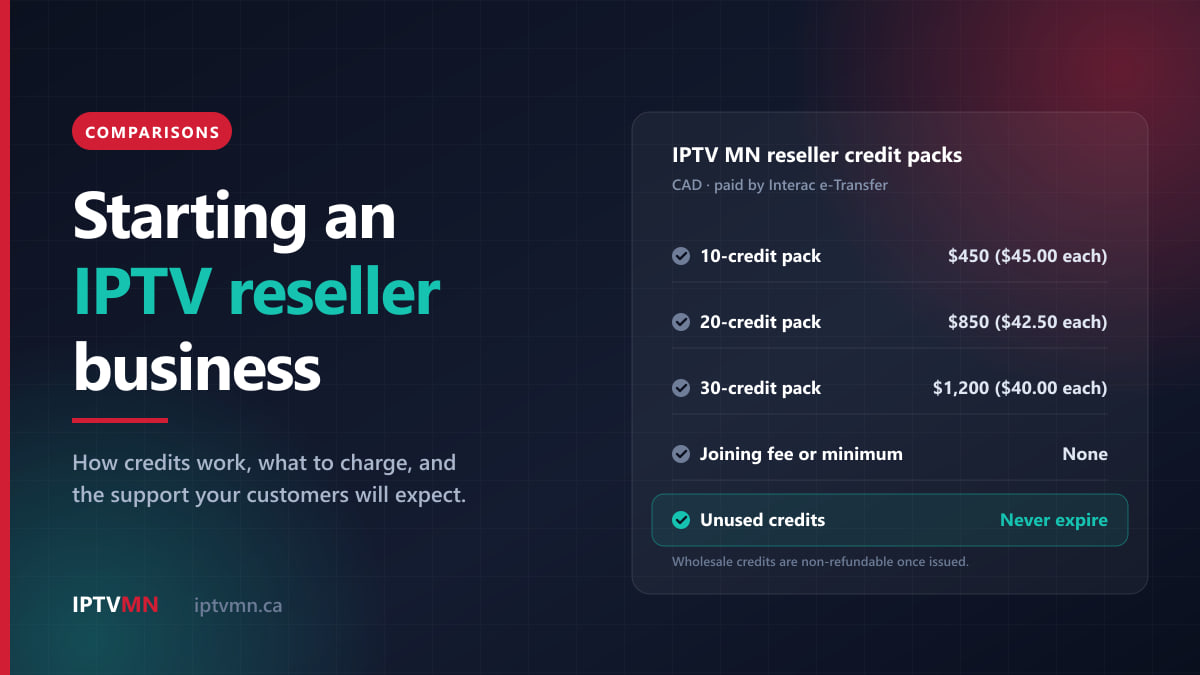
Comparisons 15 min read
Starting an IPTV Reseller Business in Canada: Credits, Pricing and Support (2026)
Thinking of becoming an IPTV reseller in Canada? How credits work, real margin maths from current prices, what to charge, and the support customers expect.
Read the guide
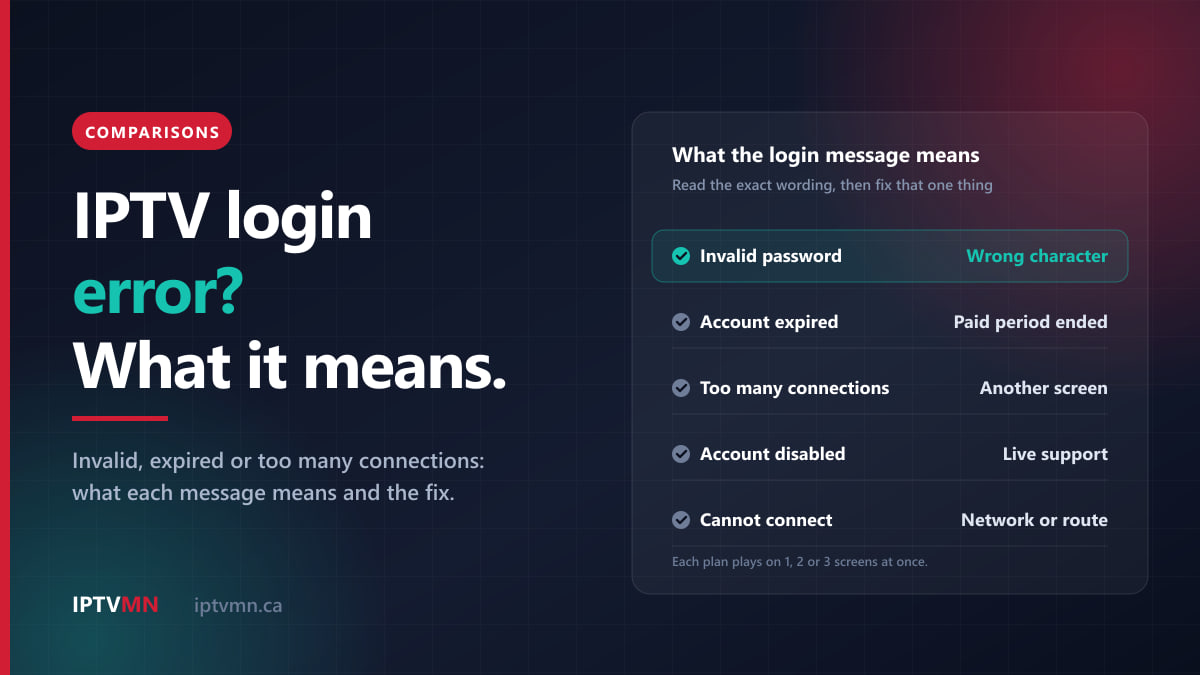
Comparisons 14 min read
IPTV Login Error? What Invalid Account, Expired and Too Many Connections Mean (2026)
IPTV login error? Learn what invalid account, expired and too many connections messages really mean, the fix for each, and how connection limits work.
Read the guide
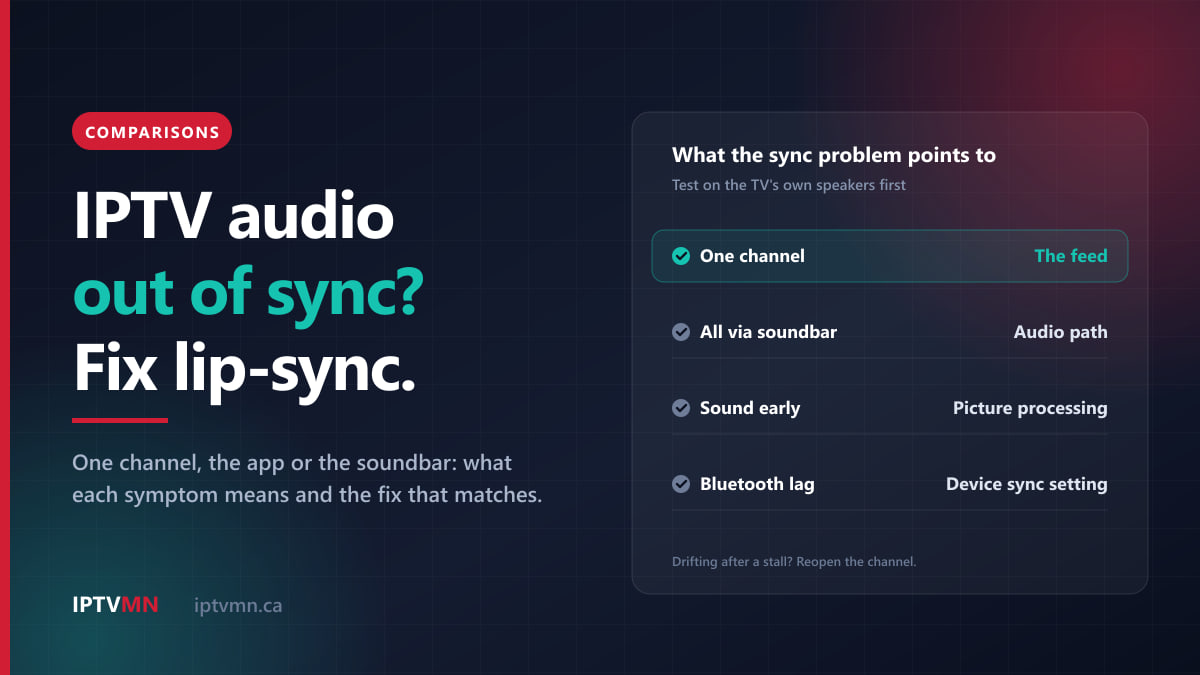
Comparisons 17 min read
IPTV Audio Out of Sync? How to Fix Lip-Sync Delay on Any TV (2026)
IPTV audio out of sync? Find out whether the delay comes from the channel, the app or your soundbar, and fix lip-sync in minutes on Fire TV, Samsung and LG.
Read the guide