Comparisons
IPTV Audio Out of Sync? How to Fix Lip-Sync Delay on Any TV (2026)
IPTV audio out of sync? Find out whether the delay comes from the channel, the app or your soundbar, and fix lip-sync in minutes on Fire TV, Samsung and LG.
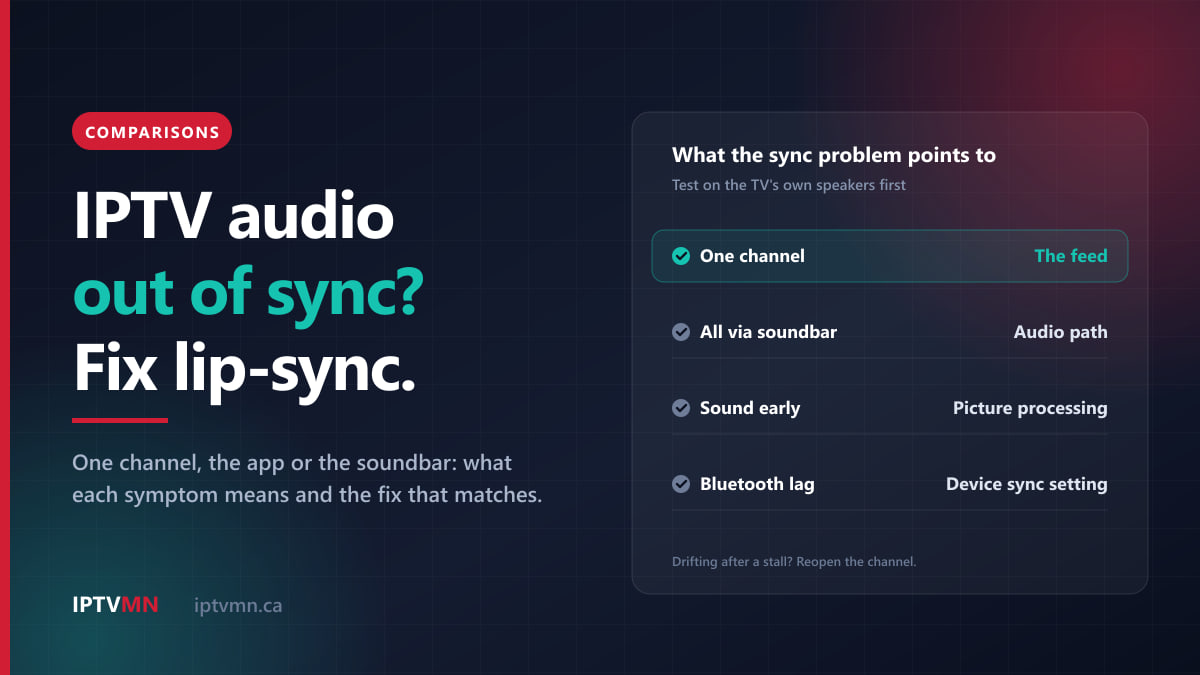
When IPTV audio is out of sync, the delay almost always comes from one of three places: the channel’s own feed, the player app on your device, or the route the sound takes to your speakers. If only one channel is off, the feed is the likely cause. If every channel and every movie is off, and only when a soundbar, receiver or Bluetooth headphones are in use, the fix is in your audio settings, not in the service.
So before you touch a delay slider, spend two minutes working out which of the three it is. A delay setting that corrects one bad channel throws every other channel out, and a soundbar fix will not help a feed that is wrong at the source. This guide sorts the symptoms, matches each one to its cause and gives the settings by device. If the picture itself stutters and freezes, that is buffering, which our buffering fixes guide covers separately.
The short answer
- One channel is out of sync, the rest are fine: reopen it, try the channel’s other entry, then switch to the backup server. If it is still off, tell live support the channel name.
- Everything is out of sync, but only through a soundbar or receiver: set your streaming device’s audio output to PCM or stereo as a test, then use the audio delay setting on your TV or soundbar.
- Sound arrives before the lips move: your TV’s picture processing is slowing the video down. Try Game mode, or turn motion smoothing off.
- It starts in sync and drifts over an hour: back out of the channel and reopen it, then switch the player’s decoder between Hardware and Software.
- Bluetooth headphones lag behind: most standard ones do. Use the device’s sync setting or low-latency headphones.
- Still wrong after ten minutes: send live support the device, the app, the channel and which way the sound is out.
Why does IPTV audio go out of sync?
Picture and sound travel together in the stream, each stamped with the moment it should play. Between the server and your ears, though, they take different paths, and each step adds its own delay:
- The feed. The broadcaster’s signal is encoded into a stream. If sound and picture are misaligned at this stage, every device plays the error faithfully.
- The player app. The app decodes video and audio separately, then lines them up using those time stamps. A struggling decoder, or a stream recovering from a stall, can let them slip apart.
- The streaming device. A Fire TV Stick, Android box or Apple TV either decodes surround sound itself or passes it on untouched, and each choice changes how long the sound takes.
- The television. Modern TVs process the picture before showing it: upscaling, noise reduction, motion smoothing, HDR. That takes time, and the TV normally delays its own speakers to match.
- The soundbar, receiver or headphones. Sound sent on to other equipment can miss the TV’s correction entirely, or pick up extra delay of its own, as Bluetooth does.
How much is too much? The International Telecommunication Union’s recommendation for broadcasters, ITU-R BT.1359, puts the point where viewers start to notice at about 45 milliseconds with the sound early, or about 125 milliseconds with the sound late. That imbalance is worth knowing. We are used to hearing things slightly after we see them, because sound travels more slowly than light, so sound that comes before the lips move looks wrong far sooner than sound that trails a little.
IPTV MN delivers its channels from servers in Toronto and Montreal. The route decides how smoothly the stream arrives, and a slow connection causes buffering, but it only affects sync when a player struggles to recover from a stall. The page on what IPTV is explains how the delivery works.
Which lip-sync problem do you have?
Find your symptom in the left-hand column.
| What you notice | Most likely cause | First fix |
|---|---|---|
| One channel off, the rest fine | That channel’s feed, or one entry of it | Reopen, try the other entry, then the backup server |
| Every channel off, movies too | The path to your speakers | Test with the TV’s own speakers |
| Fine on TV speakers, off on the soundbar | Soundbar or receiver connection | Device output to PCM, then the TV’s audio delay |
| Sound before the lips move | TV picture processing | Game mode, or motion smoothing off |
| In sync at first, drifting later | Player lost sync after a stall | Reopen the channel, then switch the decoder |
| Only on Bluetooth headphones | Bluetooth delay | Device sync setting or low-latency headphones |
| Only in one player app | That app’s decoder or settings | Update it, switch the decoder or try another player |
Is it the channel, the app or your speakers?
These five checks take about three minutes and point straight at the cause.
- Change channel. Open two or three others from different groups, such as a news channel, a sports channel and an international one. If only the first is off, it is that channel.
- Play a movie from the on-demand library. If a movie is off too, the problem is on your side of the stream, not in one live feed.
- Switch to the TV’s own speakers. Turn the soundbar off, or choose the TV speaker in the television’s sound settings. If the sync is now right, the delay is in the audio path, and the soundbar section below is for you.
- Open another app on the same device, such as YouTube. If a news clip there is off too, the device or the TV is the cause, not the IPTV player.
- Try the same channel on your phone with the same login. On a one-connection plan, stop the TV first, or the phone will be refused.
A newsreader on CBC News Network or CTV News Channel, filmed close up and speaking steadily, shows a sync error far more clearly than a fast-moving game.
How do I fix lip sync on a single channel?
When one channel is out and everything else is fine, the cause is nearly always that channel’s stream rather than your equipment. Work through these in order and stop when it is right.
Reopen it after a few seconds. Back out to the channel list, wait about ten seconds and open it again. Players line up sound and picture when a stream starts, so a fresh start often clears a slip that crept in.
Try the channel’s other entry. Large lineups often list a popular channel more than once, for example in HD and 4K, or in a sports group and a regional group. Each entry is a separate stream. If one is in sync and the other is not, use the good one and add it to your favourites. You can search the channels list to see which versions of a channel are in the lineup.
Check the audio track. If the channel carries a second soundtrack, such as another language or a surround mix, switching to it and back makes the player restart the sound, which can bring it back in line.
Switch to the backup server. Every IPTV MN subscription includes a free backup server address in the welcome email, as the IPTV subscription page sets out. Edit the playlist or portal in your app, replace the server address, save and reload. If the channel is in sync on the backup, the fault was in the first source.
Report it. Give live support the channel name, the group it sits in, the time you noticed and whether the sound is ahead or behind. A feed that is out of sync at the source can only be corrected on the server side, and the team can check it and move you to another server.
Do not use a delay setting on your TV or in your app to correct a single channel. That setting applies to everything, so the channel you fixed would be the only one in sync. If a channel will not play at all, rather than playing out of step, see our guide to an IPTV channel not loading.
How do I fix audio delay inside the player app?
If every channel and movie is off in one app, but YouTube on the same device is fine, the player is the place to look.
Restart the stream after any stall. When a stream pauses to buffer and then catches up, some players resume with picture and sound slightly apart. Backing out and reopening the channel resets the alignment. If stalls happen often, fixing the connection also fixes the sync, and a wired Ethernet connection to the main TV helps more than anything else.
Switch the decoder. Players decode video either with the device’s dedicated video chip (Hardware) or with its main processor (Software). A decoder that struggles with a channel, often a 4K one on an older stick, drops frames while the sound runs on, and the two drift apart. Switch the setting, reopen the channel and judge the result. The guide to channels that will not load shows where TiviMate and IPTV Smarters keep the decoder setting.
Turn audio passthrough off as a test. Some players can hand the original surround track straight to your TV or receiver without decoding it, often under a name like audio passthrough or digital audio output. That works well when every device in the chain supports the format, and causes trouble when one does not. If your player has such an option, switch it off and reopen the channel. The box then decodes the sound itself and sends plain PCM.
Update, then clear the cache. Sync bugs are fixed in updates more often than people expect, so install the latest version of your player and any system updates. On an Android box or Fire TV, you can also clear the app’s cache in the device’s application settings. Do not choose Clear Data, which deletes your login and your favourites.
Use the player’s own audio delay, if it has one. Some players offer an audio delay or sync control in their playback menu. VLC is the clearest example. On a Windows PC, press K to delay the sound or J to bring it forward, 50 milliseconds per press, or use Tools, then Track Synchronization. The change lasts for that session only. The Windows PC guide shows how to open your channels in VLC.
Try a different player. If one app is consistently out and another is not, use the other one. Our comparison of IPTV player apps shows which players suit which devices, and the installation guides list a suitable player for each one.
How do I fix lip sync with a soundbar or AV receiver?
This is the most common cause of IPTV lip-sync complaints, and it is not really an IPTV problem: the same delay usually shows up in every app on the television.
Your TV takes time to process each frame, and it delays its own speakers to match. Sound sent out to a soundbar or receiver, though, can leave the TV before the matching picture appears. An HDMI ARC or eARC connection lets the TV and soundbar share timing information and correct for it, a feature that has been part of HDMI since version 1.3. An optical cable carries the sound only, with no timing information, so it relies entirely on manual settings.
Work through these steps and stop when the sync is right.
- Set the streaming device to PCM or stereo as a test. Surround formats take longer to decode at the soundbar, and a format mismatch can add delay. On a Fire TV, look under Settings, then Display & Sounds, then Audio, then Dolby Digital Output, and try the other options there. On a Google TV Streamer, go to Settings, then Display & Sound, then Audio options, then Output format, and choose PCM stereo. On a Chromecast with Google TV, the surround choice is under Display & Sound, then Advanced sound settings. If stereo fixes the sync, you can decide whether surround is worth the trade-off.
- Turn off the TV’s heavier picture processing. Motion smoothing and noise reduction add video delay. Each brand has its own name for motion smoothing, usually under the picture settings. Game mode switches most of this processing off in one move, which makes it a quick test. If the sync is right in Game mode, you have found the cause.
- Use the TV’s digital audio delay. This delays the sound sent to your soundbar so it lines up with the picture. The next section shows where it lives on each brand.
- Use the soundbar’s or receiver’s own delay. Most have an AV sync, lip sync or audio delay setting, on the remote or in the companion app. It can only hold the sound back, not speed it up, so it fixes sound that arrives early.
- Check the connection. Make sure the soundbar is in the TV’s HDMI port marked ARC or eARC, that HDMI-CEC is on, and that the cable is firmly seated at both ends.
Where is the audio sync setting on my device?
Every major platform has some kind of sync control, but they sit in different menus and do slightly different jobs.
| Device | Setting | Where to find it | What it adjusts |
|---|---|---|---|
| Fire TV devices | AV Sync Tuning | Settings, Display & Sounds, Audio | Device audio, with separate HDMI and Bluetooth values |
| Samsung TV, 2022 and newer | Digital Output Audio Delay | Settings, All Settings, Sound, Expert Settings | Sound sent over eARC or optical |
| LG TV | Match Screen and Sound, or AV Sync Adjustment | Settings, All Settings, Sound | TV speakers and external speakers |
| Apple TV 4K | Wireless Audio Sync | Settings, Video and Audio, Calibration | Wireless speakers, using an iPhone |
| VLC on a Windows PC | Track Synchronization | Tools menu, or the J and K keys | Audio in the current session |
Fire TV. AV Sync Tuning shows a bouncing circle and a moving bar, and beeps each time they meet. Move the slider with the left and right buttons until the beep comes at the exact moment they touch, then press Select. With Bluetooth headphones connected, the screen shows Tuning Mode: Bluetooth, and that value is kept separate from the HDMI one. Amazon notes the slider is not on every Fire TV smart TV. The Fire TV Stick setup guide covers the rest of the setup.
Samsung. On 2022 and newer models, go to Settings, then All Settings, then Sound, then Expert Settings, then Digital Output Audio Delay. Samsung says it applies to HDMI eARC and optical connections, and that if the sound is ahead of the picture, you move the slider to the right. Older models have a similar option in Expert Settings that works over optical only. Samsung’s audio delay troubleshooting page has the details for each model year, and the Samsung smart TV guide covers installing the player.
LG. The setting is in the Sound menu, under Advanced Settings on recent models or Additional Settings on 2020 and older ones. Depending on the year, it is called Match Screen and Sound or AV Sync Adjustment. Bypass sends the sound out with no added delay; otherwise a slider holds the sound back, and a higher number means later sound. LG adds a useful note of its own: if only one channel is out of sync, the cause is that channel’s signal, not the TV. The LG smart TV guide covers the app side.
Apple TV. Wireless Audio Sync, under Settings, then Video and Audio, then Calibration, uses an iPhone held near the TV to measure the delay of the wired speakers and match wireless speakers to them. Apple’s calibration page walks through it. For a soundbar on HDMI, use the TV’s or the soundbar’s own delay instead. The Apple TV guide covers the player.
Google TV and Android TV. Google’s documentation for the Chromecast with Google TV and the Google TV Streamer lists sound format choices but no sync slider, so set the format first, then use the delay on the TV or soundbar. The Chromecast guide covers the player setup.
Why are Bluetooth headphones out of sync with the TV?
Bluetooth audio is compressed, sent in small packets and buffered in the headphones, and all of that takes time. Headphones using the standard Bluetooth codec, called SBC, commonly add around 200 milliseconds, well past the point where most people notice. Headphones and transmitters that support aptX Low Latency bring it down to around 40 milliseconds by manufacturers’ figures, but both ends of the link must support it.
Three things help:
- Use the device’s Bluetooth sync setting. On a Fire TV, AV Sync Tuning stores a separate value for Bluetooth, so you can correct the headphones without upsetting the soundbar.
- Pair the headphones with a different device. Connect them to the streaming stick instead of the TV, or the other way round, and keep whichever pairing is closer to sync.
- Choose low-latency headphones if you watch this way often. Look for aptX Low Latency on both the headphones and the transmitter, or a set sold with its own TV transmitter.
When can you not fix out-of-sync audio yourself?
An honest troubleshooting guide has to say where its limits are.
- A feed that is out of sync at the source. If the error is in the stream itself, no setting on your side fixes it properly. Report it so it can be corrected on the server side, and use another entry of the channel in the meantime.
- Radio commentary over the TV picture. Some fans mute the TV and listen to the local radio call of the game. Internet television, whether IPTV or a streaming app, usually runs some seconds behind the radio, and lip-sync settings can only hold back the TV’s own sound, so they cannot close that gap.
- Older devices on 4K channels. A stick that cannot decode a 4K format smoothly keeps dropping frames, and the sound keeps drifting. The HD version of the channel is the workaround; a newer device is the real fix, as our guide to the best device for IPTV in Canada explains.
- A TV with no delay for the output you use. Some sets only offer a delay over optical, or none at all. A soundbar or receiver with its own AV sync control then becomes the place to correct it.
Three Canadian households, three sync fixes
A condo in Calgary with a new soundbar. Since the soundbar went in on an optical cable, voices on Global Calgary’s evening news land a beat before the lips move, and YouTube is just as bad. Motion smoothing was on, and optical carries no timing information. Moving the soundbar to the TV’s HDMI eARC port and switching motion smoothing off put it right. See IPTV in Calgary.
A hockey family in Montreal. RDS is slightly out of step on one of its entries in the channel list, while the other entry and every other channel are fine. They add the good entry to their favourites and report the other one to live support. Nothing on the TV needed changing. See IPTV in Montreal.
A night-shift worker in Saskatoon. With Bluetooth headphones after midnight, the sound trails the picture. With the headphones connected to the Fire TV Stick, they open AV Sync Tuning, check that it shows Tuning Mode: Bluetooth and move the slider until the beep and the bounce match. The soundbar’s value stays as it was. See IPTV in Saskatoon.
What should I tell live support if the sound is still out?
Live support is a live chat that answers 24 hours a day, 7 days a week, and you can also email help@supportiptv.ca. These five details usually get a sync problem sorted in one reply:
- The device and the app, for example “Fire TV Stick 4K Max, TiviMate”.
- What is affected: one channel, with its name and group, several channels or all of them, and whether movies are off too.
- Which way it is out: sound ahead of the lips, or behind them.
- Your audio setup: TV speakers, a soundbar on HDMI or optical, a receiver, or Bluetooth headphones.
- What you have already tried, so nobody suggests it twice.
The help centre also lists quick fixes for the problems that come up most often.
Frequently asked questions
Why is my IPTV audio out of sync on only one channel?
Because that channel’s stream is the likely cause. Reopen it, try its other entry in the channel list if it has one, and switch to the backup server. If it is still off, report the channel name and group to live support rather than changing a delay setting that affects every channel.
How do I fix audio delay on a Fire TV Stick?
Go to Settings, then Display & Sounds, then Audio, then AV Sync Tuning, and move the slider until the beep matches the moment the bouncing circle meets the bar. Fire TV keeps separate values for HDMI and Bluetooth. If the delay only appears with a soundbar, also try the other options under Dolby Digital Output.
Why is the sound ahead of the picture on my TV?
Usually because the TV is processing the picture, with motion smoothing or noise reduction, while the sound goes straight to a soundbar. Try Game mode as a test. If that fixes it, turn the heaviest picture processing off, or hold the sound back with the TV’s or the soundbar’s audio delay setting.
Can a slow internet connection cause lip-sync problems?
Not directly. A slow or unsteady connection causes buffering, and some players come back from a stall with sound and picture slightly apart. Reopening the channel resets them, and a wired Ethernet connection to the TV prevents most of the stalls that cause it.
Why are my Bluetooth headphones out of sync with IPTV?
Bluetooth adds its own delay, commonly around 200 milliseconds with standard headphones. Use your device’s sync setting, such as AV Sync Tuning on a Fire TV, which stores a separate Bluetooth value. Headphones with aptX Low Latency at both ends close the gap much further.
Should I set my streaming device to PCM or Dolby Digital?
Start with the automatic setting. If the sound is out of sync only through a soundbar or receiver, switch to PCM or stereo as a test. If that fixes it, either keep stereo, or go back to surround and correct the remaining gap with the TV’s or the soundbar’s delay setting.
Fix the sound path once, and it stays fixed
Most IPTV lip-sync problems take minutes once you know where the delay comes from. One channel points to the feed. Everything out of step through a soundbar points to the audio path: test with stereo, cut the picture processing, then use the delay setting. Drift after a while points to the player, and Bluetooth lag is a job for the device’s sync setting.
If you are still choosing a service, test it on your own television and your own sound system with the 24-hour free trial, which needs no card. Watch a newsreader for a minute, then a live game, and see how quickly support answers a question. When you are ready, the pricing page lists every plan, from $18 for a month or $78 for a year on one connection, paid by Interac e-Transfer. The refund policy gives you seven days if something cannot be fixed on your setup, and our page on the best IPTV in Canada sets out what to expect from any provider, including this one.
Written by the IPTV MN team
We run the servers in Toronto and Montreal and answer the support messages. Everything here comes from what we see on the network and what Canadian members actually ask us. Something unclear or out of date? Tell us and we will fix it.
Keep reading
Comparisons 16 min read
TV Guide Not Showing on IPTV? How to Fix a Blank, Stale or Wrong EPG (2026)
IPTV EPG not working? Find out why the TV guide is blank, out of date or an hour out, and fix it in minutes: login type, refresh, time zone and cache.
Read the guide
Comparisons 15 min read
IPTV Channel Not Loading? How to Find the Cause and Fix It (2026)
IPTV channel not loading? Check whether it is one channel or all of them, then use the matching fix: playlist refresh, decoder, connections or backup server.
Read the guide
Comparisons 15 min read
Monthly or Yearly IPTV Plan? How to Choose, With the Real Numbers (2026)
Monthly or yearly IPTV plan? See what each plan length really costs, the month when the yearly plan pays for itself, and when monthly is the smarter buy.
Read the guide