Comparisons
IPTV Login Error? What Invalid Account, Expired and Too Many Connections Mean (2026)
IPTV login error? Learn what invalid account, expired and too many connections messages really mean, the fix for each, and how connection limits work.
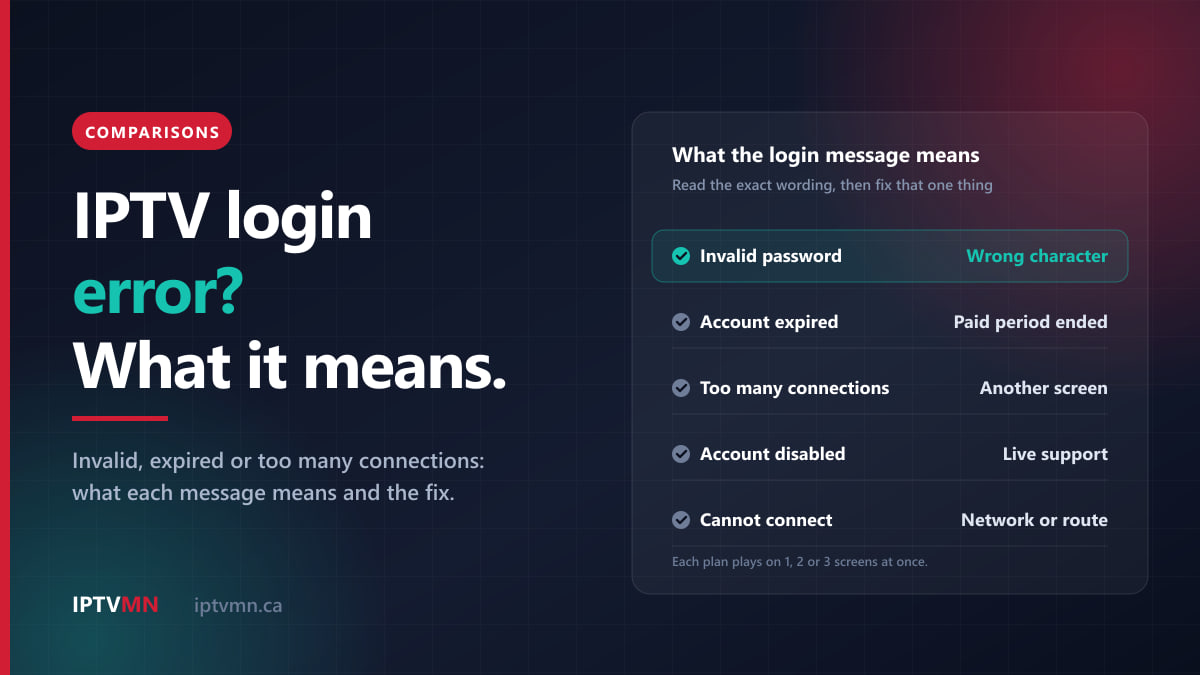
An IPTV login error almost always means one of three things: the details your app sent do not match the account, the account’s paid period has ended, or every connection on your plan is already in use. The message on screen tells you which, as long as you read it exactly rather than as a general “it won’t sign in”.
There is also a fourth group that looks like a login error but is not one: “cannot connect”, “network error” or a timeout. That means the server never answered, so the fault is the address, the network or the route, not your password. This guide explains what each message means, how connection limits work on each plan, and the fix that matches. If you are signed in but a channel will not open, the guide to channels that will not load is the better starting point.
The short answer
- “Invalid username or password”, “invalid account” or “authorization failed”: usually one wrong character. Copy the details from your welcome email instead of typing them, check for a space at the end, and make sure the server address includes its port.
- “Account expired”: the period you paid for has ended. IPTV MN plans never renew on their own, so nothing is charged, but the channels stop on the last day. Renew on the pricing page.
- “Too many connections” or “max connections reached”: another screen is already playing on your login. Stop it, wait a minute or two, and try again.
- “Account disabled”, “banned” or “suspended”: nothing in the app fixes this. Message live support with your username.
- “Cannot connect”, “network error” or a timeout: not a login problem. Check the server address and port, the device’s internet connection, then try the backup server.
- “Device not activated” on a Samsung, LG or VIDAA player: that message usually comes from the player app’s own licence, not from your subscription.
What does each IPTV login error mean?
When your app signs in with an Xtream Codes login, the server answers with a short account record: whether the details are valid, the account’s status, its expiry date, how many connections the plan allows and how many are in use right now. The app turns that record into its own wording, which is why IPTV Smarters, TiviMate and IBO Player phrase the same problem differently. Find the closest wording in the table.
| Message, in its usual forms | What it means | Where to start |
|---|---|---|
| Invalid username or password, invalid account, authorization failed | The server answered and did not recognise the details | Copy and paste the login, check the port |
| Account expired, subscription ended | The details are right, but the paid period is over | Check the expiry date, then renew |
| Too many connections, max connections reached | Every connection on the plan is streaming | Stop playback on other screens |
| Account disabled, banned or suspended | The account has been switched off on the server | Message live support |
| Cannot connect, network error, timed out | The server never answered | Address, port, network, backup server |
| Device not activated, trial ended (device-key apps) | The player app’s own licence | Check the app’s activation screen |
| Playlist could not be loaded (M3U) | The link is incomplete or the account refused it | Paste the full link again |
Two details save a lot of time. First, some apps show “invalid” for an account that has simply expired, because they treat any refusal as a bad login. If your details are definitely right, check the expiry date next. Second, numbers sometimes appear instead of words. A 401 or 403 means the server refused the request, which is an account matter, while a timeout or “host not found” means nothing answered at all.
How do I fix “invalid username or password”?
This is the most common IPTV login error by a distance, and it is nearly always a typing problem rather than a fault with the account. Work down the list.
1. Copy, do not type. Passwords are long and case sensitive, and in many TV fonts a capital I, a lowercase l and the number 1 look alike, as do O and 0. Wherever you can, copy from the welcome email and paste. On a TV, use your phone as the keyboard: the Fire TV app and the Google TV app both have one, and an iPhone can type into an Apple TV, as the Apple TV setup guide mentions.
2. Look for a space at the end. Copying from an email often picks up a trailing space after the password or username. The server treats that space as part of the password and refuses it. Delete the last character of each field and retype it to be sure.
3. Check the server address. In the Xtream Codes server field you want only the base address, in the form http://server.example.com:8080. Three mistakes cover most cases:
- the port number after the colon is missing, so nothing connects;
http://appears twice, because the app had already added it;- the whole M3U link has been pasted into the server field. That link carries your username and password inside it, and it belongs in an M3U field, not an Xtream one.
4. Check the fields are not swapped. On a small screen it is easy to put the username in the password box. Some apps also ask for a “playlist name” or “any name”. That one is yours to choose and does not affect the login.
5. Check which login the app is holding. If you tested with a free trial and then bought a plan, make sure the app holds the details from your subscription email. Trial details stop working when the trial ends, normally after 24 hours. The same applies after a password reset: every device still holding the old password will show “invalid” until you update it.
6. Use the right format for the app. Most players, including TiviMate on Android TV and Google TV, want the Xtream Codes login. Roku players only take the M3U link, which you paste on a pairing page from your phone or laptop, as the Roku guide shows. Our explainer on Xtream Codes vs M3U sets out which format suits which app.
If it still fails, edit the existing playlist rather than deleting it and adding a new one. Your favourites and hidden groups live inside the app, and editing is the safer way to keep them.
Why does my IPTV say “account expired”?
Because the period you paid for has ended. IPTV MN plans do not renew automatically. Nothing is ever charged without you asking, which also means nobody extends the account for you. Once the last day has passed, the server reports the account as expired and the app refuses to load channels.
Find the expiry date. With an Xtream Codes login, most players show it in the account, profile or playlist details. An M3U link does not carry it, so Roku and VLC users will not see it in the app. Live support can tell you the date in seconds.
If you were on a trial, “expired” after about a day is expected. The trial normally lasts 24 hours and opens the full service, so the end of it is simply the point to decide.
Renewing takes a few minutes. Choose a plan and pay by Interac e-Transfer from your bank app. The login details are emailed the moment the transfer lands, usually in under ten minutes. Check that email: if the details match the ones in your app, sign in again and the new date appears; if they are new, edit the playlist with them.
Here is what each plan costs today, by length and by number of connections:
| Connections | 1 month | 3 months | 6 months | 12 months |
|---|---|---|---|---|
| 1 screen at a time | $18 | $28 | $48 | $78 |
| 2 screens at a time | $28 | $48 | $88 | $128 |
| 3 screens at a time | $40 | $69 | $119 | $179 |
Because nothing renews, the easiest way to avoid a surprise “expired” on a Saturday night is a calendar reminder a few days before the date. If you find yourself renewing every month, our comparison of monthly and yearly plans does the maths on when a longer period makes sense, and when it does not.
What does “too many connections” mean?
It means every connection on your plan is already streaming. A connection is one stream playing at one time. You can install the app on as many devices as you like, but a one-connection plan plays on one screen at once, a two-connection plan on two, and a three-connection plan on three. When one more device tries to play, the server refuses it, and the app reports “too many connections”, “max connections reached” or, in some apps, a plain login failure.
| Activity | Uses a connection? |
|---|---|
| Watching a live channel, a movie or a catch-up programme | Yes, while it plays |
| A recording running in the background | Yes, for as long as it records |
| Each window in a multi-view screen | Yes, one per window |
| A stick left playing behind a TV switched off at the screen | It can, until the stream closes |
| Browsing menus, the TV guide or the movie library | Not normally |
| An installed app on a device that is not playing | No |
How to clear it:
- Stop playback on every other screen. Check the bedroom TV, a tablet, a phone in a pocket and anything at the cottage. Turning a TV off with its own power button can leave the streaming stick behind it still playing, so press Back or Home on the stick first.
- Wait a minute or two. When a stream stops suddenly, for example after a power cut or a dropped Wi-Fi signal, the server can hold that connection open for a short time before releasing it.
- Try again on the screen you want.
If no other screen is on, your login may be in use somewhere you have forgotten, such as an old box at a relative’s house or a device you once set up for someone. If you cannot find it, ask live support to reset your password, then update the login on your own devices. IPTV MN’s terms and conditions keep credentials personal to your household, and sharing them outside it can lead to suspension without a refund, so a reset protects you as well.
If it happens every evening, the plan is too small for how your household watches. Count the screens that play at the same time at your busiest hour, not the number of devices you own. Our guide to watching IPTV on several TVs at home walks through that count, and the table above shows what one more connection costs at each length.
What if my account is disabled, banned or suspended?
These messages mean the account has been switched off on the server, so no setting, reinstall or new app will sign you in. Message live support with your username and the exact wording.
The terms list the reasons an account can be suspended, chief among them sharing or reselling credentials outside your household. Where circumstances allow, IPTV MN contacts the account holder first and gives them a chance to explain. The refund policy also sets out that an account suspended for sharing is not refunded. If you want to sell lines to other people, the reseller programme exists for exactly that.
One more case is worth knowing. If you bought your subscription from a reseller rather than directly from IPTV MN, that reseller manages your line, sets its dates and is the first person to ask about a disabled or expired account.
Why does it say “cannot connect” when my login is right?
Because the server never answered, so your username and password were never checked. A wrong password gets a quick, clear refusal. A connection problem usually spins for a while and then shows “network error”, “timed out” or “server not responding”. The fixes are different:
- Test the device’s internet. Open a website or a video app on the same device. If that fails too, unplug the router for a full sixty seconds and plug it back in.
- Recheck the address and port. A server address with a wrong digit in the port is not refused. It simply never connects.
- Accept the Wi-Fi sign-in page. Hotel, campus and some café networks block every app until you accept their terms in a web browser. Open the browser on the device, or on a laptop on the same network, and complete the page first.
- Try another network. Some office and campus networks block the less common ports that streaming servers use. If the login works on mobile data but not on that Wi-Fi, the network is the cause.
- Turn off any VPN. IPTV MN’s servers are in Toronto and Montreal, so inside Canada a VPN only adds distance and one more thing that can fail.
- Set the date and time to automatic. A device clock that is badly wrong can make secure connections fail before the login is even sent.
- Switch to the backup server. Every subscription includes a free backup server address, as the IPTV subscription page sets out. Replace the server address in your playlist with the backup one and keep the same username and password. If it connects, the main route was the problem, and support will want to know.
Travelling does not cause login errors by itself. Your login works on any internet connection, in Canada or abroad, so a refusal in a Florida hotel is almost always the Wi-Fi sign-in page or the network, not your account.
Smart TV apps with a device key: activation is a separate thing
On Samsung, LG and VIDAA televisions, players such as IBO Player work differently. Instead of typing a login, you photograph the MAC address and device key the app shows on screen, and live support loads your playlist onto that key. That changes which messages you can see.
- “Device not activated” or “trial ended”: some of these apps charge their own small activation fee to their developer after a trial period. That is separate from your IPTV MN subscription, and renewing the subscription does not clear it. Look for the app’s activation screen first.
- “No playlist” or an empty app: the playlist has not been loaded onto this key yet, or it was loaded onto a different one. Send support a fresh photo of the key screen.
- A new TV, or a factory reset: the key needs loading again. Support does this for you.
- “Expired” inside the playlist: this one is your subscription, and renewing fixes it.
The Samsung smart TV guide, the LG smart TV guide and the VIDAA TV guide show where the key appears on each set.
What should I send live support?
Live support is a live chat that answers 24 hours a day, 7 days a week, and you can also email help@supportiptv.ca. A message with these details usually gets solved in one reply:
- A photo of the error, showing the exact wording.
- The device and the app, for example “Fire TV Stick 4K Max, IPTV Smarters Pro”.
- How you sign in: Xtream Codes, M3U link or device key.
- Your username, so the team can check the account’s status, expiry date and active connections. Never post your password in a public forum or a comment.
- What else is switched on at home, if the message mentions connections.
The username check is the quickest route of all, because it shows in seconds whether the account is active, expired or full. The help centre also lists the short version of the most common fixes.
Three common situations, and what fixed each one
A new Fire TV Stick in Ottawa. Take a couple setting up a Fire TV Stick 4K Max and typing the password with the remote. The app says “invalid username or password” three times. The password contains a lowercase l that they read as a capital I. Entering it with the Fire TV app, letter by letter against the email, fixes it at once. The Fire TV Stick guide covers the rest of the setup. See IPTV in Ottawa.
A two-connection home in Winnipeg on a Sunday. The living-room TV shows “max connections reached” while only one other TV is on. In the basement, a Formuler box is recording an afternoon game to a USB drive, as the Formuler guide describes, and that recording counts as a stream. Stopping it frees the connection. The longer-term fix is a third connection, or recording only when a screen is free. See IPTV in Winnipeg.
An expired yearly plan in Vancouver. A household that bought a twelve-month plan the previous autumn wakes up to “account expired”. Nothing renewed, because nothing ever does. They renew by Interac e-Transfer, the confirmation arrives within minutes, and they are signed in again before breakfast. This time they put a reminder in the calendar. See IPTV in Vancouver.
Frequently asked questions
Why does my IPTV say invalid when my details are correct?
The most common hidden causes are a space at the end of a pasted password, a server address without its port, or details left over from a trial. Some apps also show “invalid” for an account that has expired, so check the expiry date too. If all of that is right, send live support a photo of the login screen.
How many devices can use one IPTV login?
You can install the app on as many devices as you like. The limit is how many play at the same time: one, two or three, depending on the plan. A device that is installed but not playing does not use a connection.
Does turning off the TV free up my connection?
Not always straight away. Switching off the screen can leave the streaming stick or box behind it still playing, and a stream that stops suddenly can be held open by the server for a minute or two. Press Back or Home on the device to stop playback before you switch off.
Will I lose my favourites if I re-enter my login?
Favourites, hidden groups and app settings are saved inside the player app, not on your account. Editing the existing playlist’s details is the safer route. Deleting the playlist or reinstalling the app can remove them.
Can I sign in from a hotel or abroad?
Yes. Your login works on any internet connection, in Canada or abroad. If it will not connect in a hotel, open a web browser on the same network and accept the Wi-Fi sign-in page first, because that page blocks apps until you do.
What happens to my login when I renew?
The renewal confirmation arrives by email once your Interac e-Transfer lands, usually in under ten minutes. If the details are the same as before, sign in again and the new expiry date appears. If they are different, edit the playlist on each device with the new ones.
Read the message, then fix the right thing
Most IPTV login errors take a few minutes once you know which kind you have. “Invalid” points to a wrong character, the port or old details. “Expired” points to the date, because nothing renews on its own. “Too many connections” points to another screen that is still playing. “Cannot connect” points to the network or the route, and the backup server is the quickest test.
If you are still choosing a service, the fairest test is your own. Request the 24-hour free trial, which needs no card, sign in on the devices you actually use, and see how quickly support answers a question. When you are ready, the pricing page lists every plan, and our page on the best IPTV in Canada sets out what to expect from any provider, including us.
Written by the IPTV MN team
We run the servers in Toronto and Montreal and answer the support messages. Everything here comes from what we see on the network and what Canadian members actually ask us. Something unclear or out of date? Tell us and we will fix it.
Keep reading
Comparisons 17 min read
IPTV Audio Out of Sync? How to Fix Lip-Sync Delay on Any TV (2026)
IPTV audio out of sync? Find out whether the delay comes from the channel, the app or your soundbar, and fix lip-sync in minutes on Fire TV, Samsung and LG.
Read the guide
Comparisons 16 min read
TV Guide Not Showing on IPTV? How to Fix a Blank, Stale or Wrong EPG (2026)
IPTV EPG not working? Find out why the TV guide is blank, out of date or an hour out, and fix it in minutes: login type, refresh, time zone and cache.
Read the guide
Comparisons 15 min read
IPTV Channel Not Loading? How to Find the Cause and Fix It (2026)
IPTV channel not loading? Check whether it is one channel or all of them, then use the matching fix: playlist refresh, decoder, connections or backup server.
Read the guide