Comparisons
TV Guide Not Showing on IPTV? How to Fix a Blank, Stale or Wrong EPG (2026)
IPTV EPG not working? Find out why the TV guide is blank, out of date or an hour out, and fix it in minutes: login type, refresh, time zone and cache.
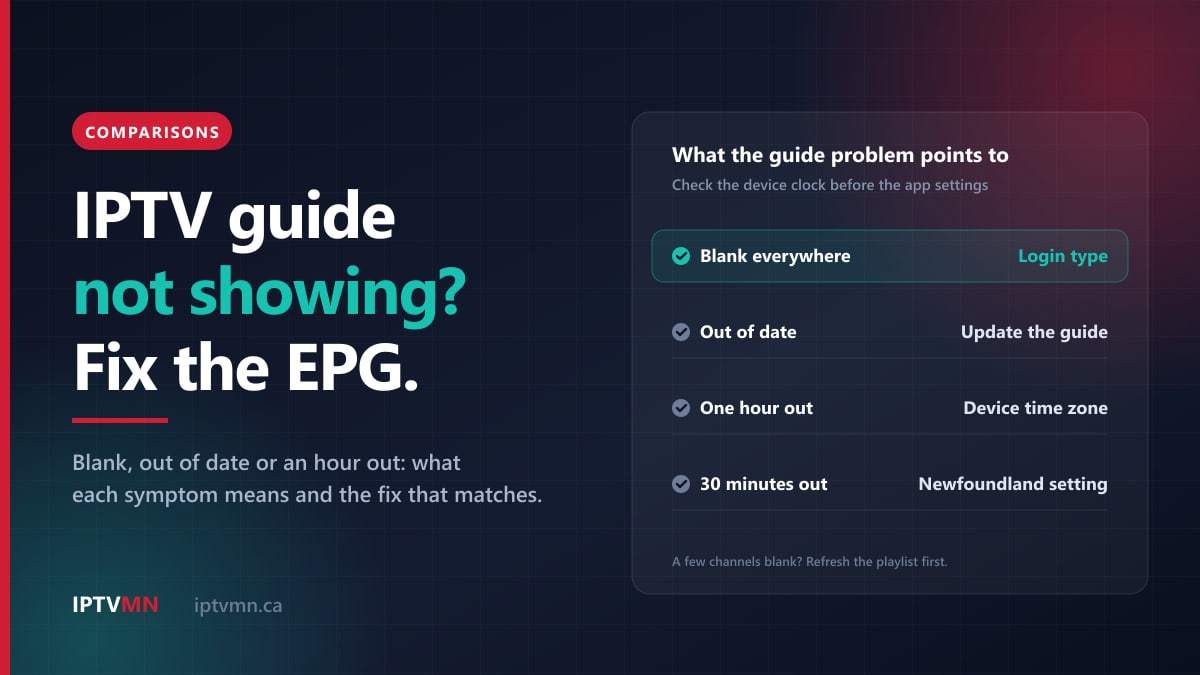
When the IPTV EPG is not working, the cause is almost always in one of four places: the type of login your app uses, the guide download itself, the clock on your device, or the way a single channel is matched to its listings. A guide that is blank on every channel usually means the app was set up with the M3U link instead of the Xtream Codes login. A guide that shows the wrong times points to your device’s time zone, not to the service.
So before you change any settings, look at what the guide is actually doing. Is it empty everywhere, empty on a few channels, stuck on last week, or an hour out? Each of those has a different fix, and this guide matches them up. If the channels themselves will not play, that is a separate problem, covered in our guide to an IPTV channel not loading.
The short answer
- No listings on any channel: sign in with the Xtream Codes login from your welcome email, not the M3U link. The seven-day guide comes with it.
- “No information” right after setup: wait two minutes for the first download, then close and reopen the app.
- Listings out of date, or ending a few days ahead: update the guide by hand in the app, then set it to update daily or every time the app starts.
- Times an hour or 30 minutes out: fix the device’s time zone first. Leave the app’s time-shift setting at zero.
- A few channels blank, the rest fine: refresh the playlist, try the channel’s other entry, and report the channel name.
- Still wrong after ten minutes: send live support a photo of the guide with your device’s clock in view.
How does the TV guide get onto your screen?
Knowing the path the listings take makes every fix below make sense. The electronic programme guide, or EPG, is a separate file from your channel list, and it reaches the screen in four steps:
- Your login brings the guide. When a player signs in with the Xtream Codes details, it receives the channel list, the on-demand library and the seven-day guide together. The M3U link mainly carries the channel list, as our explainer on Xtream Codes vs M3U sets out.
- The app downloads and stores the guide. Seven days of listings for a large lineup is a big file, so the first download takes about a minute, and the app keeps its own copy on the device.
- The app matches each channel to its listings. Every channel carries a guide ID, and the app looks for listings with the same ID. When they match, programme titles appear beside the channel.
- The app draws the times with your device’s clock. The guide data holds the exact start time of every programme. Your TV or box converts it to local time using its own time-zone setting.
A guide that is blank everywhere is usually step 1 or 2. Out-of-date listings are step 2. A few blank channels are step 3. Wrong times are step 4. IPTV MN includes the Smart EPG with every plan, so the guide is there to be found; the work is in getting each step right on your device. The page on what IPTV is explains how the rest of the delivery fits together.
Which EPG problem do you have?
Find your symptom in the left-hand column.
| What the guide shows | Most likely cause | First fix |
|---|---|---|
| No listings on any channel | App signed in with the M3U link | Add the Xtream Codes login instead |
| “No information” just after setup | First download not finished | Wait two minutes, then reopen the app |
| Listings end a few days ahead, or show old programmes | Automatic updates not running | Update the guide by hand, then set daily updates |
| Every time exactly one hour out | Device time zone or outdated clock rules | Fix the device’s time zone and install updates |
| Every time exactly 30 minutes out | Newfoundland device on Atlantic time | Set the time zone to St. John’s |
| Times several hours out | Device on UTC or a zone abroad | Choose your Canadian city |
| A few channels blank, the rest fine | No listings for that channel, or an ID mismatch | Refresh the playlist, try the other entry, report it |
| Guide fine on one TV, blank on another | That device’s app, login type or cache | Check the login type, then clear the cache |
Most of these take under five minutes. The sections below go through each one in the order people usually meet them.
How do I fix a guide that is blank on every channel?
Check how the app is signed in. This is the cause most of the time. If you pasted the long M3U link into your player, the channels play but the guide has nothing to show. Open the app’s playlist or portal settings and look at the type. In TiviMate, IPTV Smarters Pro and MYTVOnline 3, add a new playlist or portal of the Xtream Codes type and enter the server address, username and password from your welcome email exactly as written. Once it loads, delete the old M3U playlist so you do not end up with two copies of every channel. The Android TV and Google TV guide and the Fire TV Stick guide show the Xtream Codes sign-in screens step by step.
Give the first download time. On a new install, the channels often appear before the guide does. Some apps show a progress message while the listings download; others simply show empty rows. Leave the app open for about two minutes, then close it fully and open it again.
Look for a guide step you skipped. Some players have a separate “Install EPG” or “Load EPG” option after sign-in, or a setting that hides the guide. If your app has one, run it or switch it back on.
On a Samsung, LG or VIDAA television, players such as IBO Player work from a device key, and IPTV MN’s team loads your playlist onto that key for you. If channels play but the guide stays empty, message live support with the device key and ask them to check the playlist loaded on it. The Samsung smart TV guide shows where the key appears.
If your app only accepts an M3U link, as the player channels on Roku do, the guide depends on that app. Some M3U players have a field for a separate guide, or XMLTV, address. On Xtream Codes servers that address usually ends in xmltv.php followed by your username and password, and live support can confirm the right one for your login. If the app has no such field, it cannot show a full guide. The Roku guide explains why Roku always uses the M3U link.
One warning. Some websites offer a “free EPG fix” and ask you to paste in your playlist link. That link contains your username and password, so treat it like a password and keep it inside your own player apps.
How do I refresh the TV guide when the listings are out of date?
An out-of-date guide looks different from a missing one. The channels have listings, but they stop on Wednesday, or the weekend is blank, or a schedule change from days ago never appeared. That means the app has stopped updating its copy.
Because IPTV MN’s guide runs seven days ahead, there is a quick way to date the problem. Find the last day that still has listings and count back seven days. That is roughly when your app last updated successfully.
Update it by hand first.
- TiviMate: open Settings, then EPG, and choose Update EPG. In the same menu, set the update interval to once a day and switch on updating when the app starts. Refreshing the channel list is a separate option under Settings, then Playlists.
- IPTV Smarters Pro: look for the refresh or EPG option on the home screen or in Settings. The layout changes between versions, but there is always a way to reload the guide without signing out.
- BuzzTV Player: once the guide has loaded the first time, it refreshes on its own every day, as the BuzzTV setup guide explains. If it has stopped, restart the box.
- Any app: closing it completely and opening it again makes most players check for a new guide.
Then work out why it stopped. Three causes come up again and again:
- The device sleeps through the update. If an app only updates on a timer and the box spends the night in deep sleep, the update may never run. Updating on app start fixes this, because the guide refreshes each time you sit down to watch.
- Storage is nearly full. A guide for thousands of channels takes space. Fire TV Sticks have 8 to 16 GB in total, and once the system and your apps are installed, little may be left. A nearly full device can fail to save the new guide and keep showing the old one. Remove apps you no longer use, clear the player’s cache, and hide channel groups you never watch so there is less to load.
- The stored guide is damaged. Occasionally the saved copy goes wrong and the app keeps displaying it. Clearing the app cache removes it, and the next update downloads a fresh one. On a Fire TV, go to Settings, then Applications, then Manage Installed Applications, choose your player and press Clear Cache. Do not press Clear Data, which deletes your login, your favourites and your hidden groups.
If the guide still will not download while channels play normally, try the backup server address from your welcome email. Every subscription includes one, as the IPTV subscription page sets out, and it gives the app a second route to the guide as well as to the channels.
Why is my IPTV guide showing the wrong time?
When the listings are there but every time is shifted, the guide data is rarely the problem. It carries exact start times, and your device converts them using its own time zone. The size of the gap tells you where to look.
| How far out | What it points to | What to do |
|---|---|---|
| Exactly one hour | Device’s clock rules out of date, or an old offset left in the app | Install system updates, set the time zone, reset app offsets to zero |
| Exactly 30 minutes | Newfoundland device set to Atlantic time, or the reverse | Choose St. John’s as the time zone |
| Four to seven hours | Device on UTC (GMT) or a time zone abroad | Choose your Canadian city |
| Only certain channels | Those listings follow another region’s schedule | Tell live support; a per-channel offset is a stopgap |
Check the device first, then the app.
- Compare the time on your TV or box with your phone. If the device clock is wrong, fix that and the guide follows it.
- Set the date, time and time zone to automatic, then install any system updates. On a Fire TV, the time zone is under Settings, then Preferences, then Time Zone. On Google TV and most Android TV devices, look under Settings, then System, then Date and time.
- If automatic gives the wrong answer, pick your city by hand. In Saskatchewan, choose Regina, not Winnipeg. In Newfoundland, choose St. John’s, not Halifax.
- Set any time-shift setting in the player back to zero. TiviMate keeps one on each guide source, and IPTV Smarters Pro has an EPG time-shift setting. An offset someone set months ago to fix a different problem is a common reason for a guide that is suddenly an hour out.
Only use the app’s time shift when the device clock is right and the whole guide is still out, and ask live support first. The setting moves the listings away from the device’s clock, so if the real fault is the device, the “on now” marker and catch-up start pointing at the wrong programme.
Why this matters next Sunday
On Sunday, November 1, 2026, clocks fall back an hour in Ontario, Quebec, Atlantic Canada, Newfoundland and Labrador and Nunavut. British Columbia, Alberta, the Northwest Territories and Manitoba stopped changing their clocks this year, and Saskatchewan and Yukon already stayed put. A device in the West that has not received the new rules may fall back anyway, and its guide will then run an hour behind the clock on your wall.
Those rules come from the time-zone database that device makers build into their software, which is published by IANA. Manitoba’s change only reached that database at the end of September, so older boxes in Winnipeg are the most likely to get it wrong. Check your TV or box on Monday, November 2. Our guide to the TV guide and catch-up has the full before-and-after time table and the time zones to choose by hand if no update arrives.
Why do some channels show “No information”?
If most channels show listings but a handful say “No information”, or show the same placeholder all day, the guide itself is working. The problem is with those channels.
Some channels carry little or no guide data. In a lineup of 54,000+ channels, smaller international channels and event feeds that only broadcast when something is scheduled may have no listings, or only a channel name. That is normal, and no setting on your side adds a schedule that does not exist.
The guide ID may no longer match. If a channel has been renamed or moved on the server and your app holds an older channel list, the channel and its listings stop lining up. Refresh the playlist first, then update the guide, in that order.
Try the channel’s other entry. Large lineups often list a popular channel more than once, for example in HD and 4K, or in both a sports group and a regional group. If one entry has listings and the other does not, use that one and add it to your favourites.
Assign the listings by hand in TiviMate. Long-press the channel and look for the option to assign or change its EPG, then point it at the right listings. That fixes it on your device only, so report the channel as well.
Right channel, wrong schedule. If a channel shows another channel’s programmes, such as a regional feed showing the national schedule, the match is wrong on the guide side. Note the channel name and its group and send them to live support so the team can check the mapping.
If you are looking for a channel that is not in your guide at all, search the channels list to confirm it is in the lineup before you troubleshoot further.
Why does the guide work on one TV but not another?
The guide is stored inside each app on each device, not on your account. Two televisions in the same house can show completely different guides from the same login. Run through these four checks on the one that is wrong:
- Same login type? A bedroom TV set up with the M3U link and a living-room box set up with Xtream Codes will behave exactly as described above.
- Same app? Each player shows the guide differently, and some have none. VLC on a laptop shows a channel list but no guide at all. Our comparison of IPTV player apps shows which apps have a full guide on which device.
- Right clock? Each device converts the times with its own time zone, so one box can be an hour out while the other is correct.
- Recent update? A TV that is rarely switched on may be running on an old copy. Open the guide and update it by hand.
On an Apple TV, Smarters Player Lite shows the guide when you swipe on the remote’s touch surface, as the Apple TV setup guide describes. Remember too that favourites and hidden groups are saved per app, so a new television starts with an empty guide and needs its own first download.
When is a missing guide not something you can fix?
An honest troubleshooting guide has to say where its limits are.
- Channels with no schedule data. Nothing on your device can add listings that a channel does not provide.
- Apps without a guide. VLC and some basic M3U players show channels only. The fix is a different app, not a setting, and the installation guides list a suitable player for each device.
- Late schedule changes. The guide shows the planned schedule. When a game goes to overtime or a broadcaster changes its line-up at short notice, the listing and the broadcast can disagree until the next update.
- A device that no longer gets updates. If an old box keeps losing the right time after every clock change, setting the time zone by hand works around it, but a supported device is the long-term fix.
Three Canadian households, three guide fixes
A retired couple in St. John’s. Every programme in their guide, on NTV and CBC alike, appears half an hour earlier than it airs, and so does the clock on their Android box. The box was set up with Halifax as its city. Choosing St. John’s in the date and time settings puts the clock and the guide right in one move. See IPTV in St. John’s.
A family in Regina. Since setting up a new box in the summer, their guide has shown every programme an hour later than it airs. The box had picked Winnipeg for Central time. Saskatchewan’s clock never changes and Manitoba’s no longer does either, but the two sit an hour apart, so choosing Regina by hand lines the guide up. See IPTV in Regina.
A Fire TV Stick in Hamilton. On a Thursday evening, the guide’s listings end on Saturday and the weekend is blank. Counting back seven days points to last weekend, when a large app update left the stick almost out of storage. Removing two unused apps, clearing the player’s cache and running Update EPG brings back all seven days, and switching on updates at app start keeps it that way. See IPTV in Hamilton.
What should I send live support if the guide is still wrong?
Live support is a live chat that answers 24 hours a day, 7 days a week, and you can also email help@supportiptv.ca. A message with these five details usually gets the guide sorted in one reply:
- The device and the app, for example “Fire TV Stick 4K Max, TiviMate”.
- The login type: Xtream Codes or the M3U link.
- What the guide shows: blank, out of date, or shifted, and by how much.
- The channel names and their groups, if only some channels are affected.
- A photo of the guide with the device’s clock visible.
The photo matters most for wrong times. With the clock and the listings in one picture, the team can tell straight away whether the device or the guide is out. The help centre also lists quick fixes for the problems that come up most often.
Frequently asked questions
Why is my IPTV TV guide not showing?
Usually because the app is signed in with the M3U link, which mainly carries the channel list. Add the Xtream Codes login from your welcome email and the seven-day guide loads with it. On a brand-new install, also give the first download a couple of minutes before you change anything.
How do I update the EPG in TiviMate?
Open Settings, then EPG, and choose Update EPG. In the same menu, set the update interval to once a day and turn on updating when the app starts, so the guide stays current even if the box sleeps overnight. If only some channels are wrong, refresh the playlist first, then update the guide.
Why is my IPTV guide exactly one hour off?
Your device’s clock is almost certainly an hour out, or an old time shift is still set in the player. Check the device’s time zone, install its system updates and reset any app offset to zero. In British Columbia, Alberta, the Northwest Territories and Manitoba, older devices may fall back on November 1 even though those clocks no longer change.
Why do some IPTV channels say “No information”?
Either the channel has no schedule data, which is common for smaller international channels and event feeds, or its guide ID no longer matches because your app holds an old channel list. Refresh the playlist, update the guide and try the channel’s other entry. If it is still blank, tell live support the channel name.
Does the M3U link include the TV guide?
Not reliably. The M3U link is mainly a channel list, so most apps set up with it show channels without listings. Some M3U players accept a separate guide address, which live support can give you, but the Xtream Codes login is the simpler route wherever your app supports it.
Does the TV guide cost extra?
Not from IPTV MN. The Smart EPG and catch-up TV come with every plan at every price. Some player apps charge their developer for extra features, such as TiviMate Premium for catch-up and recording, but TiviMate’s free version still shows the full guide.
Get the guide right once, and it stays right
Most IPTV guide problems take minutes to fix once you know which step failed. A blank guide points to the login type or the first download. Old listings point to updates and storage. Wrong times point to the device’s clock, not the app. And a few blank channels are a matter for a playlist refresh or a quick message to support. This week, add one more check: look at your TV’s clock on Monday, November 2.
If you are still choosing a service, test the guide on your own television with the 24-hour free trial, which needs no card. Open the guide, check tonight’s listings against your local time, and see how quickly support answers a question. When you are ready, the pricing page lists every plan, from $18 for a month or $78 for a year on one connection, paid by Interac e-Transfer. The refund policy gives you seven days if something cannot be fixed on your setup, and our page on the best IPTV in Canada sets out what to expect from any provider, including us.
Written by the IPTV MN team
We run the servers in Toronto and Montreal and answer the support messages. Everything here comes from what we see on the network and what Canadian members actually ask us. Something unclear or out of date? Tell us and we will fix it.
Keep reading
Comparisons 15 min read
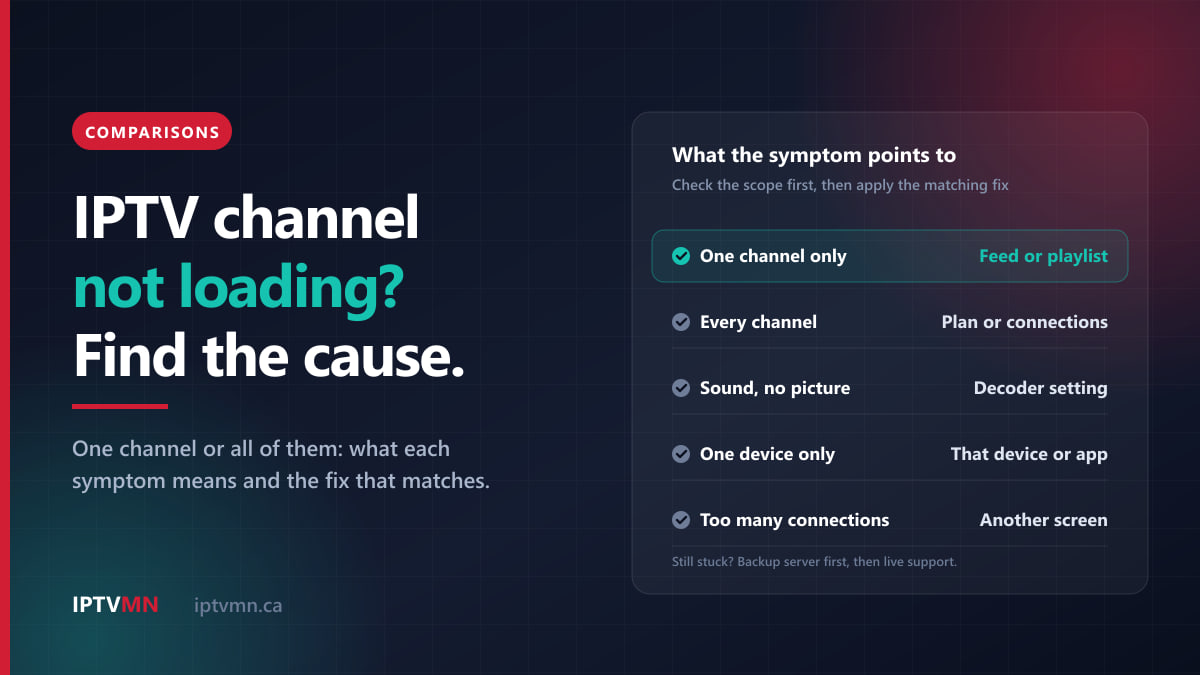
IPTV Channel Not Loading? How to Find the Cause and Fix It (2026)
IPTV channel not loading? Check whether it is one channel or all of them, then use the matching fix: playlist refresh, decoder, connections or backup server.
Read the guide
Comparisons 15 min read
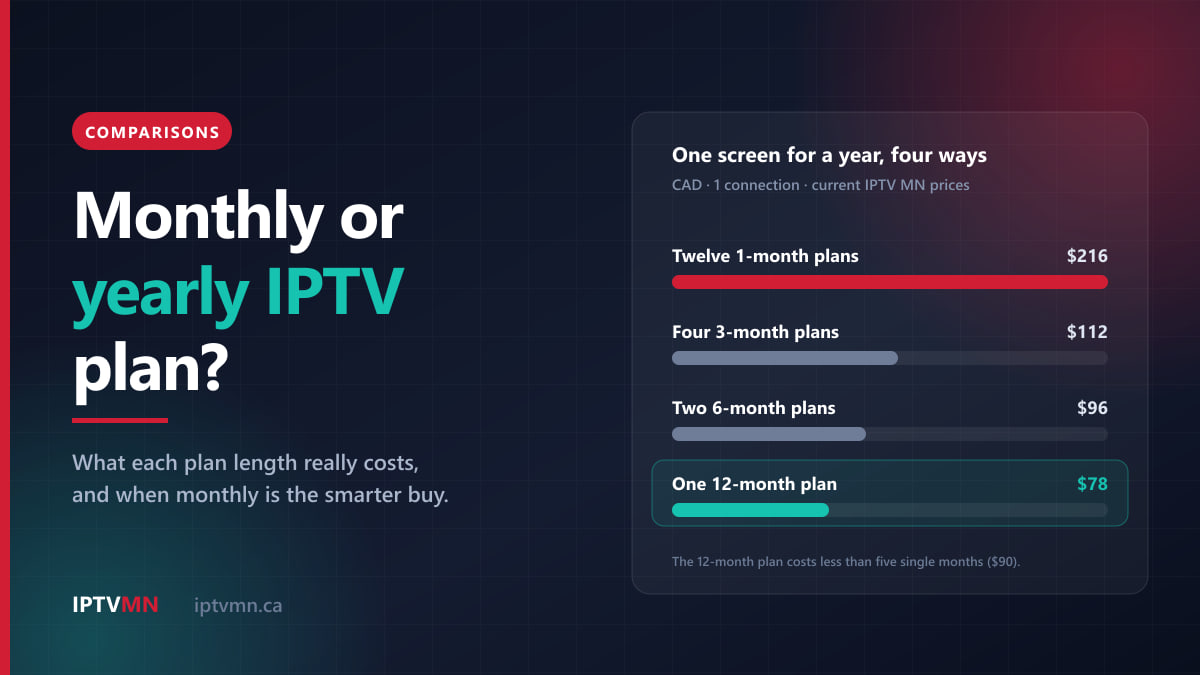
Monthly or Yearly IPTV Plan? How to Choose, With the Real Numbers (2026)
Monthly or yearly IPTV plan? See what each plan length really costs, the month when the yearly plan pays for itself, and when monthly is the smarter buy.
Read the guide
Comparisons 16 min read
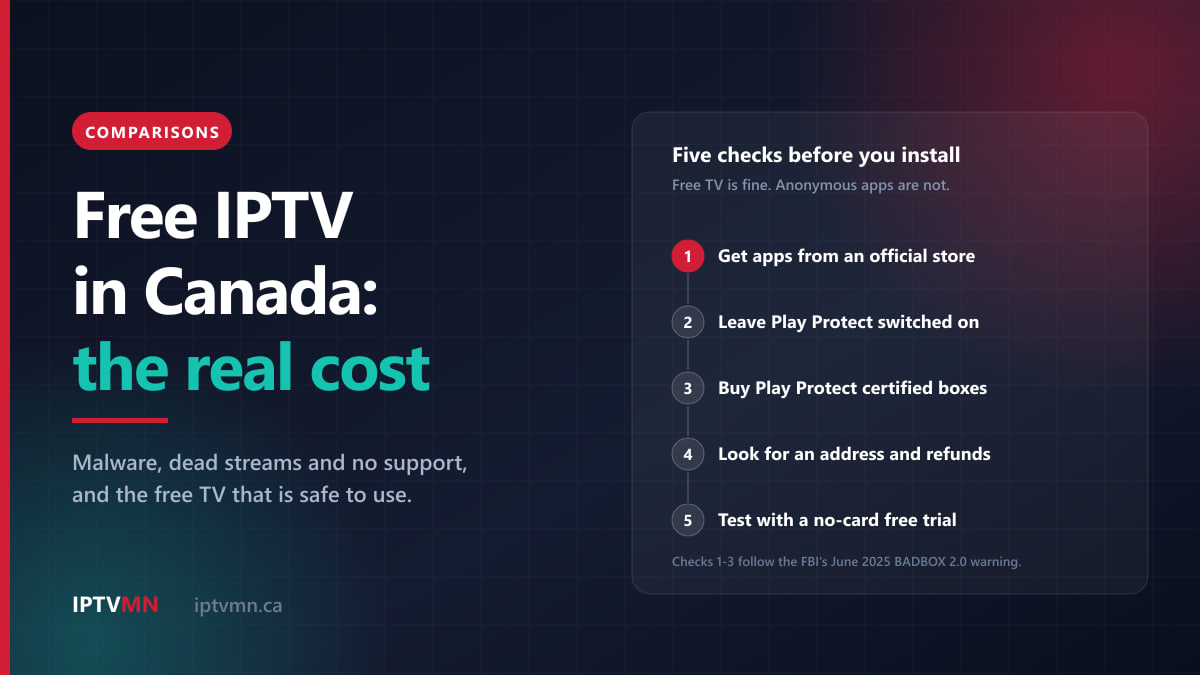
Free IPTV in Canada: Why It Costs More Than It Looks (2026)
Free IPTV in Canada costs more than it looks: malware, dead streams and no support. See which free TV is safe and how to test IPTV without paying.
Read the guide