Comparisons
Parental Controls on IPTV: How to Lock Channels, Movies and Adult Content (2026)
IPTV parental controls compared: PIN locks in TiviMate, Smarters and IBO Player, device locks on Fire TV and Apple TV, and the gaps most parents miss.
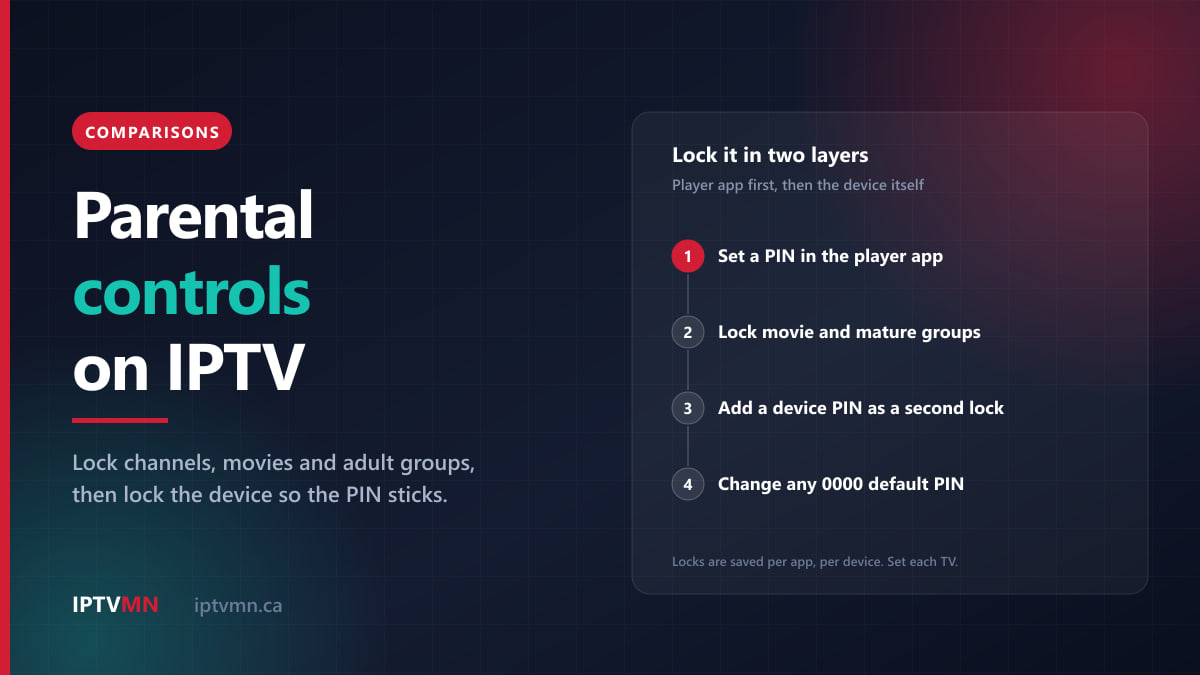
IPTV parental controls work in two layers. The first is the player app on your TV, where a PIN locks whole channel groups, single channels and movie or series categories. The second is the device itself, where a PIN or a kids profile stops a child opening the app, installing a different one or changing its settings. Each layer has a gap that the other one covers, so set both.
Ten minutes per TV is usually enough to do it properly. This guide compares where each lock lives, gives the steps for the apps in our setup guides, and is honest about what no lock can do.
The short answer
- Lock inside the player app first. IPTV Smarters Pro includes parental controls for free. TiviMate puts them in its paid Premium tier. IBO Player and MYTVOnline 3 have their own PIN locks.
- Then add a device lock. Fire TV can ask for a PIN before any app opens, Apple TV has Restrictions, Google TV has kids profiles, and Samsung and LG TVs can lock individual apps.
- Change every default PIN. Formuler boxes, Samsung TVs and LG TVs all start at 0000, and children know it.
- Hiding a group is not the same as locking it. A hidden group can be brought back from the settings menu in seconds.
- Locks are saved per app, per device. The playroom TV, the tablet and the phone each need their own.
- Catch-up and on-demand ignore the 9 pm watershed. A late-evening drama can be played at four in the afternoon, so lock movie and premium film categories, not only live channels.
Why does IPTV need different parental controls from cable?
With cable, three things protect younger viewers without anyone setting them up. The package limits what comes into the house to a few hundred channels. The receiver has a ratings lock. And Canadian broadcasters schedule mature programmes around a watershed: under the Canadian Association of Broadcasters’ Violence Code, programming with violence intended for adults is kept to the late-evening period from 9:00 pm to 6:00 am.
IPTV removes all three at once.
The lineup is far bigger. IPTV MN carries more than 54,000 live channels from Canada and more than thirty other countries, plus a library of more than 195,000 movies and 45,000 TV shows on demand. Most of it is perfectly ordinary television, but a library that size is not a children’s library.
The clock stops protecting anyone. A watershed only works in the time zone it was planned for. The Canadian Broadcast Standards Council has pointed out that a programme airing at 9:00 pm in the East appears much earlier further west. An IPTV lineup includes stations from every province, so a family in Vancouver can open a Toronto station as easily as a local one. This winter, with British Columbia no longer changing its clocks, a 9:00 pm programme on a Toronto station plays at 7:00 pm in Vancouver and 8:00 pm in Calgary. Catch-up goes further: on channels that keep an archive, last night’s late film can be played from the start after school.
The TV’s own ratings lock cannot see inside the app. Built-in controls were designed for the TV’s tuner and the manufacturer’s own store. Apple says plainly that its restrictions may not apply to apps you download from the App Store, and Amazon’s viewing restrictions cover Prime Video and selected partner apps. A player app has to be locked from the inside.
None of this makes IPTV unsuitable for a family home. It means the protection that cable gave you by default is something you switch on yourself.
Where can you set parental controls on IPTV?
There are five places a lock can live. They differ in what they can stop, and in how easily a determined ten-year-old can get round them.
| Where the lock lives | What it can lock | What it cannot do | Cost |
|---|---|---|---|
| The player app’s PIN | Channel groups, single channels, movie and series categories | Survive the app being cleared or reinstalled | Free in Smarters Pro; Premium in TiviMate |
| The device’s PIN | Opening apps, buying or installing apps, changing settings | Tell one channel from another inside the app | Free |
| A kids profile | Which apps a child sees, daily screen time, bedtime | Lock anything inside an app the profile allows | Free |
| The TV’s ratings lock | The TV’s own tuner and the maker’s own apps | Reach inside a player app | Free |
| A router or DNS filter | Websites and whole online services | Pick out channels, because every stream comes from the same servers | Free or paid |
The first two rows do the real work. The app lock decides what can be watched. The device lock makes sure the app lock stays in place. A kids profile is a good extra on Google TV, and the last two rows are useful for other things in the house but are the wrong tool for IPTV.
How do I lock channels in each IPTV player app?
A player app holds no channels of its own. It opens the login IPTV MN sends you, and it is where the channel groups, the guide and the on-demand library appear. That makes it the right place for the first lock. Our comparison of the best IPTV player apps covers everything else these apps do. Here is what each one offers for parents.
IPTV Smarters Pro (Fire TV, LG, Android TV and Windows)
Smarters Pro includes parental controls at no extra cost. It is the player in the Fire TV Stick setup guide and the LG smart TV guide.
- Open the app and go to Settings, then Parental Control.
- Create a password and confirm it. Do not use 0000, 1234 or a birthday.
- Choose the categories to lock. Live TV, movie and series categories each appear in their own list, so work through all three.
- Leave the screen and open a locked category to check that it asks for the password.
The lock applies to whole categories, which is usually what you want. It is set inside this copy of the app on this device, so a second TV running Smarters needs the same steps.
TiviMate (Android TV, Google TV and Nvidia Shield)
TiviMate is the player in our Android TV and Google TV guide, and its parental control is part of TiviMate Premium, the paid upgrade sold by the app’s developer through the TiviMate Companion app. It is not sold by IPTV MN.
With Premium active, open Settings, then Parental control, switch it on and create a four-digit PIN. You can then lock single channels or whole groups from the channel list. Check the parental control screen for an option to protect the settings themselves, because without it a child can open Settings and switch the lock off.
On the free version, you can still hide groups through Settings, then Playlists, then Channel groups. That tidies the guide, but it is not a lock, as the next section explains.
IBO Player and IBO Player Pro (Samsung and VIDAA televisions)
On a Samsung smart TV or a VIDAA television, live support loads your playlist onto the app’s device key, so nobody types a password with the remote. The app’s own Parental Control setting then lets you set a four-digit PIN and lock categories.
If the app asks for a current PIN before you have set one, try 0000, the starting PIN on many players, and change it straight away.
MYTVOnline 3 (Formuler boxes)
Formuler’s player is built around live TV, and its locks are quick to use. According to Formuler’s own support pages, the factory parental PIN is 0000. Change it first under Menu, then Settings, then Parental Options, then Change Parental PIN. After that, press the yellow button on the remote while a channel is highlighted to lock or unlock it. The Formuler setup guide covers the rest of the box.
Apple TV, iPhone and iPad
On Apple devices, the Apple TV setup guide uses Smarters Player Lite. Look in the app’s settings for a parental option, and rely on Apple’s own Restrictions, covered below, as the outer lock.
Is hiding a channel group the same as locking it?
No, and mixing the two up is the most common mistake parents make.
- Hiding removes a group from the list. It makes the guide faster and tidier, and our setup guides suggest keeping only Sports, Local, News and Kids visible for exactly that reason. Anyone who opens the settings can bring a hidden group back.
- Locking leaves the group visible but asks for a PIN before anything in it plays.
- A favourites list is a shortcut, not a fence. It is useful for a young child who only ever needs six channels, but every other channel is still one press away.
The strongest setup combines them: lock the categories children should not open, hide the groups nobody in the house watches, and give the youngest viewers a short favourites list. IPTV MN’s Kids and Family group includes Treehouse, YTV, Family Channel, Disney Channel Canada, Nick Jr., Télétoon and BabyTV, and the full channels list shows what else sits in each group.
How do I stop children getting around the app’s PIN?
An app’s PIN is stored inside that app. On most devices, clearing the app’s data or reinstalling it wipes the PIN along with your favourites, and a child who knows the login can sign in to a second player. The device lock closes that gap.
Device locks are coarser than app locks: most of them lock a whole app, not what is inside it. That makes them ideal on a TV the children use alone, and a useful backstop on the shared one.
| Device | Where to find it | PIN | What to switch on |
|---|---|---|---|
| Fire TV | Settings, Preferences, Parental Controls | Five digits, your Amazon PIN | App Launches on a children’s TV; Purchases everywhere |
| Google TV | Your profile picture, Add account, Add a kid | Profile lock | A kids profile with only the apps you choose |
| Apple TV | Settings, General, Restrictions | Four digits | Limits on purchases, app ratings and settings |
| Samsung TV | The app’s settings on the Apps screen, then Lock | Starts at 0000 | Lock the player on a children’s TV; change the PIN |
| LG TV | Settings, General, System, Safety, Application Locks | Starts at 0000 | Lock the player on a children’s TV; change the PIN |
Menu names shift between model years, so if a step is not exactly where the table says, search the TV’s settings for “lock” or “parental”.
Fire TV
Open Settings, then Preferences, then Parental Controls, switch them on and enter a five-digit PIN. PIN Protect App Launches asks for the PIN before any app opens, including the player. That is effective for a TV used only by children, but it also means you type the PIN every time you watch. PIN Protect Purchases asks for it before anything is bought, apps and games included. A forgotten PIN can be reset from your Amazon account.
One device note: only Fire TV models running Fire OS can install an IPTV player. Our comparison of the best device for IPTV lists which sticks still work.
Google TV and Android TV
On a Google TV device, choose your profile picture, then Add account, then Add a kid. During setup you pick which apps appear on the child’s home screen, and you can set a daily time limit and a bedtime. Family Link on your phone blocks or allows apps later, and Google notes that a kids profile may not be available on every Google TV device. If you leave the IPTV player off the kids profile, the child simply never sees it. If you include it, lock the app’s categories as well. Our Chromecast guide uses the same Google TV system.
Apple TV
Go to Settings, then General, then Restrictions, switch them on and choose a four-digit passcode. You can limit purchases, restrict apps by their age rating and stop changes to settings such as AirPlay. On a TV the children use alone, an app-rating limit is the simplest outer lock. On a shared TV, the player’s own category locks still do the detailed work.
Samsung and LG smart TVs
Both brands let you lock a single app behind the TV’s PIN, and both start that PIN at 0000. On Samsung, open the Apps screen, choose the app’s settings and select Lock, then change the PIN under General and Privacy, then System Manager, then Change PIN. On LG, go to Settings, then General, then System, then Safety, switch Safety on and open Application Locks. Locking the player suits a TV only children use. On a shared TV, rely on the player’s category locks, and change the TV’s PIN from 0000 either way.
What should you lock on a family IPTV setup?
Locking everything defeats the point, because the household stops using the TV. These are the categories worth locking in most homes with children under thirteen:
- The on-demand movie and series library. This is where most mature content sits, and none of it has a schedule. Lock it entirely if the children are young, or by genre if your app shows genres.
- Premium film channels. Crave 1 to 3, HBO Canada, Super Écran, Starz, Cinemax and Hollywood Suite carry many films and series made for adults, and catch-up makes their evening schedules available at any hour.
- Late-night and mature groups. On many IPTV services the list also includes an adult group. If yours shows one, lock it first. If you would rather it never appeared on your line at all, ask live support what can be done.
- Out-of-region entertainment channels. US networks and stations from other provinces air their 9:00 pm programmes in someone else’s evening.
- The app’s settings and the add-playlist screen, where the app allows it, so the locks themselves cannot be removed.
Leave the Kids and Family group, the sports channels and the local news open. Children who can reach what they want are less likely to go looking for a way round the lock.
Two cautions about live channels. A lock works on whole channels and categories, not single programmes, so a general channel such as CTV or Global is either open or locked as a whole. And premium pay-per-view events come with every plan. A UFC card is live and violent, so if that matters in your home, lock the pay-per-view and fight categories as well. Our guide to the TV guide and catch-up explains how catch-up and recording behave on each kind of channel.
How do parental controls work when there are several TVs?
Every lock above belongs to one app on one device. Nothing syncs, so a family with a living-room TV, a playroom stick and two tablets has four places to set up. Write the PINs down somewhere the children cannot find them, and use the same four digits wherever you can, so you are not locked out yourself.
Plan for the connections too. A connection is one screen watching at a time, and every child’s tablet that plays while the main TV is on uses one. IPTV MN sells one, two or three connections at every plan length, from $18 for one month on one screen to $179 for a year on three. Our guide to watching IPTV on several TVs works out how many a household really needs, and the full grid is on the pricing page.
Three Canadian households, three setups
These are typical situations rather than individual customers.
A family in Vancouver with children aged seven and ten. The children watch on a Fire TV Stick 4K Max in the basement playroom. Their father locks the movie, series and premium film categories in IPTV Smarters Pro, then turns on PIN Protect App Launches, so the stick only plays once a parent has typed the PIN. He locks the out-of-province station groups too, because this winter a Toronto station’s 9:00 pm drama reaches Vancouver at 7:00 pm, just before bedtime. A two-connection plan for twelve months, at $128, keeps the living-room TV free for the adults. See IPTV in Vancouver.
A Calgary household with a fifteen-year-old. Locking everything would only teach the teenager to work around it, so the family locks the late-night and mature groups and leaves movies, sports and news open. The rule is a conversation, not a PIN: a film from the library is fine, as long as someone asks first. See IPTV in Calgary.
Grandparents in Ottawa who babysit on weekends. Their Samsung TV runs IBO Player, which their daughter set up through live support. On her next visit she locks the movie categories with a PIN of her own, changes the TV’s own PIN from 0000, and adds Treehouse and YTV to a short favourites list for the grandchildren. The grandparents keep watching their own channels as before. See IPTV in Ottawa.
What parental controls cannot do
A lock is a speed bump, not a wall. It is better to know the limits before relying on it.
- No lock filters by programme. Locks work on channels and categories. A general entertainment channel shows a cartoon at 4:00 pm and a crime drama at 10:00 pm, and the app cannot tell them apart.
- Category names are not ratings. A movie group labelled by genre or country tells you little about what is in it, so test a few titles yourself.
- Your login works in any app. The username, password and server address in your welcome email open the service on any device, including a teenager’s own phone, where none of your locks apply. Keep that email private, and if you think the login has been shared outside your home, tell live support.
- Short or obvious PINs get guessed. 0000 and 1234 are the first two any child tries.
- Older children find workarounds. For a teenager, the conversation does more than any PIN.
Is IPTV legal in Canada?
The technology is legal. It is the same internet delivery that Canadian carriers use for their own TV services, and the page on what IPTV is explains how it works. What matters is the licensing of the content a service carries.
IPTV MN supplies network access and reseller services and does not host, record or broadcast media. Subscribers are responsible for making sure their own use complies with the Copyright Act and the Broadcasting Act. The full position is in our disclaimer.
Frequently asked questions
Does IPTV have parental controls?
Yes. They are mostly set in the player app and on the device, not on your account. Most good player apps, including IPTV Smarters Pro, TiviMate Premium, IBO Player and MYTVOnline 3, can lock channel groups or categories behind a PIN. Pair that with a device lock so the app’s PIN cannot simply be cleared.
How do I lock adult channels in IPTV Smarters Pro?
Open Settings, then Parental Control, create a password and tick the categories you want to lock. Do the same for the movie and series lists, because the lock applies to each list separately. After that, anything in a locked category asks for the password before it plays.
Is TiviMate’s parental control free?
No. Parental control is part of TiviMate Premium, the paid upgrade sold by the app’s developer through the TiviMate Companion app. The free version can hide groups, which tidies the guide but does not stop anyone bringing them back.
What is the default parental PIN on IPTV boxes and smart TVs?
On Formuler boxes, Samsung TVs and LG TVs it is 0000, and many player apps start there too. Change it the day you set the device up, and avoid 1234 and birthdays. If you forget a TV’s PIN, the manufacturer’s support pages explain how to reset it.
Can I lock movies as well as live channels?
Yes, and you should. The on-demand library has no schedule and no watershed, so it is where most mature content sits. In IPTV Smarters Pro, movie and series categories have their own locks alongside the live TV categories, and other players usually show them on the same parental screen.
Do my parental controls carry over to a new device or app?
No. Locks, PINs and favourites are saved inside each app on each device, not on your IPTV account. A new TV, a second app or a reinstall starts from scratch, so set the locks again before the children use it.
Set it up once, then check it
Parental controls on IPTV are not difficult, but they are not automatic either. Lock the right categories in the player app, put a device PIN around it, change every 0000, and repeat on each screen the children use. Then spend five minutes trying to get past each lock yourself, the way a curious child would.
If you want to try it before paying, request the 24-hour free trial through live chat. No payment details are needed, and it is long enough to set up the locks on your own TV and see how they behave. When you are ready, plans start at $18 for one month on the pricing page, paid by Interac e-Transfer with no auto-renewal. The refund policy gives you seven days if the service will not work on your setup and support cannot fix it, and our page on the best IPTV in Canada sets out the standard to hold any provider to, including this one.
Written by the IPTV MN team
We run the servers in Toronto and Montreal and answer the support messages. Everything here comes from what we see on the network and what Canadian members actually ask us. Something unclear or out of date? Tell us and we will fix it.
Keep reading
Comparisons 13 min read
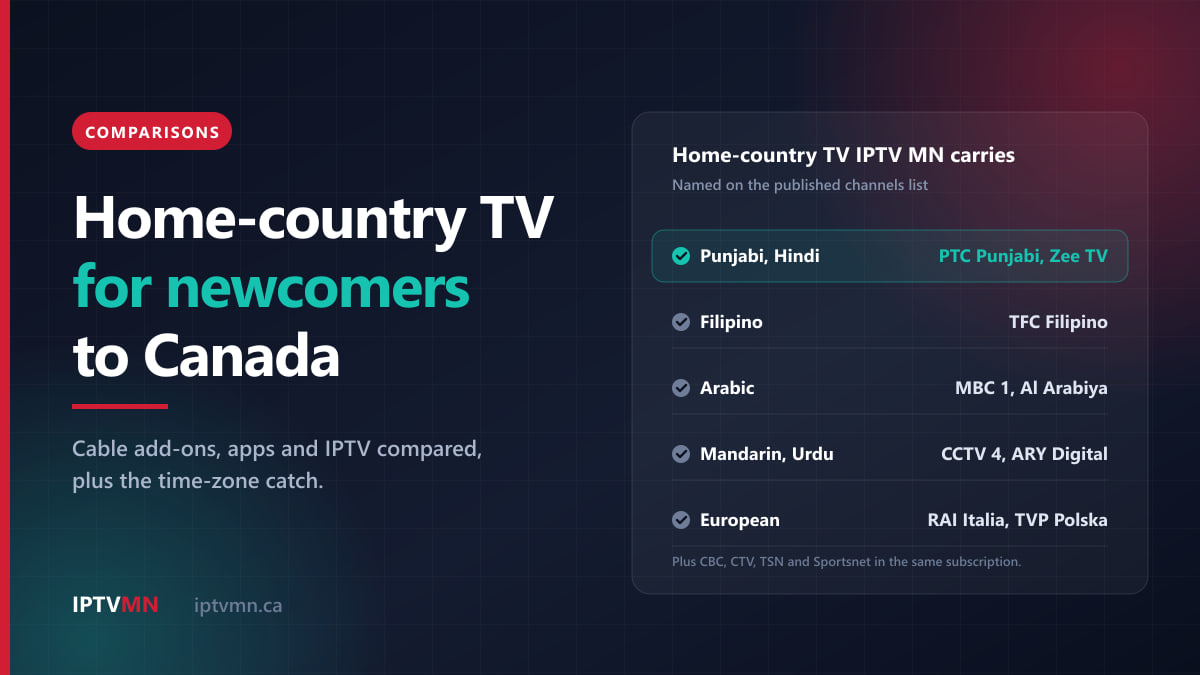
International TV Channels in Canada: How Newcomers Keep Watching TV From Home (2026)
International TV channels in Canada compared for newcomers: cable add-ons, home-country apps and IPTV, which languages are carried, and the time-zone catch.
Read the guide
Comparisons 14 min read
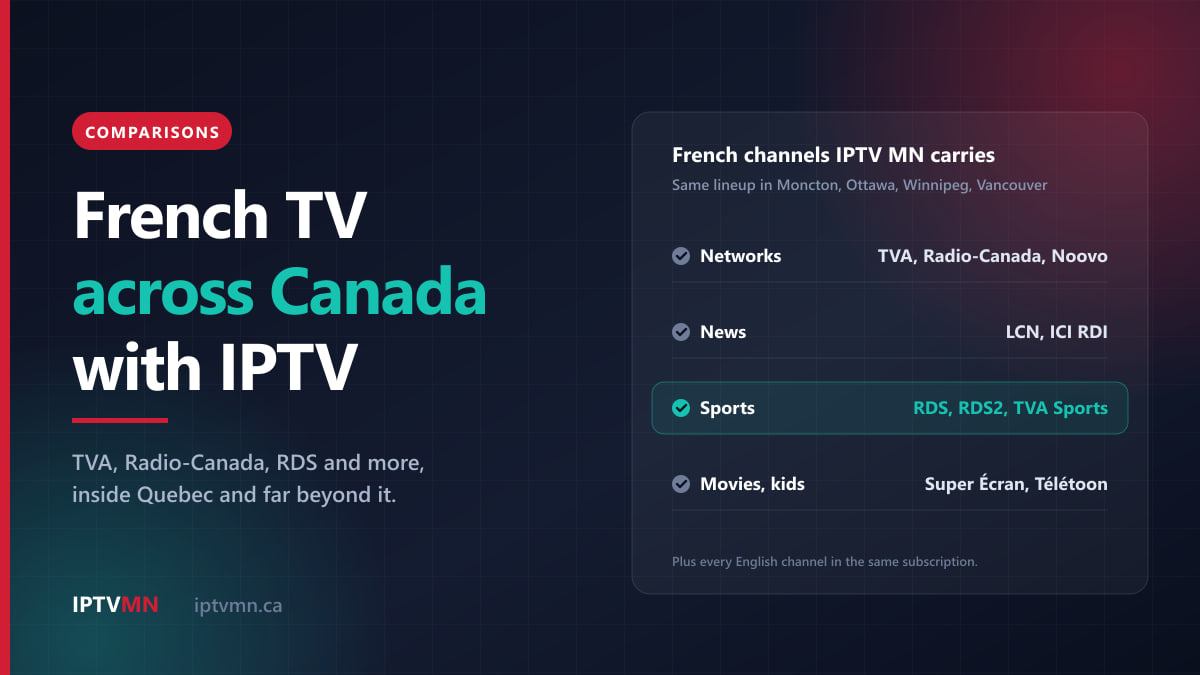
French TV Channels in Canada: How to Get TVA, Radio-Canada, Noovo and RDS Outside Quebec (2026)
French TV channels in Canada compared: what antennas, cable and free apps give you outside Quebec, where RDS and TVA Sports fit, and how IPTV fills the gaps.
Read the guide
Comparisons 15 min read
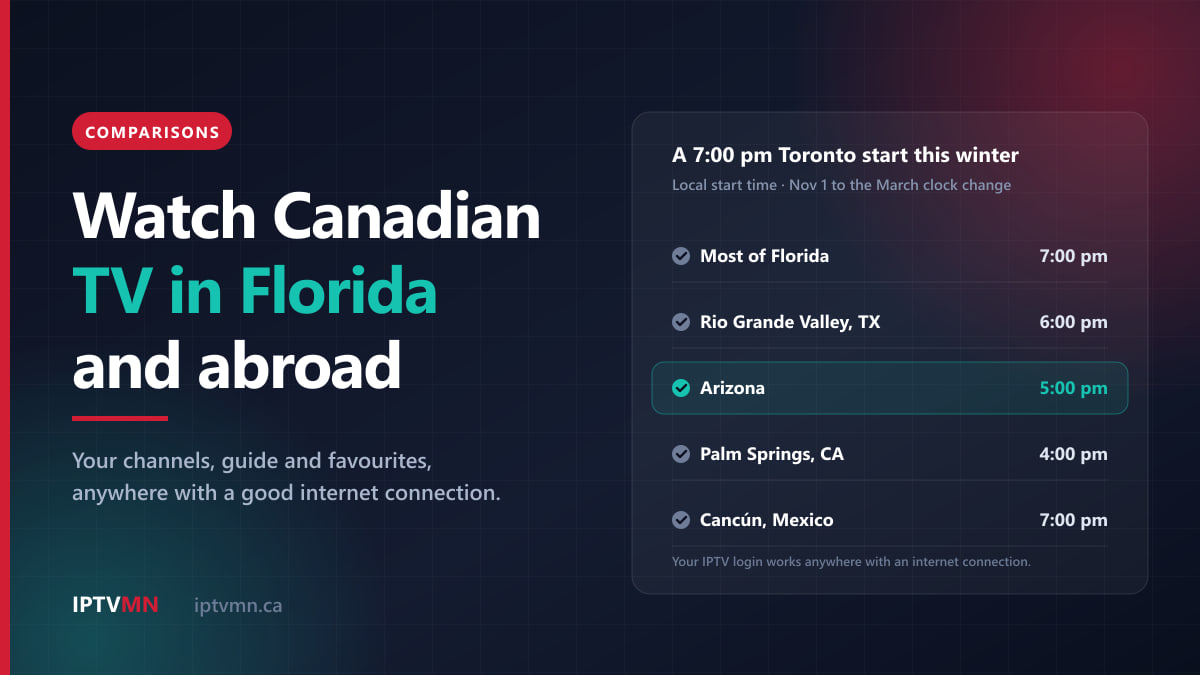
How to Watch Canadian TV in Florida, Arizona and Abroad: A Snowbird Guide for Winter 2026-27
How to watch Canadian TV abroad this winter: why Canadian apps stop at the border, what works in Florida and Arizona, the Wi-Fi you need and game times.
Read the guide