Comparisons
How to Use the TV Guide and Catch-Up TV on IPTV in Canada (2026)
Use IPTV catch-up TV to replay missed shows, compare it with recording, and keep the guide right as western provinces stop changing clocks.
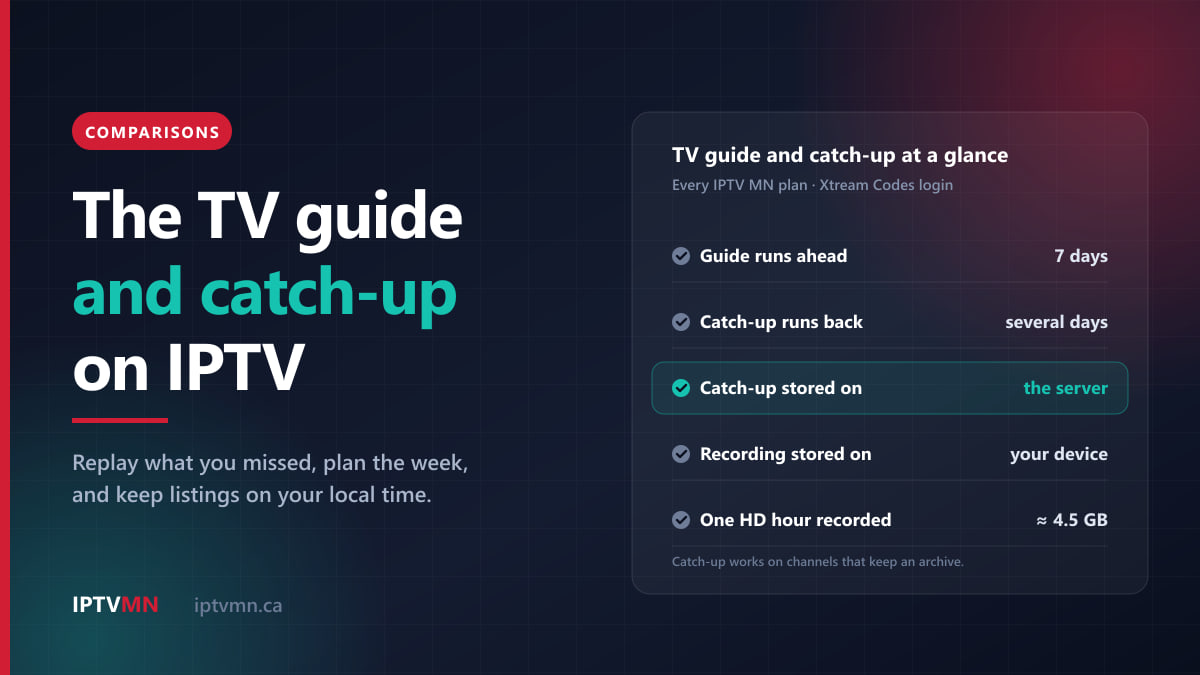
Catch-up TV on IPTV lets you go back in the programme guide and play a show, a newscast or a game that has already aired. It plays straight from the provider’s servers, so nothing is recorded on your own device. With IPTV MN, the guide runs seven days ahead, and most major channels keep several days of catch-up behind it. You open the guide, scroll back to what you missed, and press Play.
Two things decide whether that works smoothly on your television: the player app you use, and whether your device’s clock is right. The clock matters more than usual this autumn. British Columbia, Alberta, the Northwest Territories and Manitoba have stopped changing their clocks, and a device that misses the update will show the guide an hour out after November 1. This guide covers both, along with when recording beats catch-up and how to set up favourites so the guide is quick to use.
The short answer
- The guide (EPG) shows what is on now and for the next seven days, with descriptions. It loads on its own when you sign in with the Xtream Codes login, not the M3U link.
- Catch-up replays programmes that have already aired on channels that keep an archive, which covers most major channels, going back several days. Scroll back in the guide, pick the programme, press Play.
- Every IPTV MN plan includes both. The app has to support catch-up too: IPTV Smarters Pro and MYTVOnline 3 do at no extra cost, while TiviMate needs its paid Premium tier.
- Catch-up beats recording for most people: there is nothing to schedule and no storage to fill. Record only when a channel keeps no archive, or when you want to keep something longer than a few days.
- Catch-up uses one connection while it plays, exactly like a live channel.
- Check your device’s clock on November 2. If it fell back an hour in BC, Alberta or Manitoba, install the device’s system updates or choose a time zone that matches your local time.
What are the TV guide and catch-up TV on IPTV?
The electronic programme guide, or EPG, is the grid you would recognise from cable: channels down the side, times across the top, and a box for each programme with its title and a short description. IPTV MN lists it as “Smart EPG” in every plan. It runs seven days forward, so you can see what is on Saturday night from a Monday morning.
The guide arrives with your login. When a player app signs in with the Xtream Codes details from your welcome email, it downloads the channel list, the seven-day guide and the on-demand library in one go. The M3U playlist link mainly carries the channel list, which is why an app set up with M3U often shows channels with no listings at all. The explainer on Xtream Codes vs M3U covers the difference, and the page on what IPTV is shows where the guide fits into the technology.
Catch-up TV works backwards from now. On channels that keep an archive, the server holds the last several days of broadcasts, and the guide becomes the way to reach them. Every past programme on those channels turns into something you can open, pause, rewind and fast-forward. You do not have to plan ahead, and nothing is saved on your device.
Two limits are worth knowing from the start:
- Not every channel keeps an archive. Most major channels do. Many of the 54,000+ channels in the full lineup do not, especially smaller international and specialty channels. The guide shows you which is which.
- The archive is a rolling window. Each new day added at the front pushes the oldest day off the back. A programme from several days ago that you meant to watch will eventually disappear, which is exactly when recording earns its place.
One more thing that is easy to mix up: the on-demand library of 195,000+ movies and 45,000+ TV shows is not catch-up. Those are titles in a library, browsed by poster and genre. Catch-up is past broadcasts of live channels, found through the guide.
Which IPTV apps support catch-up and the guide?
Your subscription is the same in every app, and so are the channels in the lineup. What changes from app to app is how the guide looks and whether catch-up and recording are switched on. Here is how the players in our setup guides compare on those three features.
| Player app | Runs on | Programme guide | Catch-up | Recording | Our setup guide |
|---|---|---|---|---|---|
| IPTV Smarters Pro | Fire OS sticks, Android TV, LG TVs, Windows | Yes | Yes, free | Yes, to device storage | Fire TV Stick |
| TiviMate | Android TV, Google TV, Nvidia Shield | Yes, free | Premium tier | Premium tier | Android TV and Google TV |
| MYTVOnline 3 | Formuler boxes | Yes, grid or single channel | Yes, from the MyMenu button | Yes, to a USB drive | Formuler |
| VLC | Windows, Mac | No, a channel list only | No | Manual only | Windows PC |
| M3U player channels | Roku | Depends on the channel | No, Roku uses the M3U link | Depends on the channel | Roku |
A few notes that the table cannot hold:
- TiviMate’s free version shows the full guide but not catch-up. Catch-up, recording and multi-view need TiviMate Premium, which the app’s developer sells through the TiviMate Companion app, separately from your IPTV subscription. The Nvidia Shield setup guide uses Premium for that reason. If you want catch-up on Android TV without paying a developer, IPTV Smarters Pro runs there too.
- On Windows, VLC is a quick way to test a login, but it has no guide. IPTV Smarters for Windows gives a laptop the same guide and catch-up as the television.
- BuzzTV boxes refresh the guide on their own every day once it has loaded the first time, as the BuzzTV setup guide explains.
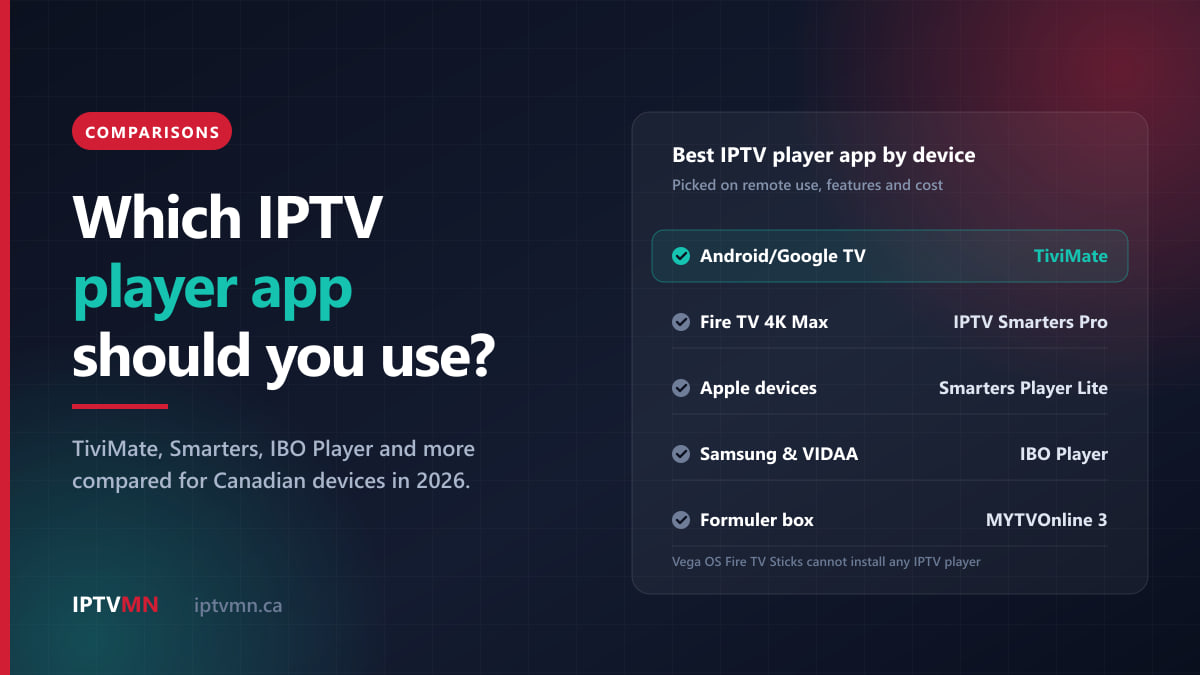
- Apple TV and Samsung or VIDAA televisions use Smarters Player Lite and IBO Player. Their features vary between versions, so read the app’s own store description, or ask live support which player handles catch-up best on your model.
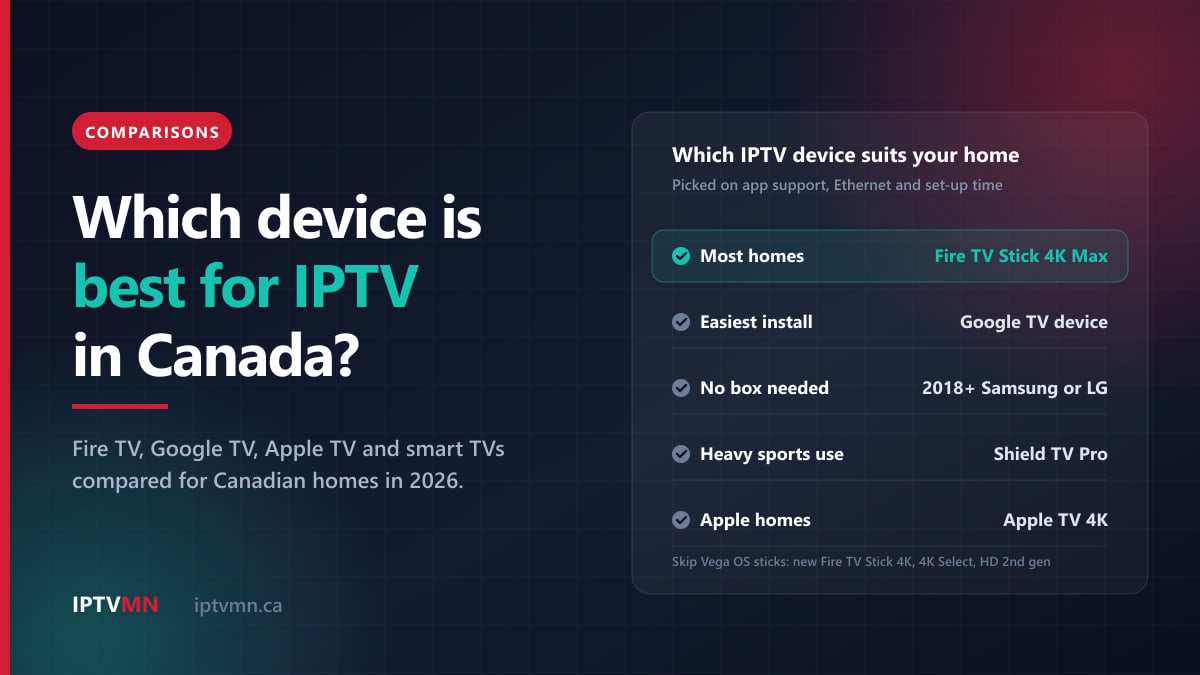
- New Fire TV Sticks running Amazon’s Vega OS cannot install any IPTV player. The Fire TV Stick 4K Max and 4K Plus still can. Our comparison of the best device for IPTV lists which models work.
For the wider picture on menus, multi-view and cost, read the full comparison of IPTV player apps.
How do I watch a show I missed with catch-up?
The menus differ slightly between apps, but the steps are the same everywhere:
- Sign in with Xtream Codes. If you set the app up with the M3U link, add the Xtream Codes login from your welcome email instead. Catch-up needs it.
- Open the guide. Most apps call it TV Guide or EPG. Give it a minute the very first time while seven days of listings download.
- Find the channel. Channels with an archive are usually marked with a small icon, often a clock or a rewind symbol, in the guide or the channel list. On a Formuler box, catch-up channels are marked in the list.
- Scroll back in time. Move left, past the programme that is on now, into the ones that have finished.
- Select the programme and press Play. It starts from the beginning. Pause, rewind and fast-forward work as they would on a recording.
- Go back to live by selecting the current programme or pressing the app’s live button.
If a past programme will not open, it is usually one of three things: the channel keeps no archive, the programme is older than the archive reaches, or the app does not support catch-up in the version you have.
Three habits make catch-up much more pleasant.
Watch the next listing when a game runs long. Catch-up usually follows the guide’s start and end times. If a hockey game goes to overtime and runs past its slot, the end of it may sit in the next programme in the guide. Open that one to see the finish.
Restart something that is still on. Many players let you play a programme that is airing right now from its beginning, because the archive has been capturing it since it started. That is handy when you switch on ten minutes into the news.
Stay off your phone for sports. Catch-up makes a 5:00 pm start watchable at 6:30, but only if the score has not reached you first.
Catch-up plays from the same Toronto and Montreal servers as live television and needs the same bandwidth: roughly 8 to 12 Mbps for HD and 15 to 20 Mbps for Full HD.
Catch-up, recording or on-demand: which should you use?
All three let you watch something when it suits you, but they work differently, and each wins in a different situation.
| Catch-up | Recording | On-demand library | |
|---|---|---|---|
| What it plays | Programmes already aired on channels with an archive | Anything you can watch live, once recorded | Movies and series in the library |
| Planning ahead | None | You schedule it or press record | None |
| Where it is stored | IPTV MN’s servers | Your device or a USB drive | IPTV MN’s servers |
| How long it stays | Several days, then it rolls off | Until you delete it | While the title is in the library |
| Storage on your device | None | About 4 to 5 GB per hour of HD | None |
| Connections used | One while you watch | One while it records | One while you watch |
| Apps that do it | Smarters Pro, TiviMate Premium, MYTVOnline 3 | Smarters Pro, TiviMate Premium, MYTVOnline 3 | Most Xtream Codes players |
Why recording is harder than it looks
A recording is the live stream saved to storage, so its size follows the bitrate. A handy conversion is that each Mbps of streaming comes to about 0.45 GB per hour:
- HD at 8 to 12 Mbps is about 3.6 to 5.4 GB an hour, or about 4.5 GB at a typical 10 Mbps. A three-hour hockey broadcast takes roughly 11 to 16 GB.
- Full HD at 15 to 20 Mbps is about 7 to 9 GB an hour.
Most streaming sticks have 8 to 16 GB of storage in total, and the system and your apps already use a good share of it. One game can fill a stick. That is why recording works far better on a box with a USB port, like a Formuler with a USB drive plugged into the back, than on a stick behind the television.
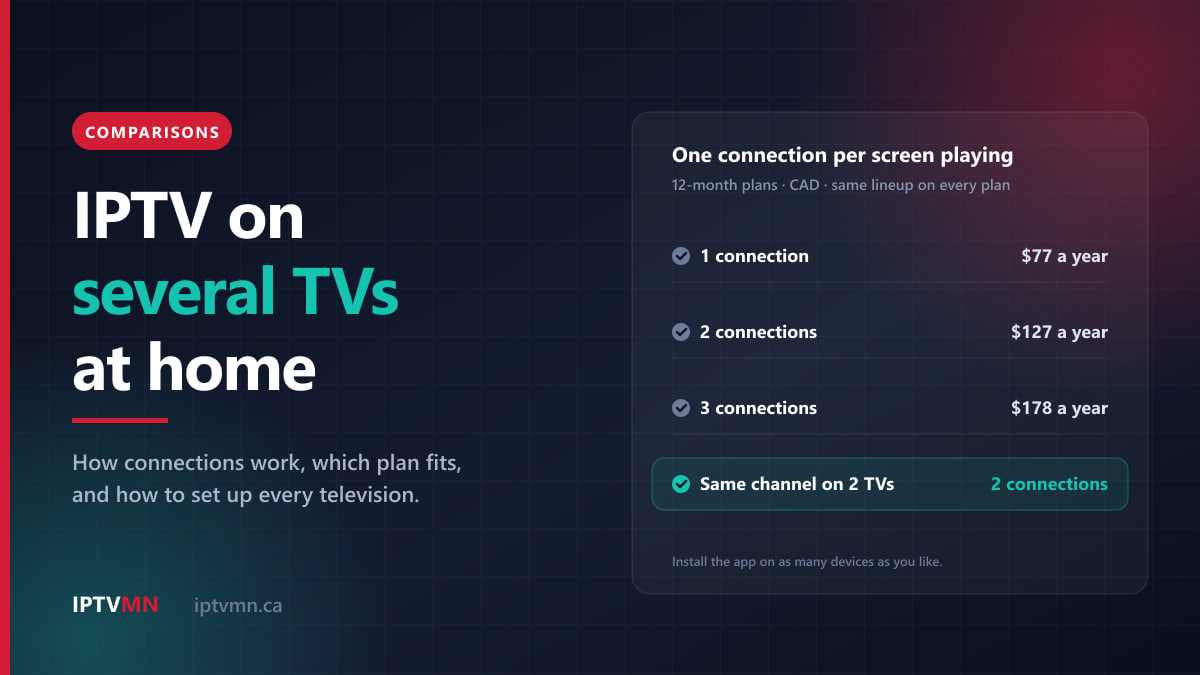
Recording also costs a connection. A recording running in the background is a stream from the server, just like a channel on screen. Recording one channel while you watch another uses two connections, so it needs a two-connection plan ($27 for a month or $127 for a year) rather than a one-connection plan ($17 for a month or $77 for a year). Our guide to watching IPTV on several TVs explains how connections add up across a household.
A simple rule of thumb
- Missed something from the last few days on a major channel? Use catch-up. Nothing to set up, nothing to delete.
- Want to keep a programme for longer, or the channel has no archive? Record it, ideally on a box with a USB drive.
- Looking for a film or a full series? Use the on-demand library.
Most households end up using catch-up nearly every week and recording almost never.
How do I set up favourites so the guide is quick to use?
With more than 54,000 live channels, a full guide is too long to scroll with a remote. Favourites turn it into your own short lineup, and they are the single biggest improvement you can make to the guide.
Build a favourites list. In TiviMate, hold the OK button on a channel to add it to your favourites. Most other players use a long press, a star or a heart icon. Then open the Favourites group in the guide and you see only your channels, with seven days of listings for each.
Hide the groups you never watch. Channels are sorted into groups by province, category and country. Hiding the ones you do not use makes the guide load and scroll faster, and keeps the channel-up button from wandering into a language you do not speak.
Keep it short. A list of 15 to 30 channels is easy to move through with arrow keys. A sports household might keep the five TSN feeds, the Sportsnet regional feed for their team, Sportsnet One, RDS and TVA Sports, plus local news. A family might add Treehouse, YTV and Family Channel for the children.
Set it up on every television. Favourites and hidden groups are saved inside each app on each device, not on your account. A new TV, or a new app on the same TV, starts with an empty list.
Use reminders for things you do not want to miss. Many players let you select a future programme in the guide and set a reminder, so a message appears when it starts. If you forget, catch-up is your safety net.
Some players can also lock whole categories behind a PIN, which IPTV Smarters Pro does for free. That is worth setting before children get their hands on the remote.
How does the guide handle Canadian time zones, and what changes on November 1?
IPTV MN’s guide is built for all six Canadian time zones, including Newfoundland’s half-hour offset and Saskatchewan’s fixed clock, as the coverage page explains. The guide data carries the exact start time of every programme. Your player app then draws those times using your device’s own clock and time-zone setting. When the device is right, the guide is right, wherever you are.
This year, the device side needs a closer look. Several provinces and territories have stopped changing their clocks:
- British Columbia sprang forward on March 8, 2026 for the last time and now stays on what used to be its summer time.
- Alberta made the same move in June, and the Northwest Territories in August.
- Manitoba announced on September 17 that it will stay on its summer time.
- Saskatchewan and Yukon already stayed put all year.
So on Sunday, November 1, 2026, clocks fall back an hour in Ontario, Quebec, Atlantic Canada and Newfoundland and Labrador, while western clocks stay where they are. An evening start in Toronto lands an hour later on western clocks than it did in October:
| City | A 7:00 pm Eastern start, before November 1 | From November 1 |
|---|---|---|
| Vancouver and Victoria | 4:00 pm | 5:00 pm |
| Calgary and Edmonton | 5:00 pm | 6:00 pm |
| Regina and Saskatoon | 5:00 pm | 6:00 pm |
| Winnipeg | 6:00 pm | 7:00 pm |
| Toronto, Ottawa and Montreal | 7:00 pm | 7:00 pm |
| Halifax | 8:00 pm | 8:00 pm |
| St. John’s | 8:30 pm | 8:30 pm |
Why your guide might be an hour out
The rules for each province live in your device’s software, and they reach it through system updates. A television or box that is still being updated will pick up the new rules. An older device that no longer gets updates may fall back on November 1 anyway, even in Vancouver, Calgary or Winnipeg. Manitoba is the most likely place for this, because its decision came only a few weeks before the change, leaving device makers little time.
When that happens, the device’s clock and every time in the guide run an hour behind the clock on your wall. What is playing now is still correct, and catch-up and recordings still line up with the right programmes. Only the printed times are wrong, which is confusing when the guide says 6:00 and the broadcast says 7:00.
How to fix it
- Check on Monday, November 2. Compare the time on your TV or box with your phone.
- Install system updates. Open the device’s settings, check for software updates and restart. Make sure the date, time and time zone are set to automatic.
- If the clock is still wrong, set the time zone by hand to one that matches your local time and never changes its clocks. In Alberta and the Northwest Territories, that is Saskatchewan (Regina). In British Columbia, Yukon (Whitehorse) or Arizona both match. In Manitoba, pick a zone that stays five hours behind UTC all year, such as Bogota or Panama, if your device lists one.
- Switch back to your own city once an update arrives.
Do not use a player’s guide time-offset setting to fix a wrong device clock. That setting moves the listings away from what is actually airing, so the “on now” marker and catch-up both point at the wrong programme. If the device clock is right and the guide still is not, send a screenshot to live support.
The same logic applies to travel. If you winter in Florida or Arizona, the guide follows the time zone set on the device you take with you, so listings appear in local time there.
What if the guide is blank or catch-up will not play?
Most guide and catch-up problems come down to a handful of causes, and you can check them in two minutes:
- No listings at all: the app is probably signed in with the M3U link. Add the Xtream Codes login instead.
- Listings missing on first use: give the guide a minute or two to download, then close and reopen the app.
- Listings an hour out: check the device clock and time zone, as described above.
- Catch-up greyed out: the channel keeps no archive, the programme is older than the archive, or your app needs an upgrade, as with TiviMate’s free version.
- “Too many connections” when you open catch-up: someone else in the house is already using your plan’s connections.
If none of those fits, open live support and send a photo of the screen. Your welcome email also includes a backup server address, which works in any of these apps if one route has a problem.
Four Canadian households, four ways to use the guide
A nurse in Hamilton on rotating shifts. Twelve-hour shifts mean they miss the evening news on CHCH three nights a week. They open the guide after a night shift, scroll back to the newscast, and watch it with breakfast. There are no recordings to schedule around a changing rota. See IPTV in Hamilton.
A Flames fan in Calgary. From November, a 7:00 pm Eastern start is 6:00 pm in Calgary instead of 5:00 pm, but they are still on the road until 6:30. They start the game from the beginning through catch-up on the Sportsnet feed and skips through the intermissions, catching up to live by the third period. See IPTV in Calgary.
A family in Winnipeg with an older Android box. The box stopped getting updates last year. On the morning of November 2, its clock says 6:15 while the kitchen clock says 7:15. They set the box’s time zone by hand to one that stays five hours behind UTC all year, and the guide lines up again. See IPTV in Winnipeg.
Retired grandparents in Ottawa. Their daughter set up a favourites list of twelve channels: CBC Ottawa, ICI Radio-Canada, CBC News Network, CTV News Channel, CPAC, HGTV Canada, History Canada and the five TSN feeds. They never see the other groups, and the channel-up button only moves through those twelve. See IPTV in Ottawa.
Is it legal to use catch-up and record programmes?
The technology is legal. IPTV is what Canadian carriers use for their own television services. What matters is the licensing of the content a service carries. IPTV MN supplies network access and reseller services and does not host, record or broadcast any media. Subscribers are responsible for making sure their own use complies with the Copyright Act and the Broadcasting Act. The full position is set out in our disclaimer.
On recordings, a sensible personal rule is to treat them as household viewing only: watch them at home and delete them when you are done, rather than copying, sharing or selling them.
Frequently asked questions
How far back does IPTV catch-up go?
Most major channels keep several days of catch-up, and the window rolls forward each day, so the oldest day drops off as a new one is added. The exact reach varies by channel. The guide shows it: past programmes you can open are inside the archive, and ones you cannot open are outside it.
Does catch-up TV cost extra?
Not from IPTV MN. Smart EPG and catch-up TV come with every plan, at every price. Some player apps charge for their own catch-up support, such as TiviMate Premium, which is paid to the app’s developer. IPTV Smarters Pro and MYTVOnline 3 include it at no extra cost.
Do I need the M3U link or Xtream Codes for catch-up?
Xtream Codes. It brings the seven-day guide, the on-demand library and catch-up together with your channels. The M3U link mainly carries the channel list, so an app set up with it usually shows no guide and no catch-up.
Does watching catch-up use one of my connections?
Yes. A catch-up programme is a stream from the server, just like a live channel, so it uses one connection while it plays. On a one-connection plan, you cannot watch catch-up on one TV while someone watches live TV on another.
Why is my IPTV guide an hour off after November 1?
Your device’s clock has most likely fallen back when your province no longer does. British Columbia, Alberta, the Northwest Territories and Manitoba stopped changing their clocks in 2026, and older devices may not have the new rules. Install system updates, or set the time zone by hand to one that matches your local time.
Can I record IPTV on a Fire TV Stick?
On a Fire OS model with IPTV Smarters Pro, yes, but storage is the limit. A stick has 8 to 16 GB in total, and an hour of HD takes about 4 to 5 GB. Catch-up is usually the better choice on a stick, and a box with a USB drive is better for regular recording.
The bottom line
The guide and catch-up are the features that make IPTV feel like television you control rather than television you chase. Sign in with Xtream Codes, use a player that supports catch-up, build a short favourites list, and most of the “I missed it” moments disappear. Recording is for the few programmes you want to keep longer. And this year, a quick look at your device’s clock on November 2 saves a winter of guide times that are an hour out.
The easiest way to see how it works on your own television is the 24-hour free trial. Open the guide, scroll back to last night, and play something. If it suits you, compare the plans on the pricing page, pay by Interac e-Transfer, and your login arrives by email, usually within ten minutes. The refund policy gives you seven days if something cannot be fixed on your setup, and our page on the best IPTV in Canada sets out what to expect from any provider, including us.
Written by the IPTV MN team
We run the servers in Toronto and Montreal and answer the support messages. Everything here comes from what we see on the network and what Canadian members actually ask us. Something unclear or out of date? Tell us and we will fix it.
Keep reading
Comparisons 17 min read
How to Watch IPTV on Several TVs at Home: Connections, Plans and Setup
Watching IPTV on multiple TVs comes down to connections. How 1, 2 and 3-connection plans work, which your home needs, and how to set up each TV.
Read the guide
Comparisons 17 min read
The Best IPTV Player Apps Compared: Which One Suits Your Device in 2026
The best IPTV player app depends on your device. We compare TiviMate, IPTV Smarters, IBO Player and others on guide, catch-up, multi-view and cost.
Read the guide
Comparisons 17 min read
Fire TV Stick vs Android Box vs Smart TV: The Best Device for IPTV in Canada (2026)
The best device for IPTV in Canada depends on your TV. We compare Fire TV Stick, Google TV, Apple TV, boxes and smart TV apps, and the 2026 models to avoid.
Read the guide