Comparisons
How to Test an IPTV Free Trial: A 24-Hour Checklist for Canadian Homes
How to test an IPTV free trial in Canada in 24 hours: what to check at peak time, on live sports, the TV guide and catch-up, and the warning signs to look for.
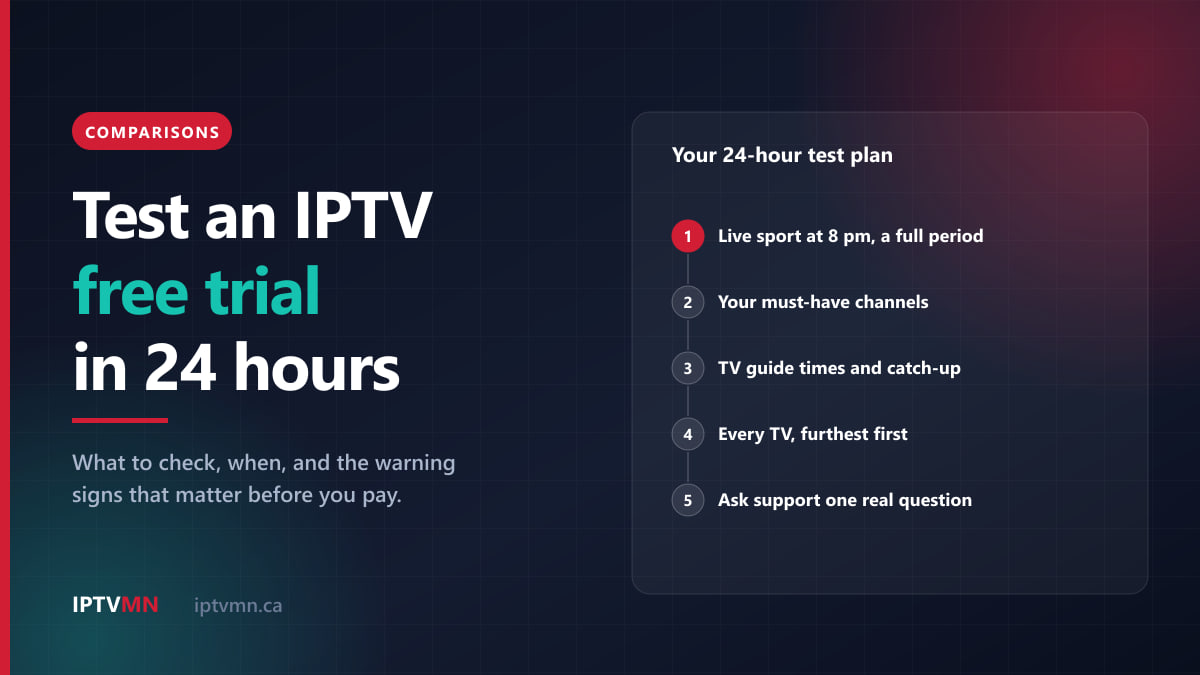
The way to test an IPTV free trial is to use it exactly as you will use the paid service, at the hardest time of day. That means live sport on your main TV at around 8 pm, the channels you actually watch, the TV guide and catch-up, and every TV in the house, all inside the 24 hours. A trial that passes those tests will behave the same way once you pay. A trial tested at 2 pm on a quiet channel tells you almost nothing.
Most people waste their free trial. They install the app, flick through a few channels in the afternoon, see a picture, and decide. Then the first Saturday hockey game freezes and they wonder what went wrong. This checklist sets out what to test, in what order, and what a good result looks like, so you know within one day whether a service is right for your home.
The short answer
- Start the trial in the late afternoon. Twenty-four hours then covers a full evening of live TV and the next morning.
- Test live sport at 8 pm. Peak time is when weak services fall over. Watch at least one full period or quarter.
- Check your own channels, not the headline count. Your local news, your team’s regional feed, your language.
- Test the TV guide and catch-up. Times should match your clock, and an earlier programme should restart.
- Test every TV you will use, starting with the one furthest from the router.
- Ask support one real question. How fast and how well they answer is part of what you are buying.
- Keep a short note of what happened. It makes the decision easy and gives support something concrete to fix.
Before you start: what to have ready
Ten minutes of preparation makes the 24 hours count.
- Pick the device you will really use. Test on the TV and streaming device the family watches every evening, not on a laptop at your desk. If you need help choosing, the installation guides cover every common device.
- Check your internet speed in the room where the TV is. Run a speed test from a phone or laptop sitting next to the TV, at around the time you will watch. As a guide, each screen needs about 8 to 12 Mbps for HD, 15 to 20 Mbps for Full HD and 25 to 40 Mbps for 4K. Our guide to internet speed for IPTV explains what to do if the number is low.
- Write down your must-have channels. Three to ten is plenty: the regional sports feed for your team, local news, a French or international channel if you need one, and whatever the children watch.
- Choose your window. If you care most about a particular game, time the trial so that game falls inside it. If it does not, say so when you ask for the trial. A service worth paying for will often extend it so you can test that game.
- Turn off anything that would distort the test. Pause big downloads, cloud backups and game updates on other devices, and switch off any VPN on the TV for now.
Then request the trial. For IPTV MN, you ask through the free IPTV trial page or live support, and the login arrives within minutes. No card is needed, and nothing turns into a paid plan unless you decide to buy.
The 24-hour test plan
Here is the whole test laid out against a normal day. Start in the late afternoon and you hit every point:
| When | What to test | It passes if |
|---|---|---|
| Late afternoon | Install the app, sign in, load the guide | Channels and guide appear within a few minutes |
| Early evening | Your must-have channel list, one by one | Every channel you need is there and opens |
| 8 pm | Live sport on the main TV, a full period or quarter | No freezing, and fast motion stays sharp |
| During the game | Switch between five or six channels | Each channel starts in a second or two |
| Later that evening | Catch-up: restart a programme that already began | It plays from the start |
| Same evening | A second TV, ideally the one furthest from the router | Same picture quality as the main TV |
| Next morning | Movies and series on demand | Titles start quickly, subtitles work |
| Any time | One real question to support | A clear answer from a person, reasonably fast |
The rest of this guide explains each step and what to look for.
Test 1: live sport at peak time
Live sport at around 8 pm is the single most important test, because it combines everything that can go wrong. More people in your neighbourhood are streaming, the service’s servers are at their busiest, and fast motion is the hardest thing for a stream to show cleanly.
Pick a game that is on during your trial, ideally on the channel you will watch most. This season the national Saturday NHL games are on Sportsnet, and the regional games are spread across the Sportsnet and TSN regional feeds. Then:
- Watch a full period, half or quarter, not two minutes. Problems often show up after ten or fifteen minutes, when your device’s buffer runs down.
- Watch the puck or the ball in fast play. A good stream stays sharp. A weak one turns to blocks or smears during fast passes.
- Switch channels during the game. Move between five or six channels and back. Each should start within a second or two. Long black screens on every change point to a slow service.
- Note the time of any freeze. One short pause in a whole evening is normal on any internet service. Freezes every few minutes are not.
If you follow one team, check the regional feed specifically. A service that carries the national feeds but not your team’s regional channel will let you down on half the schedule.
Test 2: the channels you actually watch
Channel counts are not a useful measure. Every large service lists tens of thousands, and you will watch a few dozen. What matters is whether the few dozen you care about are there and work.
Go through your list one channel at a time:
- Does it exist? Search the guide for it. You can also check the published channel list before the trial even starts.
- Does it open, and is it the right channel? Some poorly run services label channels wrongly, or show the wrong region’s version of a network.
- Is it in the quality you expect? HD channels should look like HD.
- Is the French or international channel the real one, with the audio in the right language?
If any must-have channel is missing, ask support. Sometimes it sits in a group you have not opened. If it genuinely is not carried, that is useful to know before you pay rather than after.
Test 3: the TV guide and catch-up
The programme guide is what makes IPTV feel like television rather than a list of links. Two things to check:
The times are right. Pick three programmes you know and compare the guide’s times with the broadcaster’s own schedule. Canadian clocks changed in 2026: British Columbia, Alberta, the Northwest Territories and Manitoba no longer change their clocks, so the gaps between provinces are not what they used to be. A guide that is an hour out usually means the device itself needs a software update, not that the service is wrong. Our Canadian coverage page shows the current time zones.
Catch-up works. Find a programme that started thirty minutes ago and choose to restart it from the beginning. On channels that offer catch-up, it should play from the start. This is the feature that saves a game you got home late for, so it is worth a minute of your trial. Our guide to the TV guide and catch-up on IPTV explains how it works and what to do if the guide looks wrong.
Test 4: movies and series on demand
The next morning, spend ten minutes on the on-demand library. Search for two or three titles you know, start them, and skip forward. Check that subtitles turn on if you use them, and that a title labelled 4K actually looks sharper than one labelled HD on a 4K television. On-demand is less demanding than live TV, so problems here usually point to the device or the connection rather than the service.
Test 5: every TV and device you will use
A service that works in the living room may not work in the basement. If you will watch on more than one TV, test each one:
- Start with the TV furthest from the router. It is the hardest case. If it passes there, the others will.
- Use a cable where you can. An Ethernet cable to the main TV, or the 5 GHz Wi-Fi band rather than 2.4 GHz, often fixes problems that look like the service’s fault.
- Check the device itself. Some older streaming sticks struggle with modern streams. On Amazon devices, check the Fire TV guide first, because the newest Fire TV Sticks run Vega OS and cannot install outside apps at all.
- Ask about two screens at once. If you will watch on two TVs at the same time, ask whether the trial can play on both together. If it cannot, test each TV in turn, at peak time.
Our guide to watching IPTV on several TVs covers how connections work and which plan fits a household with more than one screen.
Test 6: support and the backup server
You are not only buying channels. You are buying the help you will need on the evening something does go wrong, so test it while it costs you nothing.
- Ask one real question. Something you actually want to know: where to find a channel, how to set up a second device, or what to do if a stream freezes. Note how long the reply takes and whether a person answered it properly.
- Ask about the backup server. A well-run service gives you a second server address to switch to if the main route has a problem. Ask how to switch, and try it once.
- Report anything that went wrong. If you saw a freeze at 8 pm, say so. A good provider will usually fix it with a server change or an app setting, and tell you honestly if your connection is the limit.
Good signs vs warning signs
After the 24 hours, compare what you saw with this table:
| What you noticed | Good sign | Warning sign |
|---|---|---|
| Live sport at 8 pm | Smooth for a whole period, sharp in fast play | Freezes every few minutes, blocky motion |
| Changing channels | A second or two per channel | Long black screens on every change |
| Your channel list | Every must-have channel present and correct | Missing regional feeds, wrong regions |
| TV guide | Times match the broadcaster | Blank guide, or times hours out |
| Catch-up | Earlier programmes restart from the beginning | No catch-up at all |
| Support | A clear answer from a person | No reply, or scripted answers |
| The offer | No card asked, no automatic renewal | Card details demanded for a “free” trial |
| Payment | A clear Canadian method and written refund terms | Pressure to pay before the trial ends |
Two warning signs on that list matter more than the rest. A “free” trial that demands card details usually exists to convert into a charge you did not mean to make. And a service that pushes you to pay before your trial is over is telling you something about how it will treat you afterwards. Our guide on how to choose the best IPTV in Canada goes through the other things worth checking before you pay any provider.
Common mistakes that make a good service look bad
Some trial problems come from the test, not the service. Before you rule a provider out, check that none of these applied:
- Testing on a crowded 2.4 GHz Wi-Fi band at the far end of the house. Move to 5 GHz or a cable and test again.
- Leaving a VPN switched on. A VPN adds distance and can slow streams badly, especially in the evening.
- Testing while someone else is downloading a game update or backing up photos.
- Using an old or underpowered device. A ten-year-old smart TV app can struggle where a current streaming stick will not.
- Judging from one channel. A single channel can have a bad night. Test several before deciding.
If you hit buffering and none of these apply, our guide to fixing IPTV buffering in Canada walks through the remaining causes in order.
What to do if the trial fails one test
A single failed test is not automatically a reason to walk away. What matters is why it failed, and whether it can be fixed before you pay. Work through it in this order:
- Decide whether it is the service or your setup. If the problem shows up on one TV only, or only on Wi-Fi, the cause is almost certainly in the home: the router’s position, the Wi-Fi band or the device. If it shows up on every TV, on a cable, with nothing else running, it is more likely the service.
- Tell support exactly what happened. The channel, the time and what you saw is enough. A freeze at 8:20 pm on one sports channel gives them something to check. “It doesn’t work” does not.
- Test again after the fix. If support moves you to another server or changes an app setting, repeat the failed test at the same time of day, so you are comparing like with like.
- Ask for more time if you need it. If the fix came late in the evening and you have not been able to retest at peak time, say so. A provider confident in its service will usually let you finish the test properly.
There is one failure no fix can solve: a must-have channel that is simply not carried. If your team’s regional feed or your language’s main channel is missing, that answer will not change after you pay, so it is a fair reason to stop there.
After the trial: choosing the right plan
If the trial passed, the remaining decision is which plan. Every plan carries the same lineup; the length and the number of screens are what change. IPTV MN’s IPTV subscription works like this:
- One connection means one screen watching at a time. It costs $18 for a month, $28 for three months, $48 for six and $78 for a year, which works out to $6.50 a month.
- Two connections let two screens watch different channels at once: $28 for a month or $128 for a year.
- Three connections cover a busier household: $40 for a month or $179 for a year.
The full list is on the IPTV plans and prices page. If you are not sure about committing for a year, a single month after the trial is a sensible next step. There is no contract and no automatic renewal, so it simply ends unless you choose to continue.
You pay by Interac e-Transfer from your own bank app, and the login arrives by email within minutes. If something stops working on your setup after you buy and it cannot be fixed, the refund policy gives you seven days. For the bigger picture of what the service covers, our IPTV Canada home page sets out the channels, devices and coverage in one place.
Three households, three trials
A condo in Toronto. The router is in the hallway and the TV is in the far corner of the living room. The first evening, the Leafs game freezes twice in the first period. They move the streaming stick to the 5 GHz band, the second period is smooth, and they buy a month to be sure before committing to a year. See IPTV in Toronto.
A family in Calgary with three TVs. They ask whether the trial can run on two screens at once, test the main TV and the basement TV in turn at 7 pm, and check that the Flames’ regional feed is there. Both pass. They choose two connections for a year, because the third TV is rarely on at the same time. See IPTV in Calgary.
A francophone couple in Quebec City. Their list is short: RDS, TVA Sports, TVA and the Radio-Canada news. They check each in the guide, watch a Canadiens game in French on the first evening, and use catch-up the next morning for the news they missed. See IPTV in Quebec City.
Frequently asked questions
How long is an IPTV free trial?
Most trials last 24 hours, which is enough for one evening of live TV and the following morning. IPTV MN’s trial is normally 24 hours. If the game or channel you most want to test is not on during that window, ask, and the trial can often be extended so you can test it properly.
Do I need a card for an IPTV free trial?
You should not. A genuine free trial needs no card details, and IPTV MN’s trial asks for none and never converts into a paid plan by itself. Be wary of any “free” trial that asks for card details up front.
What is the most important thing to test?
Live sport on your main TV at around 8 pm, for a full period or quarter. It combines peak demand, fast motion and your own home network, so a service that handles it will handle everything else you watch.
Can I test IPTV on more than one TV during the trial?
Yes. Install the trial login on each TV you plan to use and test them in turn, starting with the one furthest from the router. If you need two screens playing at the same time, ask whether the trial can do that before you start.
What if the trial freezes during a game?
Check the common causes first: Wi-Fi band, a VPN, or other downloads in the house. Then tell support what you saw and when. A well-run service will usually fix it with a server change or an app setting, or tell you honestly if your connection is the limit.
Can I get a second free trial later?
Normally there is one trial per household. If something has genuinely changed, such as moving from a slow connection to fibre, it is worth asking, because a new test on the new connection is a fair request.
The bottom line
A free trial is only as useful as the test you give it. Use it the way you will use the service: live sport at peak time, your own channels, the guide and catch-up, every TV in the house, and one real question to support. Twenty-four hours is plenty if you plan them.
If the service passes, you can buy with confidence. If it does not, you have lost nothing. The free 24-hour trial needs no card, and our page on the best IPTV in Canada sets out what any provider should deliver, so you know exactly what a good result looks like before you start.
Written by the IPTV MN team
We run the servers in Toronto and Montreal and answer the support messages. Everything here comes from what we see on the network and what Canadian members actually ask us. Something unclear or out of date? Tell us and we will fix it.
Keep reading
Comparisons 14 min read
TV Antenna vs IPTV in Canada: What Free Over-the-Air TV Still Gets You in 2026
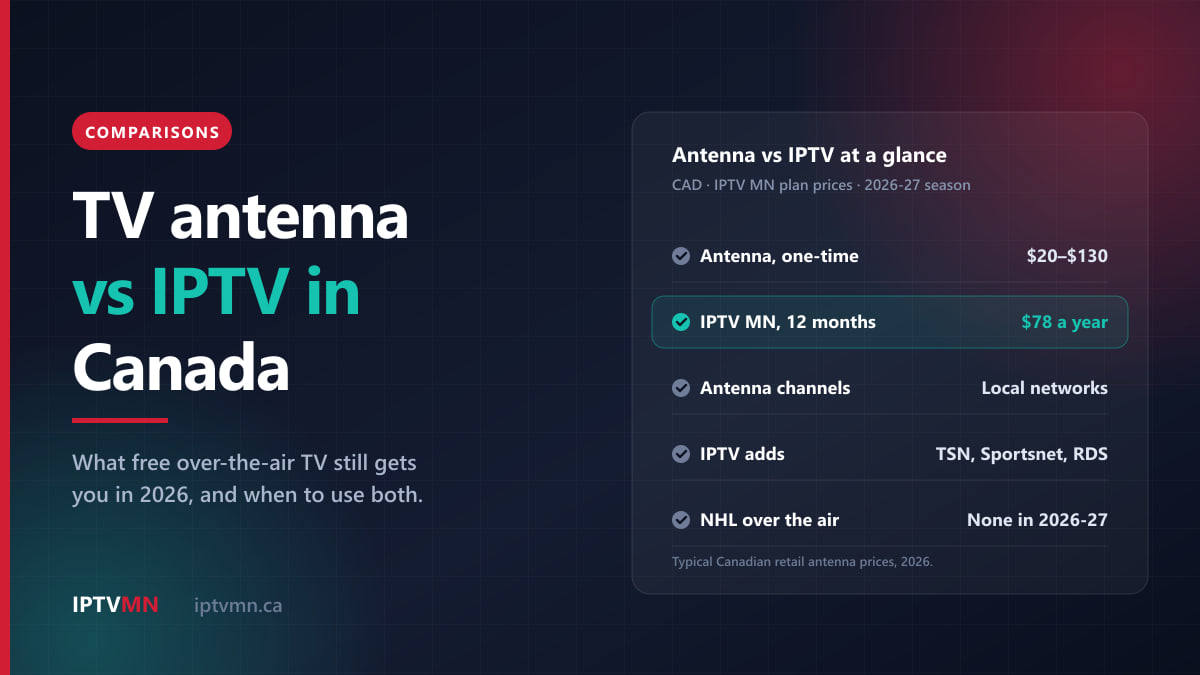
A TV antenna vs IPTV in Canada: which free channels an antenna picks up, what it costs, why NHL hockey left the airwaves in 2026, and when to use both.
Read the guide
Comparisons 13 min read
How to Watch the 2027 World Juniors in Canada: Schedule, Start Times and Every Option Compared
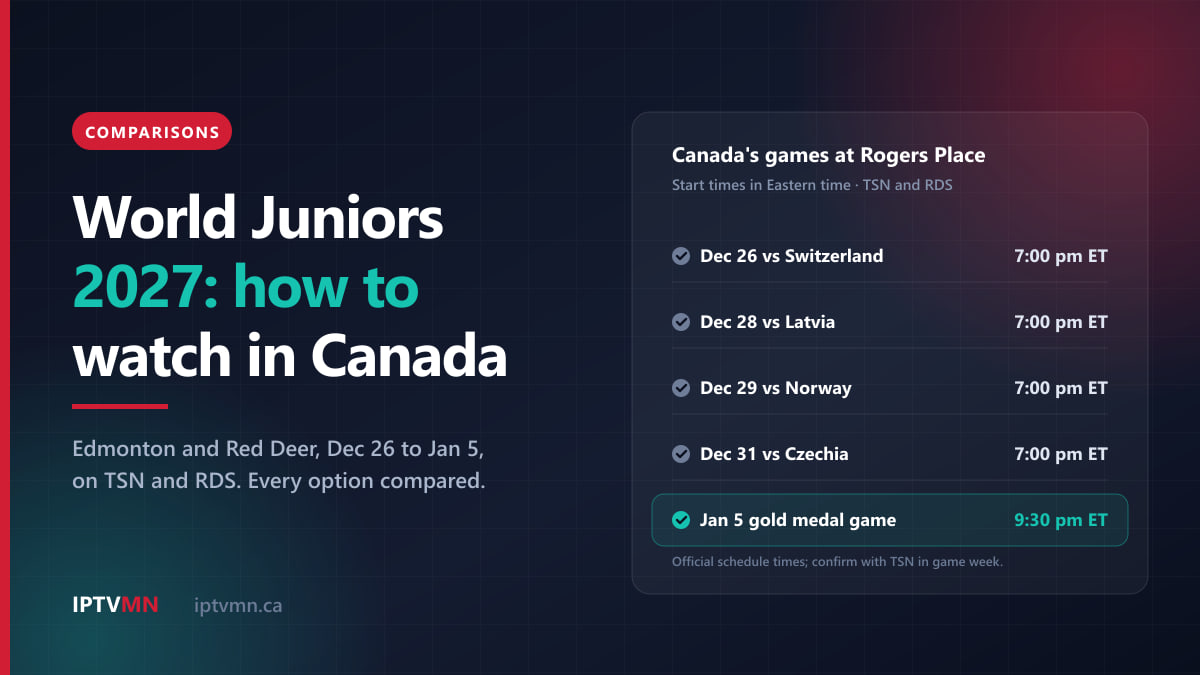
Canada's 2027 World Juniors schedule in Edmonton, start times for every province, and every way to watch on TSN, its app, RDS or IPTV, compared on cost.
Read the guide
Comparisons 17 min read
How to Get the Best Picture From IPTV on Your TV: The Settings That Matter (2026)
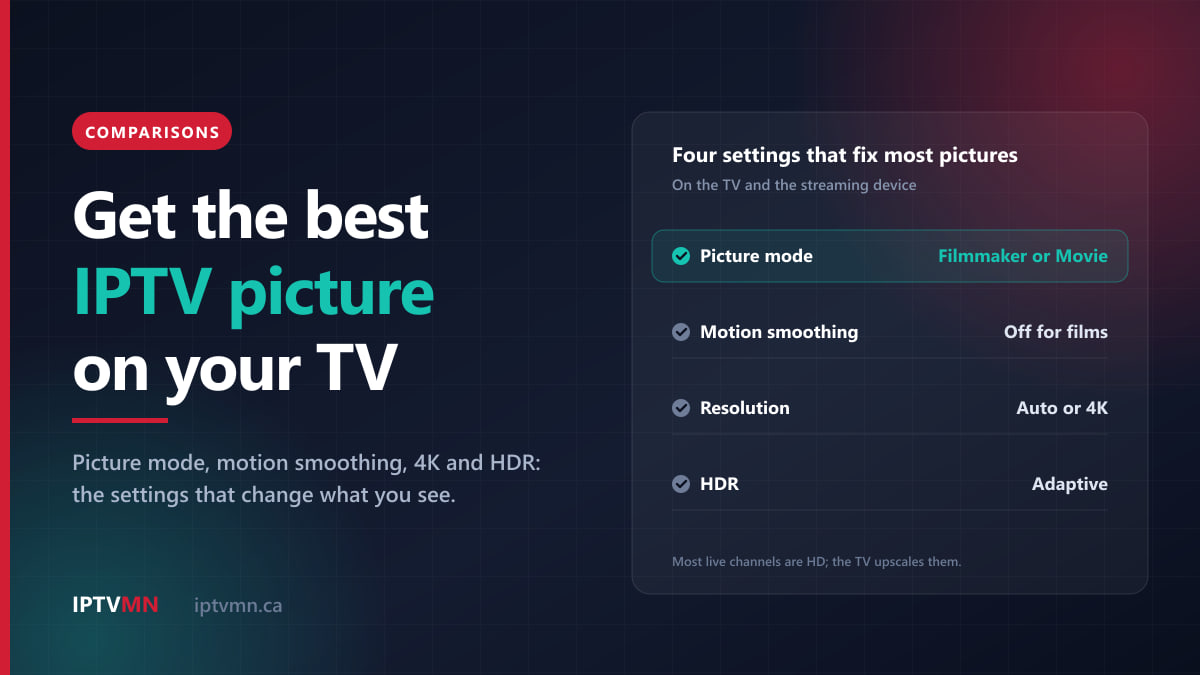
Better IPTV picture quality in minutes: the right picture mode, motion smoothing, 4K and HDR settings on Samsung, LG, Fire TV and Apple TV, explained plainly.
Read the guide