Comparisons
IPTV for Seniors: The Simplest Setup for Parents and Grandparents in 2026
IPTV for seniors works best with one remote, a short channel list and nothing to type. We compare the simplest setups and how family can help from afar.
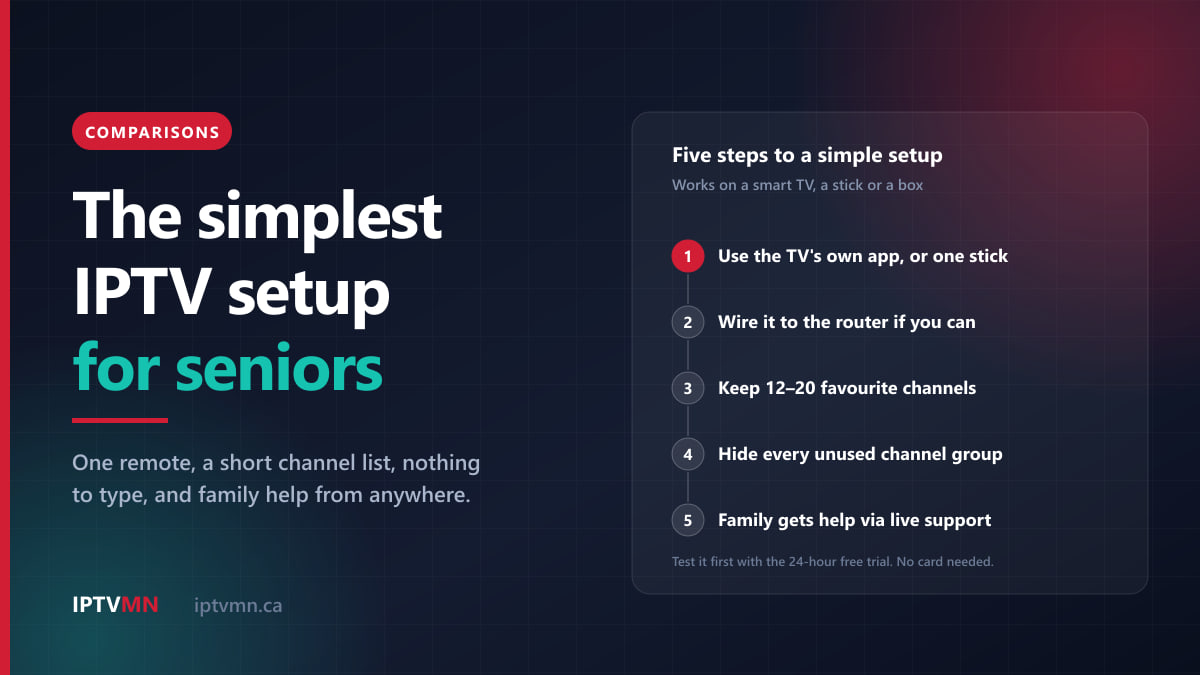
The simplest IPTV setup for seniors has three parts: one remote, a short list of their own channels, and nothing to type. For most parents and grandparents in Canada, that means a player app installed directly on a Samsung or LG smart TV from 2018 or later, or one well-chosen device on an older set, with the channel list trimmed to the 12 to 20 channels they actually watch. Someone in the family does the setup once. After that, watching TV is power on, open favourites, pick a channel.
The other half of the answer is help. With IPTV MN, a son, daughter or grandchild can message live support from another city with a photo of the screen, and on many smart TVs the team loads the subscription for you, so nobody types a password with the remote. This guide compares the setups, shows how to make each one easier, and is honest about the homes where IPTV is not the right fit.
The short answer
- Easiest of all: a Samsung or LG smart TV from 2018 onwards, or a Hisense or Toshiba set on VIDAA. The player comes from the TV’s own store, live support loads the login onto it, and there is only one remote.
- Older or non-smart TV: add one device, a Google TV device or a Fire TV Stick 4K Max, and let the TV’s own remote control it. Skip the Fire TV Sticks that run Vega OS, which cannot install the app.
- Trim the lineup to 12 to 20 favourite channels, and hide every channel group your parent never uses.
- Use a cable if the router is close. It removes the most common cause of a frozen picture.
- Plan help from a distance. Family can message live support on a parent’s behalf, and renewals are paid by Interac e-Transfer from anyone’s bank app, with no auto-renewal.
- Test first with the 24-hour free trial on the parent’s own TV and internet.
What makes an IPTV setup simple for an older viewer?
Most frustration with television, at any age, comes from a handful of moments: a second remote, an input switched by accident, a menu with too many choices, a login screen that appears out of nowhere. A simple setup removes as many of them as it can. Five things matter more than the brand of the device:
- One remote. Every extra remote is another chance to press the wrong button.
- No input switching. If the player lives on the television, there is no “HDMI 2” to find. If it lives on a stick, the TV can switch to it automatically.
- Nothing to type. Entering a server address and password with arrow keys is the hardest part of IPTV for anyone. On Samsung, LG and VIDAA televisions, live support loads the login instead.
- A short channel list. IPTV MN carries more than 54,000 live channels. That breadth helps when choosing and gets in the way when scrolling. A favourites list shrinks it to one or two screens.
- Help that can see what they see. When something goes wrong, the person helping needs a photo of the screen, not a description of it.
4K and a library of 195,000+ movies and 45,000+ shows are pleasant extras, but for a parent or grandparent, the setup that gets used every evening is the one with the fewest surprises.
Which IPTV setup is simplest? The options compared
The setups covered by our installation guides, roughly from simplest to most involved, with set-up times from each guide:
| Setup | Remotes in daily use | Typing on the TV | Set-up time | Watch out for |
|---|---|---|---|---|
| Samsung smart TV, 2018 or newer | One | None: live support loads the device key | About 6 min | Some apps charge their developer’s activation fee after a trial |
| LG smart TV, 2018 or newer | One | None: live support loads the device key | About 6 min | The Magic Remote’s pointer takes a little practice |
| Hisense or Toshiba on VIDAA | One | None: live support loads the device key | About 6 min | A small app store |
| Google TV or Android TV set | One | The login, once | About 4 min | Slower menus on budget sets |
| Older TV plus a Google TV Streamer | One, if the TV remote controls it | The login, once | About 4 min | One more box behind the TV |
| Older TV plus a Fire TV Stick 4K Max | One, if the TV remote controls it | The login, once | About 5 min | Buying a Vega OS stick by mistake |
| Formuler box | Two, unless the TV remote controls it | The login, once | About 3 min | Costs more than a stick |
| Apple TV 4K | One small remote | The login, once | About 4 min | A small remote with a touch-sensitive clickpad |
The no-box route: the TV’s own app
For a parent with a reasonably recent Samsung, LG or VIDAA television, this is the setup to try first. There is no extra box, no extra plug and no input to switch. The Samsung smart TV guide uses IBO Player or Smarters Player Lite, the LG smart TV guide uses IPTV Smarters Pro, and the VIDAA TV guide covers Hisense and Toshiba sets with IBO Player Pro.
The device key is what makes it ideal for seniors. When the player first opens, it shows a MAC address and a device key on screen. Someone photographs that screen and sends it to live support, and the team loads the subscription onto that key, usually within a few minutes. Close the app, open it again, and the channels and guide are there. The photo can come from your parent’s phone, or from a screenshot of a video call.
The honest limits: Samsung sets from before 2018 and LG sets from 2017 and earlier are better served by a device in the HDMI port, and television software ages faster than the screen. Our guide to IPTV on a smart TV without a box goes through it brand by brand.
One device for an older television
If the television is older, not smart, or its apps have stopped updating, add one device and make it the only thing your parent uses.
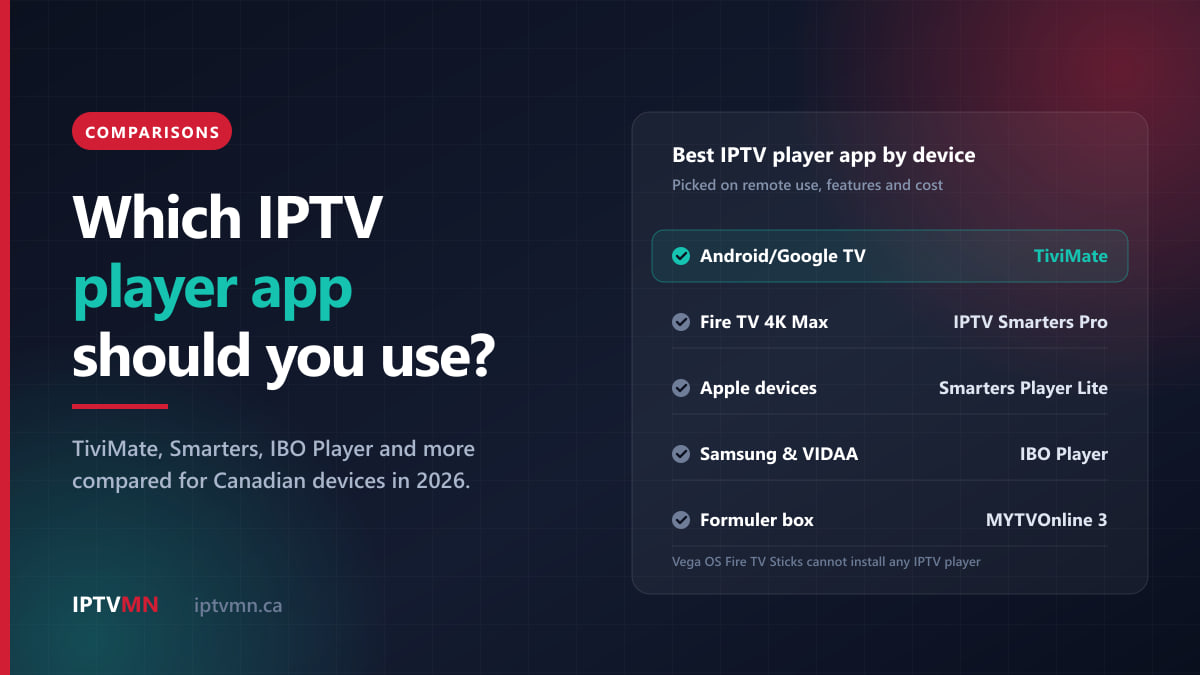
- Google TV or Android TV. The simplest add-on install, because the player comes from the Google Play Store. The Android TV and Google TV guide installs TiviMate, whose free version covers live TV and the full guide. For a set that is not smart, the Google TV Streamer adds the Play Store and an Ethernet port.
- Fire TV Stick 4K Max. A good choice with one serious trap. Amazon’s newest sticks, the third-generation Fire TV Stick 4K, the 4K Select and the second-generation Fire TV Stick HD, run Vega OS and cannot install any IPTV player. The 4K Max still runs Fire OS and follows the Fire TV Stick setup guide. If you buy one as a gift, make sure the box says 4K Max. Our comparison of the best device for IPTV explains how to check a stick your parent already owns.
- Formuler box. Built for IPTV, with the MYTVOnline 3 player pre-installed and a blue MyMenu button that opens favourites and catch-up while a channel plays. The Formuler guide takes about three minutes.
- Apple TV 4K. Smarters Player Lite comes from the App Store, and the Apple TV guide takes about four minutes. It suits a parent who already uses an iPhone, which can act as a remote and keyboard. The Siri Remote is small, though, and its touch-sensitive clickpad can catch out someone who rests a thumb on it.
How do I set up IPTV for a parent who is not comfortable with technology?
Treat it as a small project in three stages. It takes an afternoon, cup of tea included.
Before the visit
- Identify the television. Brand, rough age, and whether it has an app store. A photo of the label on the back, or of the About screen in its settings, is enough.
- Check the internet. Run a speed test on the TV, or on a phone held next to it, at around 7 pm. One HD screen needs roughly 8 to 12 Mbps and Full HD 15 to 20 Mbps, and steadiness matters more than the headline figure. The guide to how much internet speed IPTV needs covers data caps and Wi-Fi.
- Request the trial. Message live support and say which device the TV uses. Trial details arrive within minutes, and no card details are asked for.
On the day
- Install the player using the guide for that device. On Samsung, LG and VIDAA, send live support the device key instead of typing anything.
- Wire it if you can. If the router is in the same room, an Ethernet cable beats any setting. If not, use the 5 GHz Wi-Fi band rather than 2.4 GHz.
- Make the TV remote do the work. Turn on HDMI-CEC in the TV’s settings: Samsung calls it Anynet+ and LG calls it SimpLink. On a Fire TV Stick, also check Settings, then Display & Sounds, then HDMI CEC Device Control. When it works, the stick wakes with the TV, the TV switches to the right input, and the TV remote’s arrows, OK and Back buttons steer the player.
- Put the player first. On Fire TV and Google TV, move the player app to the front of the home screen.
- Set the picture once. Standard picture mode rather than Vivid, motion smoothing low (Auto Motion Plus on a Samsung), and energy saving off if the picture looks dim.
Before you leave
- Hand over the remote and watch. Let your parent turn the TV on, open favourites, change channel and open the guide. Twenty minutes of practice beats any instruction sheet.
- Leave a one-page note by the TV, in large print: how to turn it on, how to find favourites, and what to do if the picture freezes (press Back and reopen the channel; if that fails, turn the TV off and on).
- Keep the welcome email yourself. It holds the login details and the backup server address, so you never have to ask your parent to search their inbox.
How do I make the channel list short enough to use?
Favourites are the single biggest improvement you can make for an older viewer. With 54,000+ channels in the lineup, a few presses of the channel-up button can land in a language your parent does not speak.
Build the list together. Ask which channels they actually watch, and add those and nothing else. In TiviMate, hold the OK button on a channel to add it; most other players use a long press, a star or a heart. In most players, once the favourites group is open, channel up and down move only through it.
Keep it to 12 to 20 channels, with the most-watched at the top. That fits on one or two screens of the guide.
Hide every group they never use. Channels are sorted into groups by province, category and country. In TiviMate, open Settings, then Playlists, then Channel groups. The guide loads faster as a bonus.
Remember it is saved per device. Favourites live inside each app on each television, not on the account, so a new TV or a reinstalled app starts empty. Photograph the finished list for next time.
Here are starting points built from the IPTV MN channel list:
| Viewer | A favourites list that fits on one or two screens |
|---|---|
| English news and lifestyle | The local CBC, CTV or Global station, CBC News Network, CTV News Channel, CPAC, HGTV Canada, Food Network Canada, History Canada, Cottage Life |
| French-language | ICI Radio-Canada, TVA, Noovo, LCN, RDI, RDS, TVA Sports, Super Écran |
| Sports fan | The five TSN feeds, the local Sportsnet regional feed, Sportsnet One, NHL Network |
| South Asian languages | Zee TV, Star Plus, Sony TV, Colors TV, PTC Punjabi, Willow Cricket |
| Other home countries | TFC Filipino, RAI Italia, TVP Polska, TVE España, CCTV 4 |
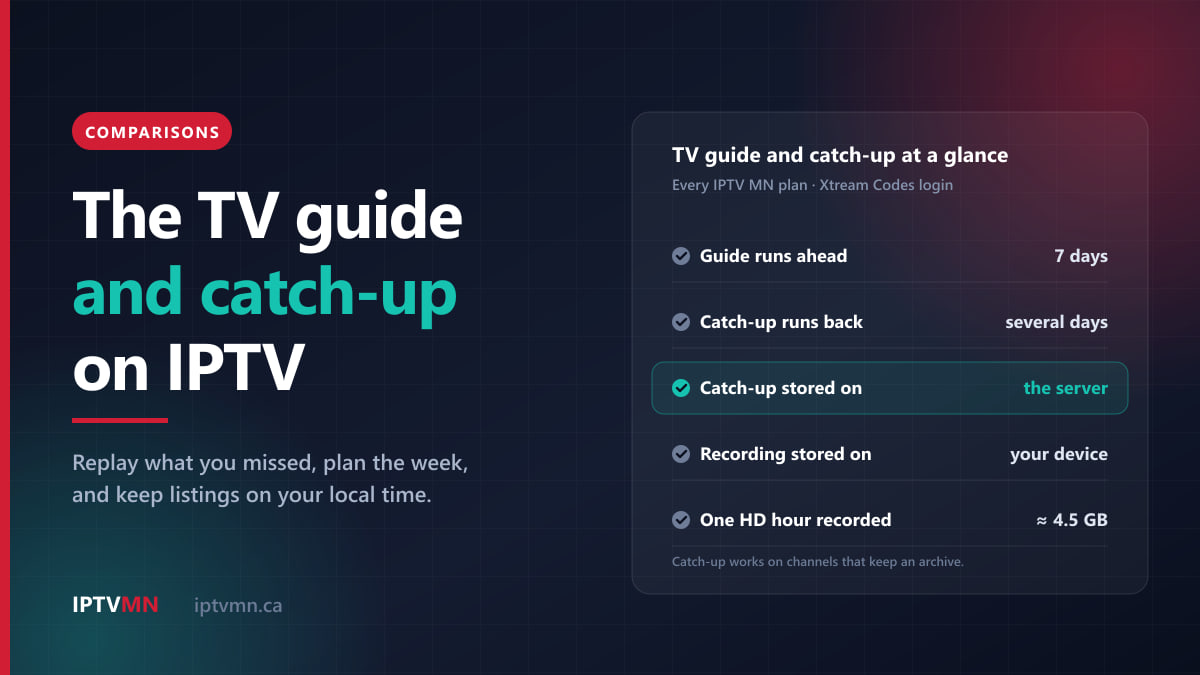
Once the basics feel comfortable, show your parent catch-up: on channels that keep an archive, which covers most major ones, they can go back in the guide to the six o’clock news they missed. The article on using the TV guide and catch-up explains how.
Can a senior use just the TV’s own remote?
Often, yes. On a smart TV with the player built in, there is only one remote to begin with.
With a stick or box, HDMI-CEC is the key. Once it is on, the TV remote’s arrow, OK and Back presses pass through to the device. Not every button passes through on every TV, and Home or Menu are the usual gaps, so test it during the trial before you put the other remote in a drawer.
The Fire TV Stick 4K Max remote can control the TV’s power and volume as well, so on some setups it becomes the single remote instead. Keep whichever your parent finds easier to hold and read.
Big-button remotes sold for seniors can help, but check the packaging first. Many streaming devices use Bluetooth remotes, which a basic infrared remote cannot talk to. A simple infrared remote for the TV, with HDMI-CEC passing its presses on to the stick, is often the most reliable combination.
A small trick that works: a dot of coloured tape on the three buttons that matter most, usually power, OK and Back.
How do you make the picture, text and sound easier?
Samsung, LG, Google TV, Fire TV and Apple TV all have an Accessibility menu in their settings, with options such as high-contrast text, a screen magnifier or zoom, and a screen reader. These change the device’s own menus. Player apps draw their own screens, so a larger system font may not enlarge the guide. During the trial, sit where your parent sits and check the guide is readable from there.
Captions. Closed captions depend on the channel and the player app. Some channels carry them and some do not, and not every player displays them. If your parent relies on captions, check their favourite channels with captions on during the trial, before paying for anything.
Sound. Channels from different broadcasters are not always mixed at the same loudness, so volume can jump between channels. Many televisions and soundbars have an automatic volume-levelling setting, and many have a dialogue or voice-enhancement mode that lifts speech above music. Both are worth trying.
How can family help from another city?
For a family spread across the country, almost nothing has to be done in person.
Live support works on your parent’s behalf. Live support runs 24 hours a day, seven days a week, and a person replies in minutes. You can message from your phone in Toronto about a television in Victoria, send a photo of the screen, and the team tells you the next press. You can also email help@supportiptv.ca.
A video call is your eyes. With whatever video-call app the family already uses, your parent points the phone at the TV and you see what they see. On a device-key television, a screenshot from that call is all live support needs.
Renewals do not depend on your parent. Plans never renew automatically. When the plan nears its end, whoever pays chooses the next one and sends the Interac e-Transfer from their own bank app, so your parent never handles payment.
Watch for the clock change. On Sunday, November 1, 2026, clocks fall back in Ontario, Quebec, Atlantic Canada and Newfoundland and Labrador, but no longer in British Columbia, Alberta, the Northwest Territories or Manitoba. An older device that has stopped getting updates may fall back anyway, putting the guide an hour out. A quick check on November 2 saves a confusing week, and the TV guide and catch-up article has the fix.
How do you keep a parent safe from scams and surprise charges?
Older Canadians are a favourite target for fraud. A few facts about how IPTV MN works make the genuine service easy to recognise:
- Payment is Interac e-Transfer only. No card number is ever asked for, seen or stored. The checkout page names the recipient: ITLOGY LLC.
- Nothing renews by itself. With no auto-renewal and no stored payment, a message saying an “automatic renewal failed” and asking for card details is not from IPTV MN.
- Help comes through live chat and email. IPTV MN does not offer support by telephone, so treat an unexpected call claiming to be your parent’s TV provider with suspicion, especially one asking for payment or remote access to a computer.
- No boxes from strangers. Unbranded Android boxes sold as “fully loaded” are a security risk on a home network; the best device comparison lists the warning signs.
Agree one rule with your parent: no TV company needs their banking password, a gift card or control of their computer, and if something feels wrong, they ring you first. The Canadian Anti-Fraud Centre publishes current scams and takes reports.
Is it legal? Parents often ask. The technology is legal; it is the same technology Bell and Rogers use for Fibe TV and Ignite TV. What matters is the licensing of the content a service carries. IPTV MN supplies network access and reseller services and does not host, record or broadcast any media, and subscribers are responsible for making sure their own use complies with the Copyright Act and the Broadcasting Act. The full position is in our disclaimer, and what is IPTV explains the technology.
Which plan suits a parent or grandparent?
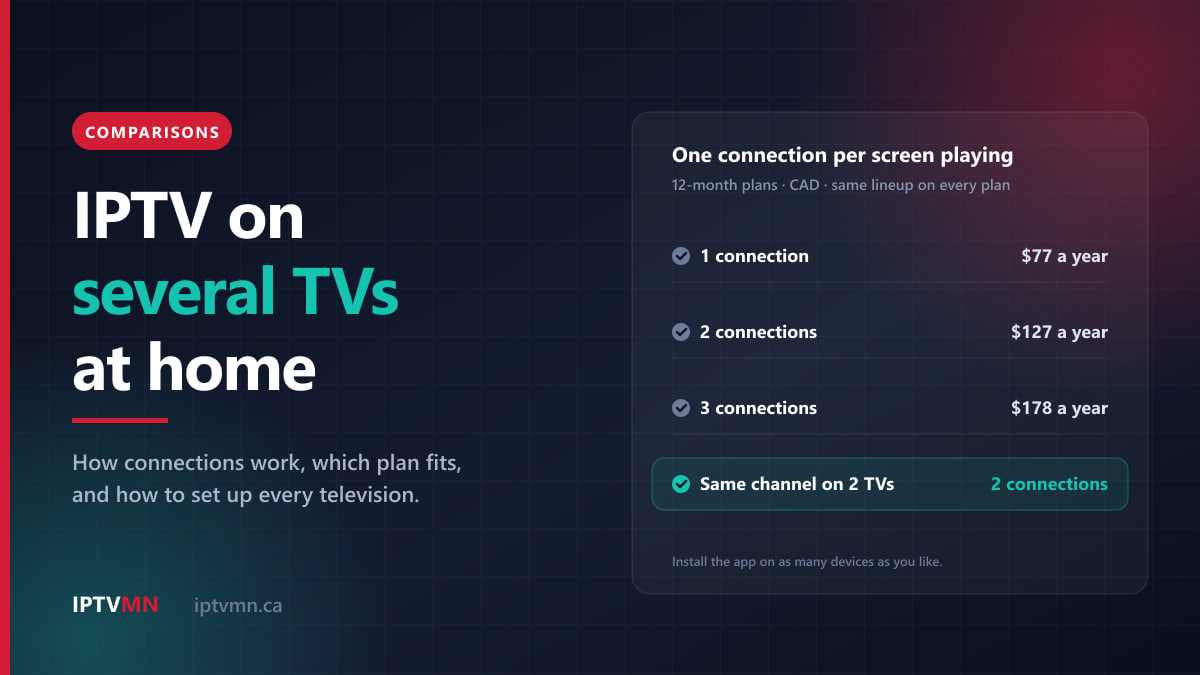
Every plan includes the same channels, library, guide and catch-up. You choose only the length and the number of connections. A connection is one screen watching at a time, and the app can be installed on as many devices as you like.
| Plan length | 1 connection | 2 connections |
|---|---|---|
| 1 month | $17 | $27 |
| 3 months | $27 | $47 |
| 6 months | $47 | $87 |
| 12 months | $77 ($6.42 a month) | $127 ($10.58 a month) |
- One TV, or two TVs never on at the same time: one connection.
- A couple who watch separately, say hockey in the den and a film in the bedroom: two connections.
- Just starting: a one- or three-month plan after the trial confirms the setup suits your parent before you commit to a year.
The full grid, including three connections, is on the pricing page. If the service does not work properly on your parent’s setup and cannot be fixed, the refund policy gives seven days from purchase to ask for your money back.
Who is IPTV not the right choice for?
For some older viewers, the honest answer is to leave things as they are.
- Homes without steady internet. Below roughly 15 Mbps no streaming service works well, and a connection that keeps dropping is worse than a slow one. Homes with no broadband at all are better served by satellite.
- Shared Wi-Fi in a residence or apartment building. Building-wide networks, including those in many retirement residences, can slow down sharply in the evening. Test at 7 pm before anyone pays.
- Viewers who need captions on everything, unless the trial shows their channels have them.
- Someone happy with what they have. If your parent is content with their cable box and any change would cause real stress, the savings may not be worth it. A switch should make their evenings easier, not just cheaper.
- Nobody to do the first setup. Live support will walk through it step by step, but someone has to hold the remote or the phone camera.
Four Canadian households, four simple setups
These are typical situations rather than customer stories, but each shows how the pieces fit together.
A retired teacher in Victoria with a 2020 LG. She watches CHEK, CBC Vancouver and Canucks games on Sportsnet Pacific. Her son in Toronto talks her through installing IPTV Smarters Pro over a video call and sends a screenshot of the device key to live support. Eleven favourites, one remote. See IPTV in Victoria.
A couple in Quebec City with a 2016 Samsung. The TV is older than 2018, so their granddaughter adds a Google TV Streamer, turns on Anynet+, and builds a French-only favourites list: ICI Radio-Canada, TVA, Noovo, LCN, RDI, RDS and TVA Sports. The Samsung remote still does everything. See IPTV in Quebec City.
A grandmother in Winnipeg who lives alone. Her 2019 Samsung runs IBO Player, set up through the device key. Her son in Ottawa pays for the plan by Interac e-Transfer, and on November 2 he checks the guide over a video call, because Manitoba no longer falls back and her TV may not have the new rules. See IPTV in Winnipeg.
A retired couple in St. John’s who watch in two rooms. He wants NTV and hockey in the living room; she watches HGTV Canada and Food Network Canada in the kitchen. A Formuler box wired to the router, a Fire TV Stick 4K Max on the kitchen TV, and a two-connection plan at $127 for the year let both screens play at once. See IPTV in St. John’s.
Frequently asked questions
What is the easiest IPTV device for a senior?
Often no device at all. A Samsung or LG smart TV from 2018 onwards, or a VIDAA set, runs the player app itself, and live support loads the login from a photo of the device key, so nothing is typed. For older televisions, a Google TV device or a Fire TV Stick 4K Max controlled by the TV’s own remote is the next simplest.
Can my parent use IPTV with only one remote?
Usually, yes. On a smart TV with the app installed, there is only one remote. With a stick or box, turn on HDMI-CEC (Anynet+ on Samsung, SimpLink on LG) so the TV remote’s arrows, OK and Back buttons control the device, and test it during the trial, because a few buttons may not pass through.
Can I set up IPTV for my parents from another city?
Yes, in most cases. Over a video call you can talk your parent through installing the player, then send a photo of the TV’s device key to live support, who load the subscription onto it. Renewals can be paid by Interac e-Transfer from your own bank app, and nothing renews automatically.
Does IPTV have closed captions?
It depends on the channel and the player app. Some channels carry captions and some do not, and not every player displays them. If your parent relies on captions, check their favourite channels during the free trial before paying for a plan.
What should my parent do if the picture freezes?
Press Back, then open the channel again. If every channel freezes, turn the TV or device off and on. If that does not fix it, send live support a photo of the screen; a frozen picture is usually the Wi-Fi or the internet connection, and a cable to the router prevents most of it.
The bottom line
The best IPTV setup for a parent or grandparent is one they never have to think about: one remote, their own short list of channels, and a family member and a support team who can see the screen when something changes. On a recent Samsung, LG or VIDAA television, that means no box at all. On an older set, it means one Google TV device or Fire TV Stick 4K Max, steered by the TV’s own remote.
Start with the free 24-hour trial on your parent’s own television and internet, and spend an evening watching together. If it suits them, choose a plan on the pricing page and pay by Interac e-Transfer; the login arrives by email, usually within ten minutes. The installation guides cover every device, and our page on the best IPTV in Canada sets out what to expect from any provider, including us.
Written by the IPTV MN team
We run the servers in Toronto and Montreal and answer the support messages. Everything here comes from what we see on the network and what Canadian members actually ask us. Something unclear or out of date? Tell us and we will fix it.
Keep reading
Comparisons 17 min read
How to Use the TV Guide and Catch-Up TV on IPTV in Canada (2026)
Use IPTV catch-up TV to replay missed shows, compare it with recording, and keep the guide right as western provinces stop changing clocks.
Read the guide
Comparisons 17 min read
How to Watch IPTV on Several TVs at Home: Connections, Plans and Setup
Watching IPTV on multiple TVs comes down to connections. How 1, 2 and 3-connection plans work, which your home needs, and how to set up each TV.
Read the guide
Comparisons 17 min read
The Best IPTV Player Apps Compared: Which One Suits Your Device in 2026
The best IPTV player app depends on your device. We compare TiviMate, IPTV Smarters, IBO Player and others on guide, catch-up, multi-view and cost.
Read the guide